
Multiple desktops, called Spaces in macOS, help separate work without closing windows. You might keep a browser and notes on one desktop, then move a chat or project window to another. The exact Mission Control gestures can vary with your Mac, trackpad settings and macOS release, but Apple’s built-in Mission Control provides a reliable way to move a window.
Move a window with Mission Control
- Switch to the desktop that contains the window.
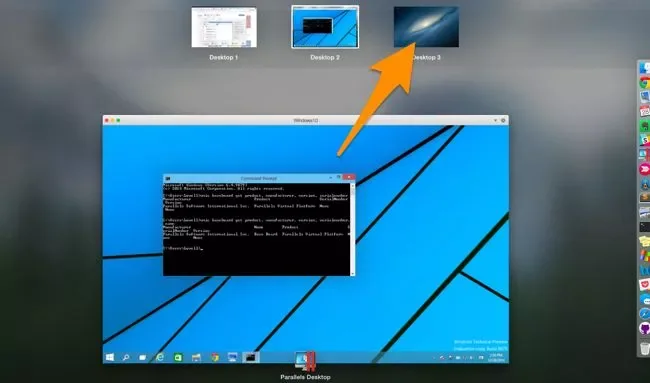
- Open Mission Control. On many Macs, press Control–Up Arrow or swipe up with three or four fingers on the trackpad. Keyboard shortcuts and gestures can be changed in System Settings.
- Find the window in the overview. The Spaces bar appears along the top when you have multiple desktops or full-screen apps.
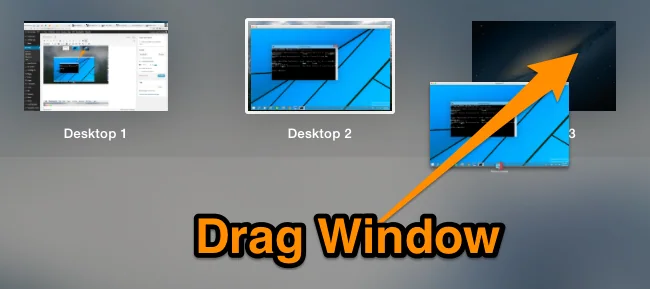
- Drag the window thumbnail to the desktop you want in the Spaces bar, then select that desktop.
You can also drag a window to the edge of the screen and pause until the next Space appears. If you use a full-screen app, dragging a window onto its thumbnail can start Split View instead of placing it on an ordinary desktop.
Create or switch desktops
To add a desktop, open Mission Control, move the pointer to the top edge if needed, then choose the Add Desktop control in the Spaces bar. Switch between Spaces with Control–Left Arrow or Control–Right Arrow, or use the configured trackpad gesture. If switching to an app unexpectedly takes you to another desktop, check Desktop & Dock settings for the option that automatically switches to a Space with open windows for that app.
If the window will not move
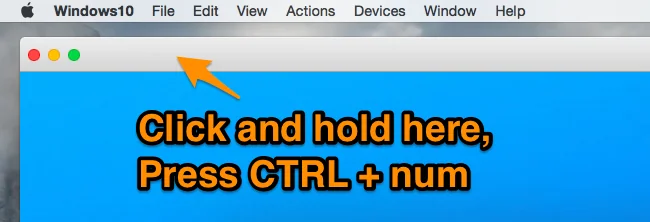
Some apps are assigned to a particular desktop. Control-click the app in the Dock and inspect Options → Assign To; an app assigned to All Desktops appears in each Space. Full-screen apps also occupy their own Space. Keep in mind that changing a window’s Space does not move its files or change where the app saves documents.
Apple’s guide covers current Space controls and notes that gestures and shortcuts can be configured: Work in multiple spaces on Mac.

