
Too many alerts can make important messages easy to miss. iPhone and iPad let you choose which apps can notify you, where alerts appear, whether they make a sound and when previews show. You can adjust one app at a time, so essential alerts remain available while less useful interruptions are reduced.
Change settings for one app
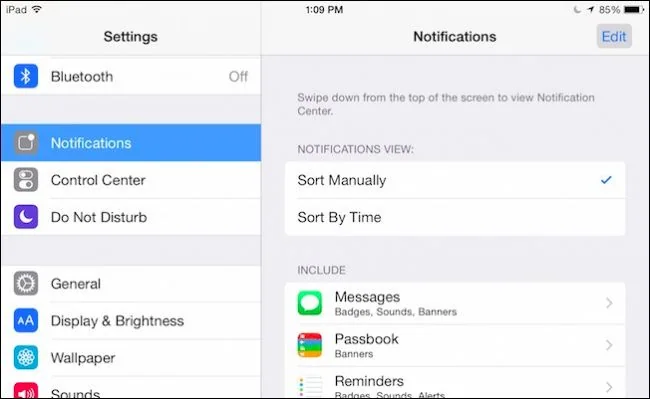
Open Settings and tap Notifications. Select an app under the notification style list. Turn Allow Notifications off to silence it completely, or keep alerts on and choose whether they appear on the Lock Screen, in Notification Center or as banners. If the app supports them, you can adjust sounds and badges as well. Some apps provide additional alert categories or link to their own notification settings from this page.

Choose how alerts appear
In the main Notifications settings, choose a Lock Screen layout such as Count, Stack or List where available. To reduce the chance that private message text appears while the device is locked, open Show Previews and choose When Unlocked or Never. You can also change the preview behavior for an individual app if you want calendar or delivery details visible but message contents hidden.

Reduce interruptions without missing everything
Scheduled Summary groups notifications from selected apps for delivery at times you choose. In Settings, open Notifications, then Scheduled Summary, enable it and select apps and delivery times. Time-sensitive or urgent notifications may behave differently depending on app support and Focus settings. For quiet periods, configure a Focus mode and decide which people or apps may still alert you. These features are optional; you can keep immediate delivery for calls, security alerts or other notifications you depend on.
Adjust an alert as it arrives
When an alert appears on the Lock Screen, swipe left and choose Options or View Settings to manage or mute that app. If you stop receiving an expected alert, check both the app’s notification permission and any active Focus schedule. Also check that the app itself is signed in and allowed to refresh.

Settings names and available options can differ with software version and app support. Review the notification screen for each app rather than assuming one global switch controls every type of alert.

References: Apple: change notification settings and Apple: use notifications on iPhone or iPad.

