
If your Mac can start from more than one supported system or disk, you can choose which volume it uses by default. This is useful for supported multi-boot setups or when starting from an external system disk. The steps differ from older OS X tutorials, and Apple silicon Macs use a different startup-options process from Intel Macs.
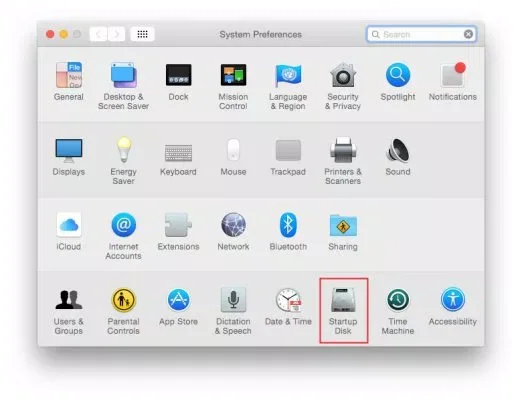
Set a default in macOS
- Open the Apple menu and choose System Settings.
- Select General in the sidebar, then choose Startup Disk. You may need to scroll.
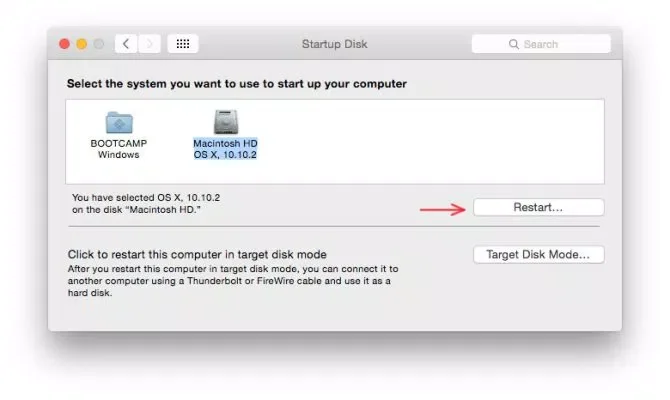
- Select the disk or operating system you want to use by default.
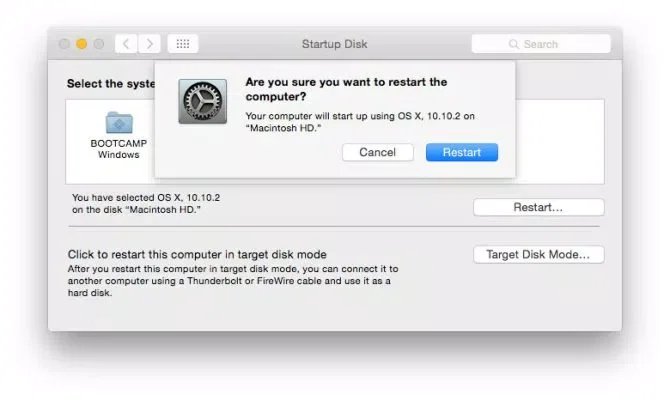
- Choose Restart and confirm if prompted.
On older macOS releases the equivalent controls may appear in System Preferences instead of System Settings. If a disk does not appear, check that it is connected and contains a startup system compatible with your Mac. Some external or network startup options can be restricted by security settings.
Choose a disk for one startup
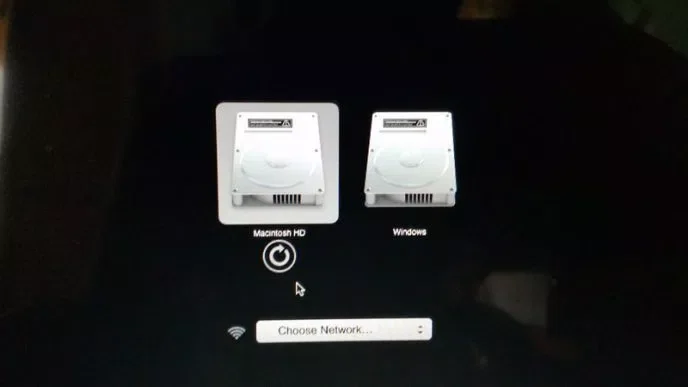
To select a different disk for only the next boot, use startup options. On an Apple silicon Mac, shut down, then press and hold the power button until the startup options screen appears. Select the available disk and continue. On an Intel Mac, restart and immediately hold the Option key until Startup Manager appears, then choose a disk. A selection made from the one-time startup menu does not necessarily change your normal default in the same way as Startup Disk settings.
For an Intel Mac with Boot Camp
If Windows was installed on an Intel Mac using Boot Camp, you can choose macOS or Windows as the default startup system from macOS Startup Disk settings or Boot Camp Control Panel in Windows. Apple’s Boot Camp guide notes that the Startup Manager can also be used to select a system for startup. These instructions apply to supported Intel Macs; Apple silicon Macs do not support Boot Camp installation of Windows.
If the Mac refuses to start from a disk
Apple notes that Macs with the T2 Security Chip may require a change to Startup Security Utility before using certain startup disks. Apple silicon has its own security policy settings. Do not lower startup security simply to try an unfamiliar drive; make changes only when you understand why the disk is trusted. A network install image can reinstall system software and may erase a disk, so verify that you have selected a startup volume rather than an installer.
Because model and macOS version affect the menus, consult Apple’s current Change your Mac startup disk guide before changing security settings or using an external system.
Related reading: 3 Tools to Make Your Mac’s Hardware Work Better in Windows with Boot Camp.

