
Boot Camp lets supported Intel-based Macs run Windows, but old third-party “tuning” utilities are not a safe default for improving battery life, trackpad behavior or keyboard support. Apple’s current guidance is to install the Windows support software (drivers) supplied through Boot Camp Assistant. These drivers provide Mac-specific support such as audio, keyboard, trackpad, camera and display controls. A guide written for a particular Mac and Windows release should not be applied blindly to another model.

Start with Apple’s drivers
In macOS, open Boot Camp Assistant and use its Action menu to download Windows support software when that option is available for the Mac. Follow Apple’s instructions for the exact model, prepare the required external storage if prompted, then install the support software in Windows using the Boot Camp or WindowsSupport installer. Restart when requested. If Windows is already installed and hardware features are missing, use Apple’s documented repair or reinstall process instead of downloading a driver bundle from an unknown site.
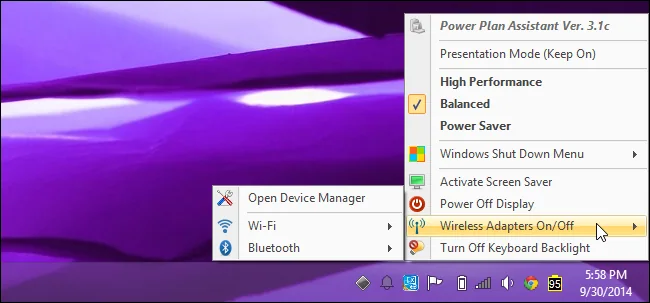
Check model and Windows compatibility
Boot Camp is for Intel-based Macs; Apple silicon Macs use a different approach to running Windows and do not follow the same Boot Camp installation path. Verify the Mac model, supported Windows version, free storage and current Apple guidance before partitioning a disk. Back up important files before changing partitions or reinstalling drivers. Do not interrupt an installation while drivers are being applied, and do not remove Apple services simply because they run in the background.
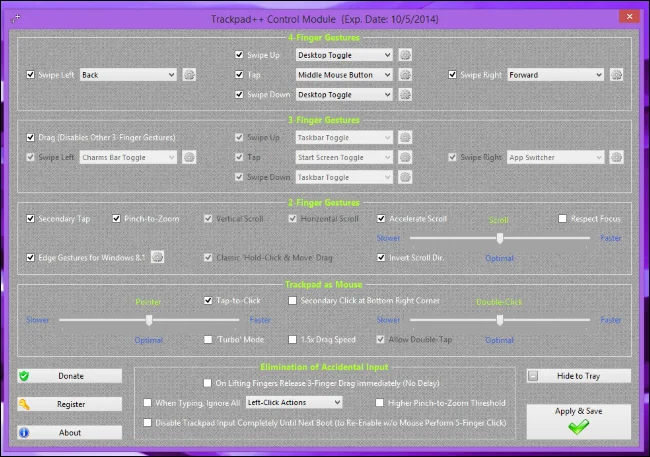
Improve responsiveness safely
Install Windows updates and Apple support software first, then check Task Manager for applications using excessive CPU or memory. Adjust Windows power mode for the workload, reduce unnecessary startup applications and keep sufficient free disk space. Battery capacity naturally declines with age; a utility cannot reverse that wear. Trackpad gestures and function keys may differ from macOS, so use Apple’s supported Boot Camp control panel and keyboard mappings. Avoid “driver updater” programs that promise universal fixes or bundle unrelated software.
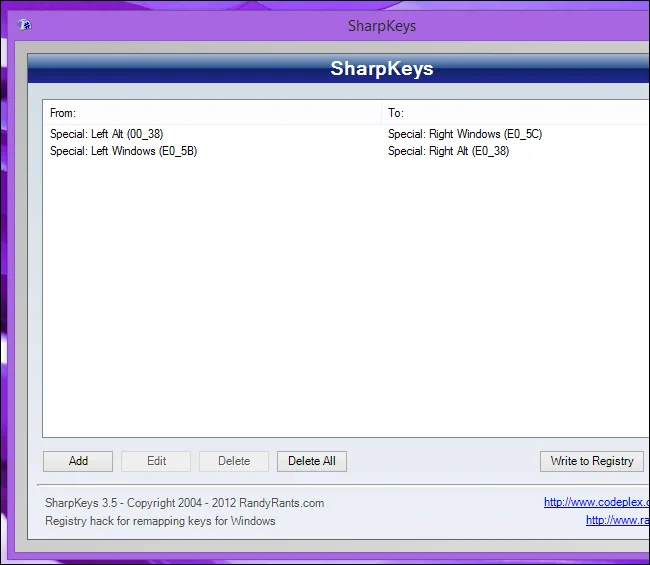
When something still fails
Record the Mac model identifier, Windows version and the missing component before troubleshooting. Test with a USB mouse or keyboard if needed, check Device Manager for driver errors, and reinstall only the relevant Apple-provided support package. If a third-party driver is essential, verify its publisher, model range and uninstall procedure, and create a recovery plan before installing it. Apple’s official Boot Camp support documentation is the source of truth for driver downloads and supported hardware; old utilities mentioned in legacy reviews may no longer be maintained or trustworthy.
Related reading: Improving Windows on an Intel Mac: Start With Boot Camp Drivers.

