
Microsoft SwiftKey learns words and phrases to improve its predictions. That can make typing more convenient, but it also raises a reasonable question: what is learned, where is it stored, and how can you stop learning for a particular conversation? Microsoft’s current documentation distinguishes on-device personalization from optional account features such as Backup & Sync and product-improvement sharing. Review the app’s settings and the current privacy pages before deciding what to enable.
Use Incognito mode when you do not want the keyboard to learn
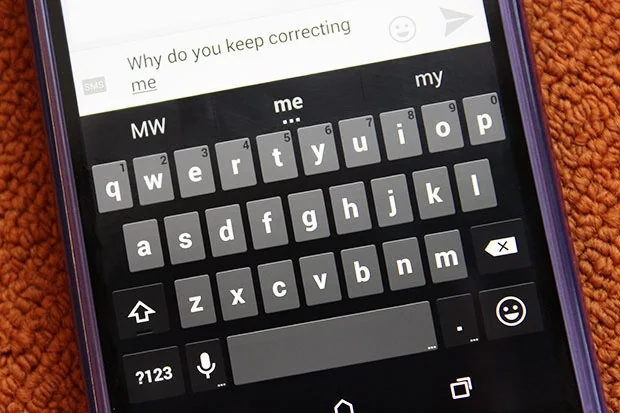
SwiftKey provides an Incognito mode that switches learning off while you type. Microsoft’s instructions say to open a messaging or SMS app, tap a text field, open the keyboard toolbar’s three-dot menu, and choose Incognito. The keyboard changes appearance while the mode is active. Tap the menu and select Incognito again to turn it off. SwiftKey may also switch automatically when it detects a private browsing session or a field marked as private by an app. Because detection depends on the app and field, do not assume every sensitive form will trigger it; enable Incognito manually when appropriate.
Understand optional sync and cloud storage
Microsoft says that, by default, SwiftKey’s learned typing data stays on the device. If you sign in and enable Backup & Sync, personalized language data can be transferred so predictions can follow you across devices. Microsoft’s current support page describes a rollout that stores personalized typing data in the user’s OneDrive folder, where it can be viewed or deleted. Account and storage details have evolved over time, so check the latest SwiftKey screen rather than relying on older screenshots that mention a retired account flow.
Review product-improvement sharing
SwiftKey has a separate setting that asks whether you want to help Microsoft improve the product. Microsoft explains that opting in can share anonymized snippets of typing and keypress information, while account sync is a distinct feature. You can change the product-improvement choice in SwiftKey’s Privacy settings. Read the current explanation in the app and choose based on your comfort; declining optional sharing does not prevent normal keyboard use.
Limit exposure on sensitive accounts
Use Incognito for passwords, financial details, health information, and private conversations when you do not want words added to the keyboard’s learned vocabulary. Remember that keyboard controls do not prevent the app where you type from collecting or storing what you submit. For highly sensitive information, use the app’s own privacy protections, secure your Microsoft account with strong authentication, and disable sync if you do not want personalization data stored across devices.
SwiftKey features and data-handling details can change. Consult Microsoft’s current support pages and the Privacy section inside the app to confirm the available controls for your platform and version.

