
Internet Sharing can let nearby devices use a Mac’s internet connection, for example sharing a wired Ethernet connection over Wi-Fi. It is a local connection-sharing feature, not a way to extend every Wi-Fi network. Available source connections and options depend on the Mac, macOS version and network configuration.


Check the connection and network first
Confirm that the Mac itself can access the internet. If it is connected through a work, school or managed network, check the administrator’s rules before sharing that connection. Apple warns that sharing can have side effects when the internet connection and local network use the same port, so do not enable it on a managed or unfamiliar network without understanding the impact.
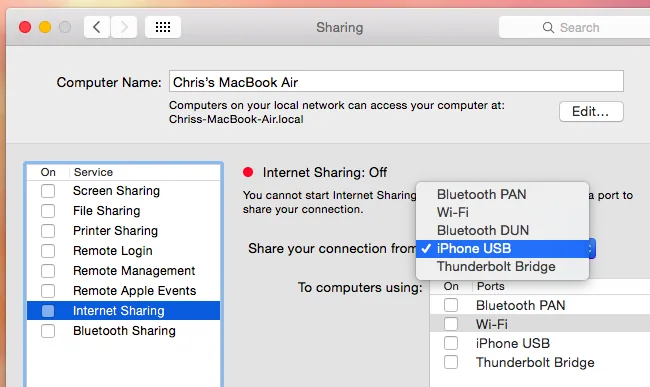
Configure Internet Sharing
- On current macOS versions, open Apple menu, System Settings, General, then Sharing.
- Choose Internet Sharing and open its configuration.
- Under “Share your connection from,” select the connection that currently reaches the internet, such as Ethernet.
- Under “To devices using,” choose Wi-Fi if you want other devices to connect wirelessly.
- Set a network name and a strong password. Choose the security mode supported by the devices that need to join; prefer the strongest compatible option shown by macOS.
- Review the choices, click Done, then turn on Internet Sharing.
Do not share an open network or reuse a password from an important account. Give the password only to people who should have access.
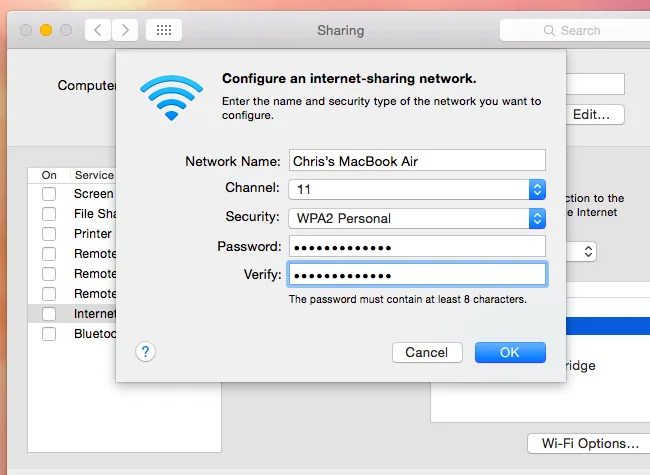
Connect and test a second device
On the phone, tablet or computer, open Wi-Fi settings, select the network name you created and enter its password. Test a normal webpage. If the network appears but has no internet, check that the Mac’s source connection still works and that you selected the correct sharing source and output interface. Turn Internet Sharing off and back on only after confirming the settings.

Finish safely
Turn Internet Sharing off when you no longer need it, especially on a portable Mac. If the controls differ or Wi-Fi is unavailable as an output choice, check Apple’s guide for your macOS version and Mac model rather than assuming a hardware fault. Network policies and carrier terms may also restrict connection sharing.

Official reference
Apple’s current guide to sharing an internet connection on Mac

