
Hiding a file can reduce clutter or keep a folder out of an ordinary file listing, but it does not protect private information. Anyone who knows how to show hidden items can find it, and apps, search tools, backups or another user account may still access it if permissions allow. Use encryption and a separate user account when you need real privacy. The steps below cover common desktop file managers; phone and tablet apps vary.
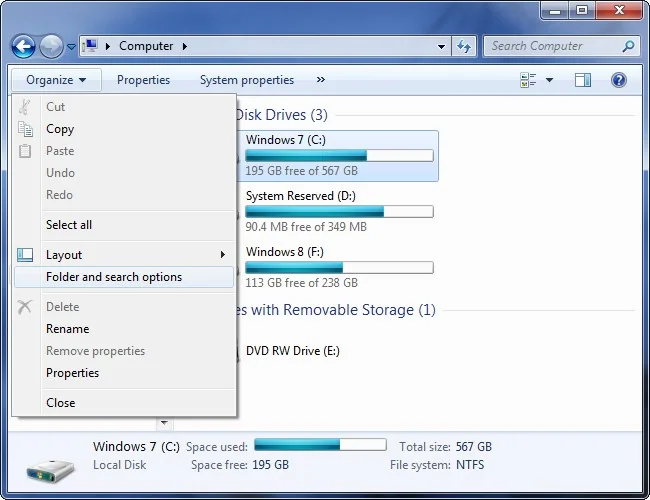
Windows 10 and 11
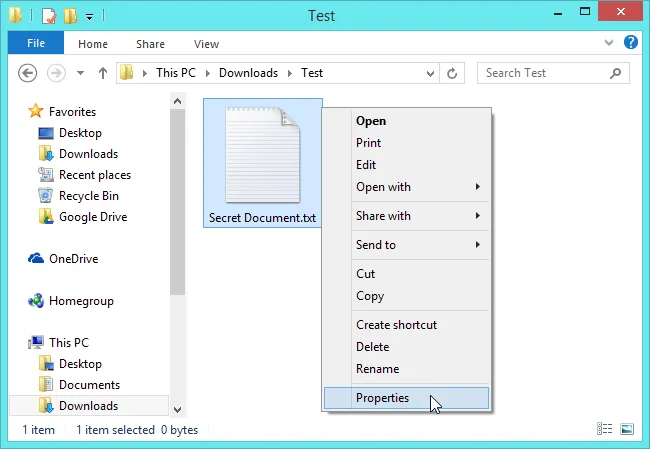
- In File Explorer, right-click the file or folder and choose Properties.
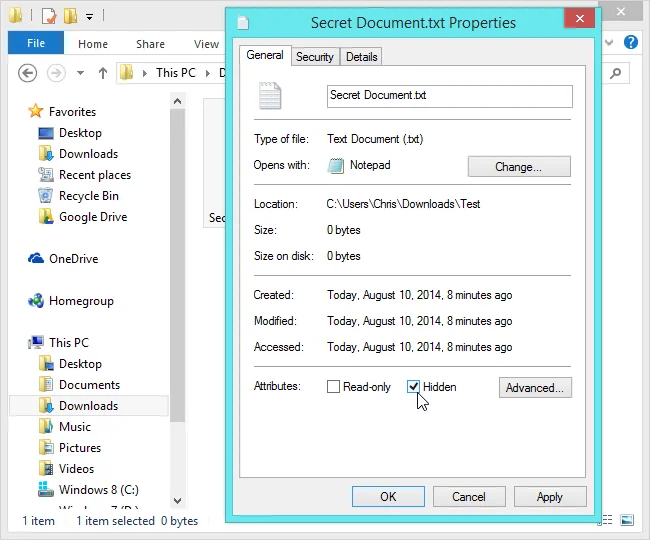
- On the General tab, select Hidden, then choose Apply.
- If Windows asks whether to apply the change to a folder alone or its contents, choose deliberately. Applying it to all contents changes every nested item too.
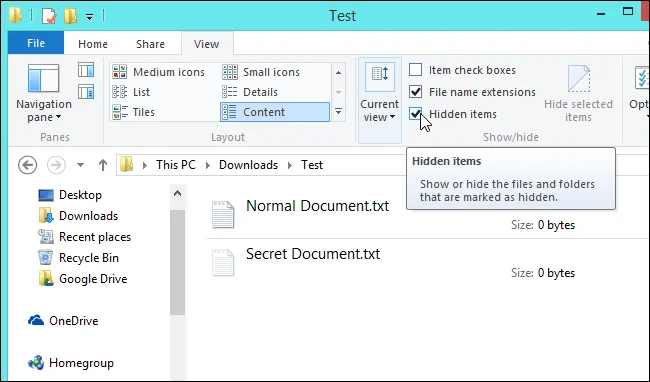
- To show hidden items later, open File Explorer and choose View, then Show, then Hidden items. In Windows 10, the Hidden items option is on the View ribbon.
Hidden is a file attribute, not a password. Windows can show hidden files through File Explorer settings, and system items may have additional attributes. Do not hide or change Windows system files to protect them; changing the wrong item can cause problems.
macOS
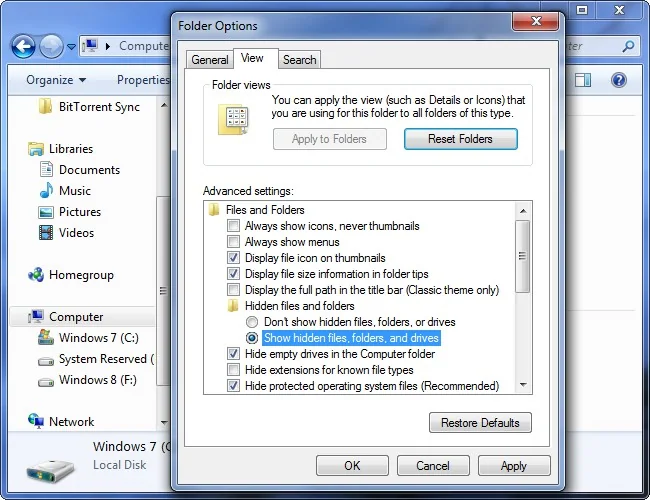
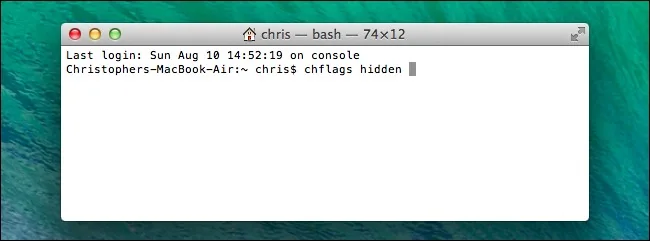
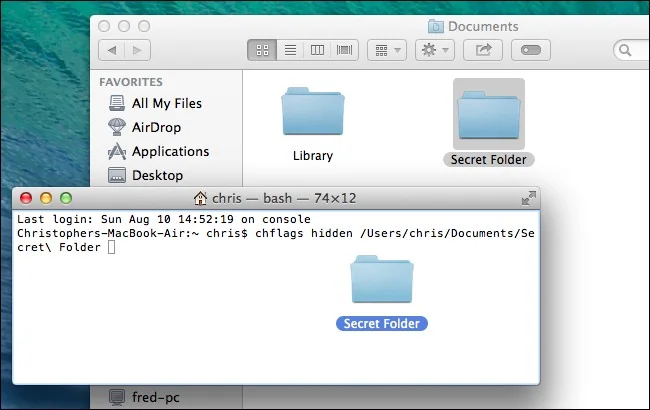
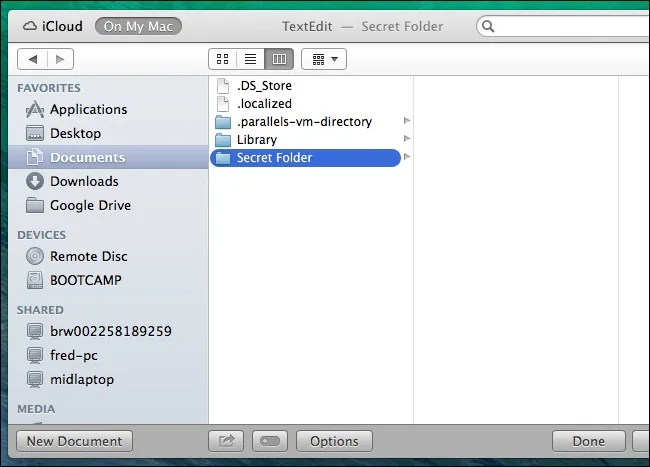
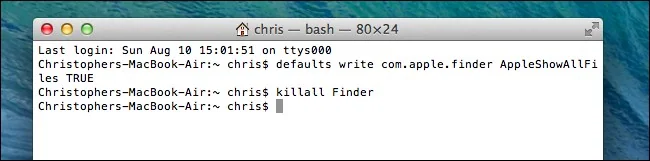
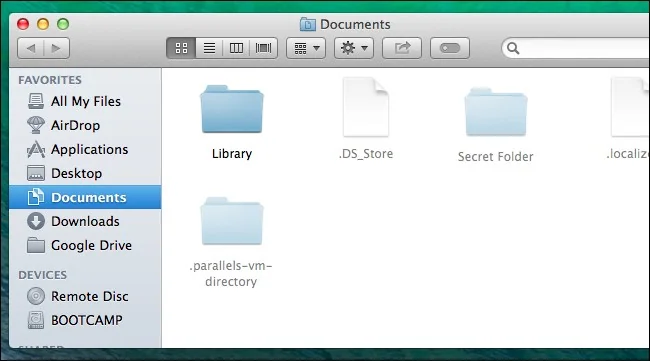
macOS and Finder treat names beginning with a period as hidden in normal views. Rename a personal file from notes.txt to .notes.txt to hide it from ordinary Finder listings. To reverse the change, show hidden files in Finder (commonly Command-Shift-Period), then remove the leading period. Avoid renaming system or app-support files: software may rely on their exact names and locations.
Linux with GNOME Files
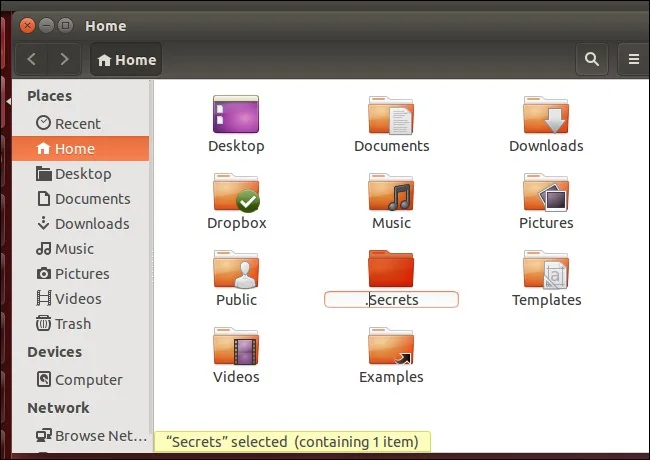
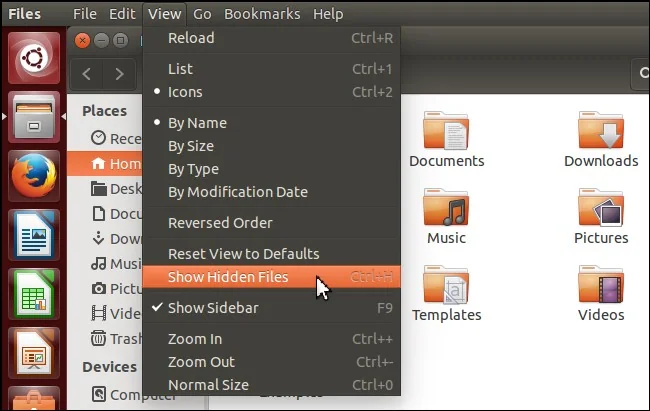
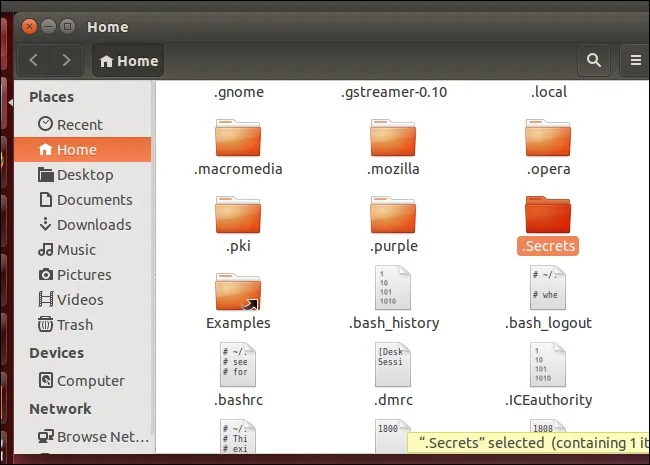
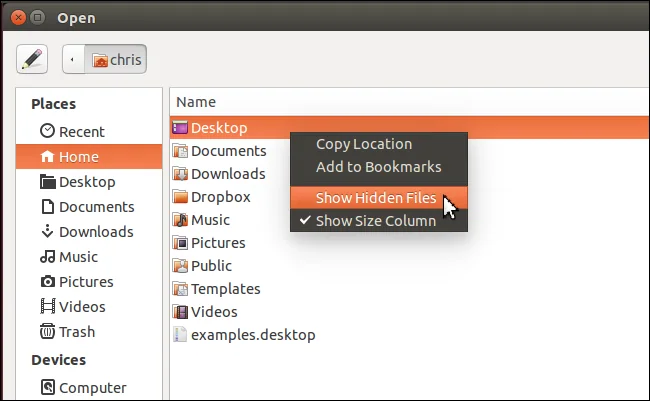
In GNOME Files, rename the item and put a period at the beginning of its name, such as budget.pdf to .budget.pdf. Press Ctrl-H or choose Show Hidden Files to view it again. Remove the leading period to make it visible normally. Other Linux desktop environments use similar dot-file conventions, but menu labels and shortcuts can differ.
Choose a stronger option for sensitive files
Do not rely on hidden attributes to protect tax documents, passwords or personal photos. Use device encryption, an encrypted archive or a secure account with a strong sign-in method. If other people use the same computer, use separate accounts and lock your session when you step away. Check sharing and cloud-sync settings too: hiding a local file does not necessarily stop a synced copy from appearing elsewhere.

Official references
Microsoft Support: File Explorer and hidden items · Apple Developer: hidden files and directories in macOS · GNOME Help: hide a file

