
When a Windows app behaves unexpectedly, reinstalling it is not always the first or best fix. The app may have a built-in reset command, a repair option, or settings that can be changed without removing the program. The right method depends on whether it is a Microsoft Store app, a traditional desktop program or an application managed by an employer.
Try low-risk fixes first
Close and reopen the app, then install updates from its official source. Check the app’s own settings for a Reset, Restore defaults or Troubleshoot option. In Windows, some Store apps expose Repair and Reset controls in Settings under Apps and Installed apps, then the app’s advanced options. Repair generally attempts to fix the installation while preserving data; Reset may remove app-specific preferences or locally stored information. Read the warning shown on screen before confirming.

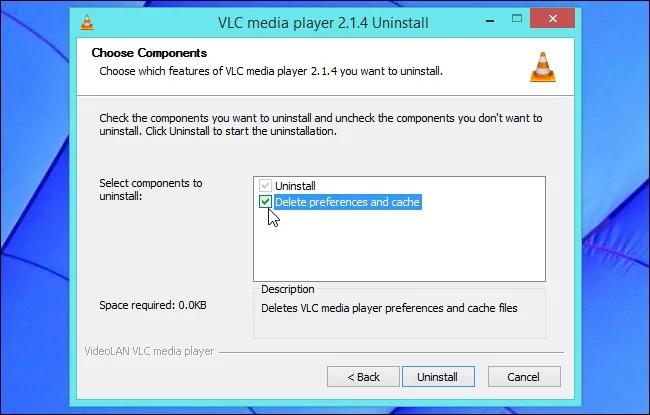
For a desktop program without a Windows reset control, use the developer’s documentation. Sign out or export settings if the app provides that option. Back up documents, templates, saved games and configuration files before uninstalling. Uninstalling and reinstalling does not necessarily erase every user preference, and a program may restore settings from cloud sync when you sign in again.
Avoid manual registry deletion
Old guides often suggest searching AppData folders or deleting registry keys. These locations can contain settings, but they may also hold credentials, licenses, shared components or configuration needed by another app. Editing the registry incorrectly can cause additional problems. Do not remove keys or folders just because their names resemble the app; create a backup and use a documented vendor procedure if manual cleanup is truly needed.
If the issue began after a Windows update, check the app maker’s compatibility notes and Microsoft’s recovery guidance. A full Windows reset is a much broader operation and may remove applications or settings, so reserve it for cases where less disruptive steps fail. Use official Microsoft instructions for current Windows versions; older menu paths and screenshots may no longer match.
Always check the app’s own documentation before clearing its data. A reset can remove downloaded files, offline work or account-specific preferences. If the program stores work in a cloud account, verify synchronization and export anything important before using Reset. On a managed computer, ask the administrator before changing system-wide settings. The least disruptive supported repair is usually preferable to deleting files manually.

