
A VPN creates a protected connection between your device and a VPN service or workplace network. On iPhone and iPad, most people connect using the provider’s official app; an employer or school may instead supply a configuration profile. The right method depends on who operates the VPN and what account or server details they provide.

Use your VPN provider’s app
- Choose a VPN provider you trust and confirm its app is published by that provider in the App Store.
- Install the app, sign in or create an account directly with the provider, and review its privacy and subscription terms.
- Follow the app’s setup prompts. iOS may ask permission to add VPN configurations; read the prompt and approve only if you trust the provider.
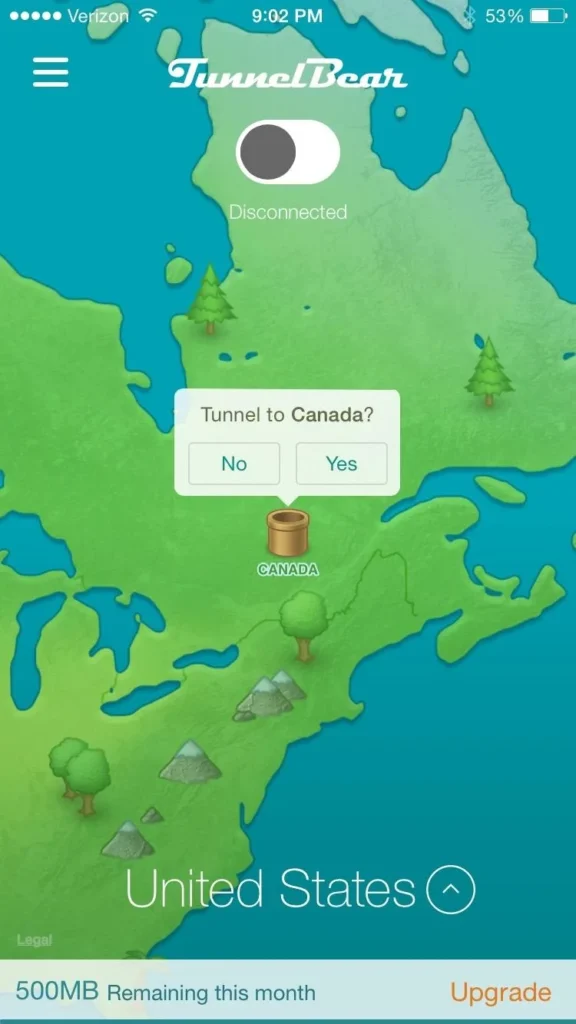
- Use the app’s connect control, then check the app or iOS status to confirm the connection is active.
The provider is the source for supported servers, sign-in details, protocol options and troubleshooting. A VPN does not make all online activity anonymous, and it does not protect you from phishing or unsafe downloads. Apps and websites may still identify you through account sign-ins, cookies or other signals.
Set up a work or school VPN
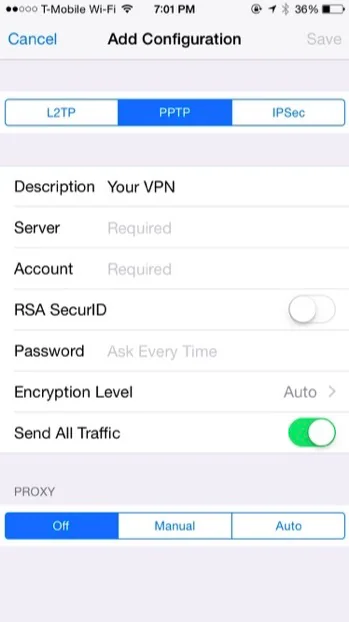
If your organization manages the connection, get its current instructions from IT. They may provide an approved app, a configuration profile or setup details such as a server name and account. Do not guess server information or install a profile sent by an unexpected message. Apple says profiles define settings for corporate or school networks and accounts, and iPhone displays information about a profile when you open it and ask to install it.
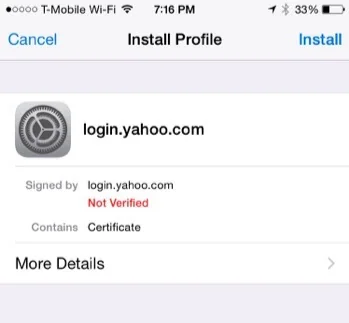
To review installed profiles, open Settings > General > VPN & Device Management. If you remove a profile, settings, apps or data associated with it may also be removed, so do not delete an employer or school profile without checking with the administrator.

Check the connection and disconnect
If a connection fails, confirm that the service is active, your credentials are current and your network permits VPN traffic. Try the provider’s recommended server or contact its support team. Menu names and status indicators can differ across iOS versions and apps. Disconnect from within the VPN app or the VPN settings when you no longer need the tunnel.
Older tutorials may recommend protocols or manual menus that are no longer available or appropriate. Use the provider’s current iOS app or the organization’s current deployment instructions instead of copying legacy setup details. Apple’s guidance on configuration profiles explains how to inspect and remove profiles safely.
Related reading: Set Up a VPN Connection on Your Mac.

