
To connect a Mac to a VPN, you need configuration details from your employer, school or VPN provider. These usually include the server address, connection type, account name and authentication method. A VPN service is not a universal privacy shield: the VPN operator can see some connection information, and websites can still identify you through accounts, cookies or browser fingerprints. Use a provider or organization you trust and do not install a profile sent by an unexpected message.


Add a VPN configuration
- Ask the network administrator or provider which protocol and settings to use. If they supplied an official VPN settings file, verify its source before opening it.
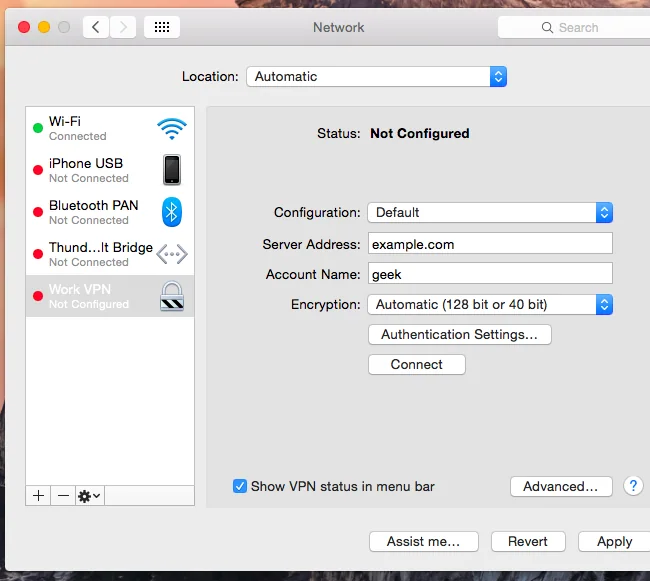
- On the Mac, open Apple menu, then System Settings, and choose Network.
- Open the Action menu and choose Add VPN Configuration. Select the type supplied by your administrator or provider.
- Enter the server address, account name and required authentication details. Keep passwords and shared secrets private.
- Select Create. Open VPN settings, then turn on the service to connect.
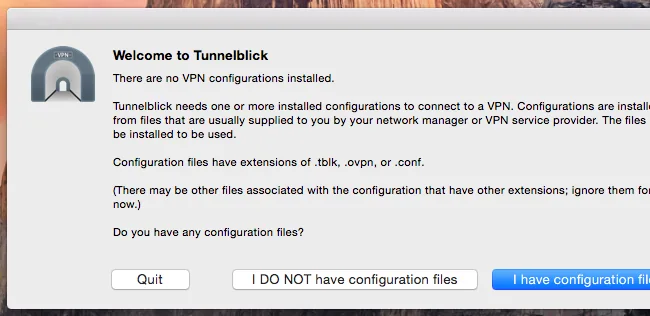
Available protocols and fields depend on macOS and the configuration. Some VPN providers require their own app or a configuration profile; follow the provider’s official instructions and check requested permissions. Do not assume every VPN service supports Apple’s built-in manual setup.
Test the connection
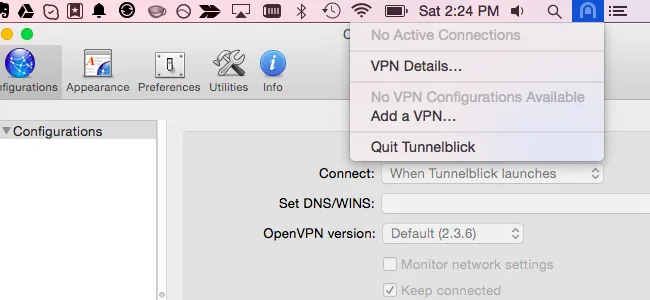
When connected, check the VPN status in System Settings or the menu bar. Try the work or school resource that requires the VPN. If it fails, confirm the server address, account status, two-factor prompts, network connection and system date. Contact the administrator or provider for current settings instead of copying credentials from an old tutorial.

Reconnect behavior
Apple’s built-in controls let you connect and disconnect from configured VPN services. Automatic or on-demand reconnection depends on the VPN protocol, profile and provider or organization policy; it is not a universal “auto-reconnect” switch for every VPN. If continuous connection is required, ask the administrator or provider whether the supplied profile supports on-demand connection. Review the setting after macOS updates.
To remove a connection you no longer use, open System Settings, Network or VPN, select the configuration and remove it. If a work or school profile manages the connection, check with its administrator before deleting it.
Official references
Apple Support: set up a VPN connection on Mac · Apple Support: connect your Mac to a VPN

