
QuickTime Player on Mac includes basic movie editing tools for trimming a beginning or ending, splitting a movie into clips, rearranging clips, and exporting a copy at a chosen resolution. It is useful for simple edits, but it is not a full timeline editor with multiple tracks, effects and advanced transitions. Make a duplicate of important footage before editing so you can return to the original if you change your mind.
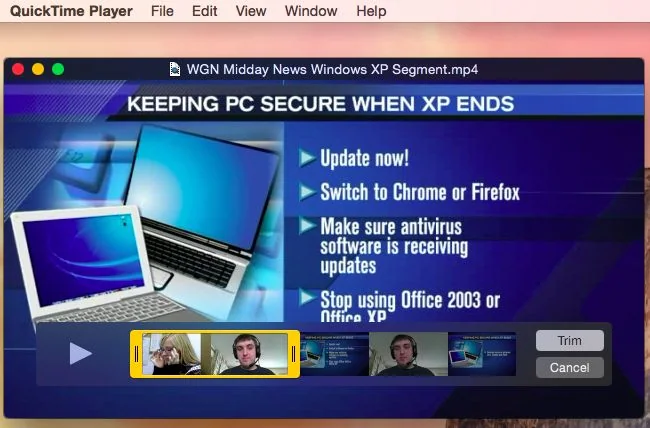

Trim unwanted footage
- Open the movie in QuickTime Player.
- Choose Edit > Trim.
- Drag the yellow handles to select the part you want to keep. The portions outside the handles are removed.
- Use the preview to check the start and end, then select Trim.
For more precise selection, Apple’s guide recommends holding a handle to inspect individual frames. If you need to remove a section from the middle, use View > Show Clips, position the playhead and split the movie, then remove or rearrange the unwanted clip. QuickTime’s clip view is designed for straightforward edits; use a dedicated editor when you need layered audio, titles or detailed transitions.

Export a shareable copy
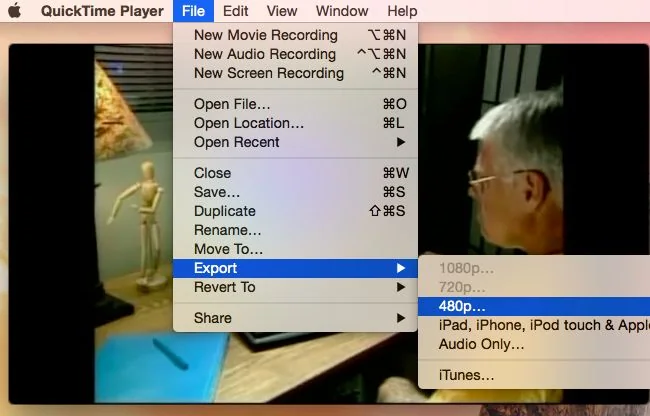
Choose File > Export As and select a resolution such as 4K, 1080p, 720p or 480p when available. QuickTime exports a .mov movie using H.264 or HEVC; for 4K or 1080p, Apple’s guide describes choosing smaller HEVC files or greater compatibility with H.264. The exact export options depend on the source movie and Mac. QuickTime does not export video as an MP4 file, even though some applications may accept a .mov file encoded with H.264.
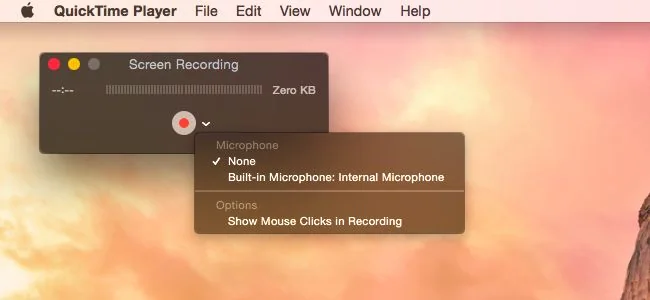
Choose a descriptive filename and destination, then save. Keep the original until you have played the exported file and checked picture, sound and duration. A smaller resolution can reduce file size, while a higher resolution may preserve more detail but take longer to export and use more storage.
When QuickTime is not enough
If you need multiple video and audio tracks, captions, titles, color correction or complex sequencing, use a dedicated editing application. QuickTime’s simple trim and clip tools are best for quick cleanup and exporting. Apple updates menu details across macOS releases, so consult the QuickTime Player User Guide for the version installed on your Mac.

