
A phone can show message previews, verification codes, calendar details, and other private information while its screen is locked. Android lets you control whether notifications appear and whether their sensitive content is visible. The exact labels and available choices vary by device maker and Android release, so use Settings search if the menu path differs.
Hide sensitive content on the lock screen
- Open Settings.
- Tap Notifications, then look for Notifications on lock screen or On lock screen.
- Choose an option that hides sensitive content, shows notifications without details, or hides all notifications.
Some Android versions place the control under Security & privacy > More security settings > Notifications on lock screen. Search Settings for “lock screen notifications” or “sensitive content” if you cannot find it. A manufacturer may use different wording.
Limit one app at a time
You may want alerts from some apps but not private previews from messaging, banking, or email apps. Open the app’s notification settings and review lock-screen behavior or sensitive-content options where available. You can also turn off lock-screen notifications for a specific app. This is useful when hiding everything would make important reminders harder to notice.
Test the result
Lock your phone and send yourself a test notification from a trusted account. Confirm that the setting hides the information you intended, including on the always-on display if your device has one. Some apps control their own preview text, so check the app’s notification settings as well as Android’s. On work-managed phones, an administrator may enforce separate notification rules for the work profile.

Protect the device beyond notifications
Use a screen lock that others cannot easily guess, enable device-finding and remote-lock features where available, and keep the operating system updated. Lock-screen privacy reduces what someone can read without unlocking the phone; it does not protect content after the device is unlocked or stop an app from processing notification data.
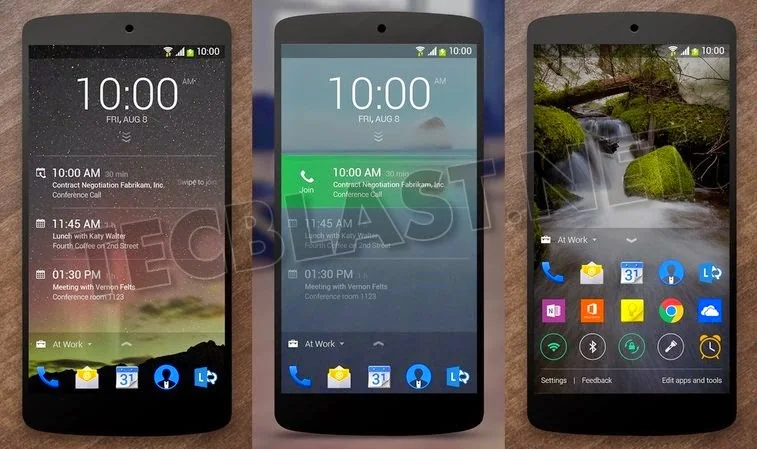
Google’s Android Help describes general controls and warns that steps differ by phone. The old Microsoft Next Lock Screen app is not needed for the built-in controls described here. Follow the current instructions for your device and review notification behavior after major updates.
Related reading: Android Lock Screen Notifications: Hide Sensitive Details and Choose What Appears.

