
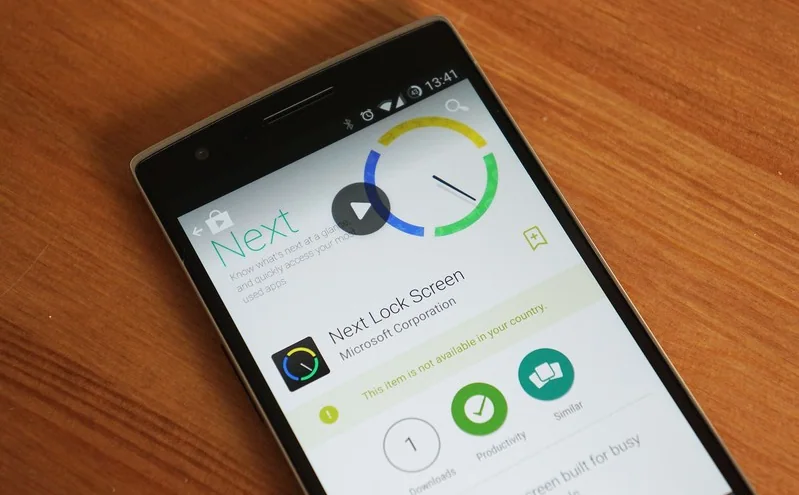
Microsoft’s Next Lock Screen was an Android app that displayed information such as notifications and weather on a phone’s lock screen. It belongs to an earlier period of Android app customization and should not be treated as a current download recommendation. Today, Android includes system controls for deciding whether notifications appear while a device is locked and whether their private details are visible.
Choose what appears on the lock screen
On many Android phones, open Settings and look under Notifications or Lock screen for notification display controls. Depending on the device, you may be able to show all notifications, hide sensitive content, or prevent notifications from appearing while the phone is locked. Google’s Android Help documents these options but warns that settings vary by phone and may use different labels.
If the menu path in a guide does not match your device, use the Settings search field and look for “lock screen notifications” or “sensitive notifications.” Then review the choices shown by your phone’s manufacturer. Some devices let you control notification visibility for individual apps, while others offer a broader lock-screen setting plus per-app controls. Test the result by locking the phone and sending yourself a message that contains private information.
Balance convenience and privacy
Showing full notifications can make it easier to see messages, appointment reminders, and delivery updates without unlocking the phone. It can also expose names, message previews, one-time codes, or other details to anyone who can see the display. Hiding sensitive content keeps the alert visible while concealing part of its text. Turning off lock-screen notifications provides more privacy but means you will need to unlock the device to see whether an alert arrived.
Consider the setting in the context of how you use your phone. If the device is often left on a shared desk or used around other people, hide message content or limit lock-screen alerts. If you rely on certain time-sensitive notifications, check whether those apps can be allowed individually without revealing all notification details. Avoid displaying verification codes on a locked screen if you use them to sign in to important accounts.
Work profiles can have separate controls
Phones managed by an employer may display work notifications differently from personal notifications. Android Enterprise documentation describes controls for hiding sensitive work notification content or showing work notification details on the lock screen. The exact options depend on Android version and the organization’s management settings. If you cannot change a work profile setting, contact your organization’s administrator rather than installing an extra lock-screen app to bypass it.
Keep the phone itself protected
Notification privacy complements, but does not replace, a secure screen lock. Use a strong PIN, password, or supported biometric unlock, and keep Android and apps updated. Review which apps can send notifications and remove access for apps you no longer use. Be cautious about third-party apps that request accessibility access, notification access, or permission to appear over other apps; those capabilities can reveal sensitive content or affect what you see on screen.
About the old Microsoft app
Archived articles may mention Microsoft’s Next Lock Screen and its historical features. App availability, compatibility, and support can change, so old installation instructions and APK mirrors should not be followed automatically. For a current phone, use its built-in Android settings and the manufacturer’s help documentation. The exact appearance of the interface differs across devices, but the key decision remains the same: choose which information should be visible before the phone is unlocked.

