
An internet speed test estimates performance between your device and a test server at a particular time. The result can change with Wi-Fi signal, network congestion, server distance, VPN routing, and other devices sharing the connection. One low reading is a useful clue, but it does not by itself prove that your provider is at fault.

Prepare a fair test
Pause large downloads and cloud backups, close streaming apps, and disconnect devices that are not needed. If possible, connect a computer to the router with Ethernet to reduce Wi-Fi variables. For a Wi-Fi test, stand near the router first, then repeat from the room where you normally work. Use the same device and test service when comparing results.

Repeat at different times
Run several tests rather than relying on one result. Record the date, time, device, connection type, test server, and whether a VPN was enabled. Repeat during a busy evening and a quieter period. For mobile data, test in the same location and note whether the phone shows 4G or 5G; signal strength and local cell congestion can affect the result.

Understand the measurements
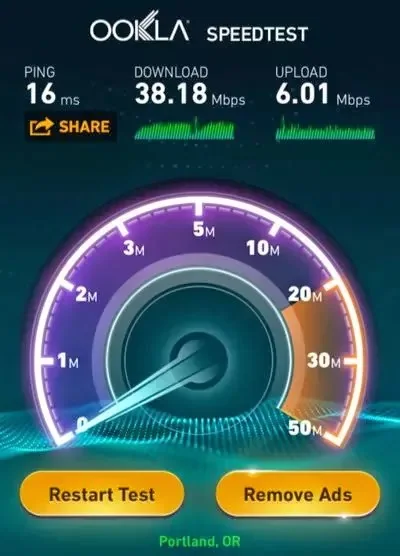
Download speed affects receiving data such as video, while upload speed affects sending files and video calls. Latency measures response delay and matters for gaming and interactive calls; jitter and packet loss can also make calls unstable. The FCC explains that speed-test tools report download and upload in Mbps and can help consumers assess a connection in its consumer broadband guide.
Use results to troubleshoot
Compare the result with the speed plan and the provider’s stated measurement conditions. If Ethernet performs well but Wi-Fi does not, investigate router placement, interference, or the wireless band. If both are consistently low, save several test results and contact the provider with the dates and times. Use a reputable test website or app and avoid installing unknown APK files that promise faster speeds.

