
Google Photos is a cloud photo library that can back up pictures and videos from supported devices, then make them available when you sign in to the same Google Account. The service’s controls and storage terms can change, so review the current app settings and your account’s storage before starting a large upload. Backup is different from simply viewing files stored on your phone: check the app’s backup status to confirm that items reached your account.
Choose what to back up
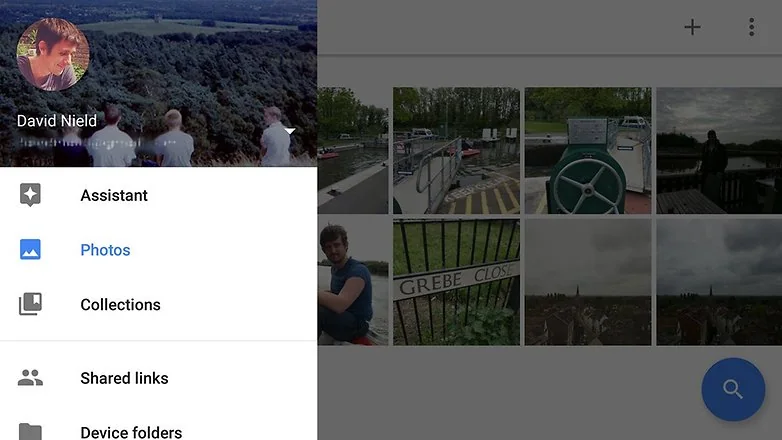
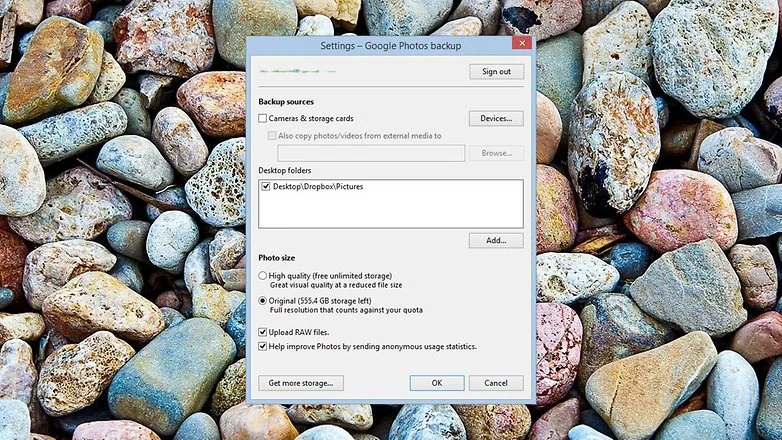
On a phone, open Google Photos, tap your profile picture, then open Photos settings and Backup. Confirm the backup account, quality setting, and whether device folders such as screenshots or messaging-app images should be included. You can select folders individually. On a computer, use the Photos website or the current desktop upload workflow, and check the library’s backup status. Google says the status screen can show whether backup is complete, paused, or still in progress.
Check progress before deleting local files
Do not assume that seeing a photo in the app means its cloud copy is complete. Open a specific item and inspect its backup status, especially after importing a camera card or switching accounts. Keep another copy of irreplaceable photos where practical. If you use a phone’s “free up space” feature, read its confirmation carefully so you understand which local copies will be removed. Deleting a photo in one app can also affect synced copies, depending on the action and account state.
Find photos later
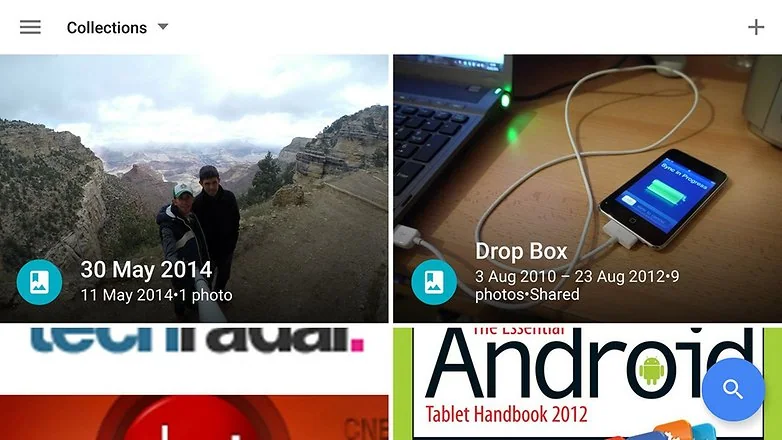
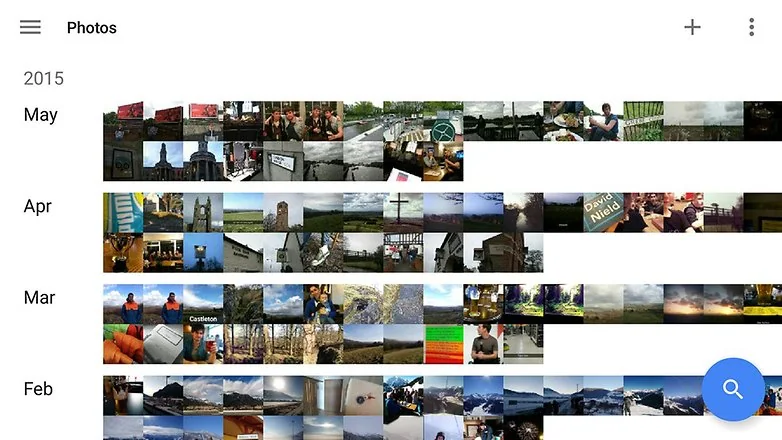
Search can help locate a picture by date, place, or visible subject when those details are available to the service. Use albums to collect pictures around a trip, project, or person. Albums help with organization, but they do not replace a backup or a separate archive. If a photo is missing, check that you are signed into the right Google Account, confirm backup status, and look in Archive and Trash. Google notes that archived photos can still appear in albums and search results, while they are hidden from the main Photos view.
Share thoughtfully
You can share selected images or albums, but review who has access before sending a link. Remove people or turn off link sharing when the audience changes. Shared links are convenient, so treat them as a disclosure: avoid including sensitive images and check the recipient list. For family or work collections, create a dedicated album and add only the intended items.
Manage storage and account access
Check the storage indicator in your Google Account because backed-up photos may count toward its quota under the current plan and policy. If storage is nearly full, review large videos and unnecessary copies before purchasing more space. Keep account recovery information up to date and protect the account with a strong password and two-step verification.
Google Photos features can vary by operating system, app release, region, and account type. Use Google’s current Help Center for exact menu steps, and verify the backup status before relying on the library as your only copy.

