
Android can capture a still image of the screen so you can save an error message, keep a receipt, or explain a setting. The button shortcut works on many phones, but hardware and menu options vary by manufacturer and Android version. Do not include passwords, payment details, or private messages in an image you plan to share.
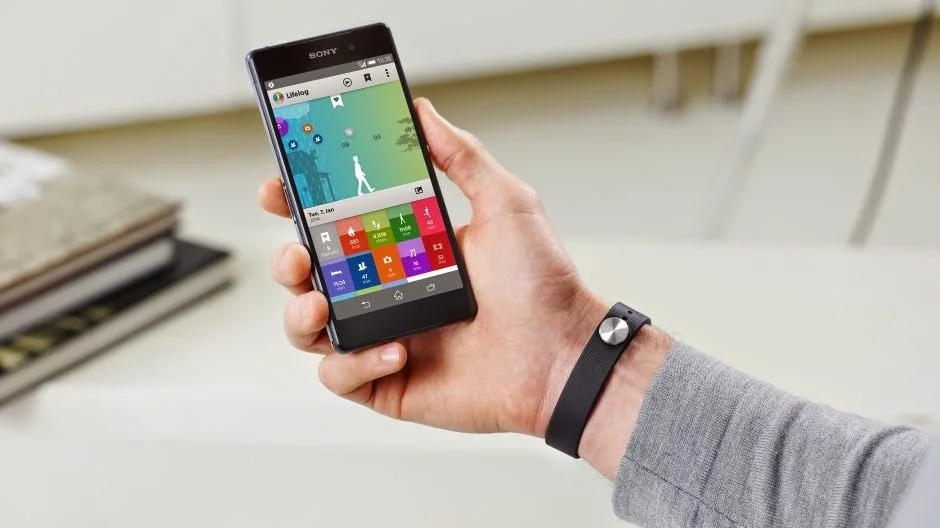
Capture the current screen
Open the content you want to save, then press Power and Volume Down at the same time. Hold them briefly and release when the screen flashes or a preview appears. If the shortcut does not work, press and hold the Power button and tap Screenshot if that option appears. Google’s Android screenshot guide notes that some steps vary by phone; check the manufacturer’s support page if its buttons or menus differ.
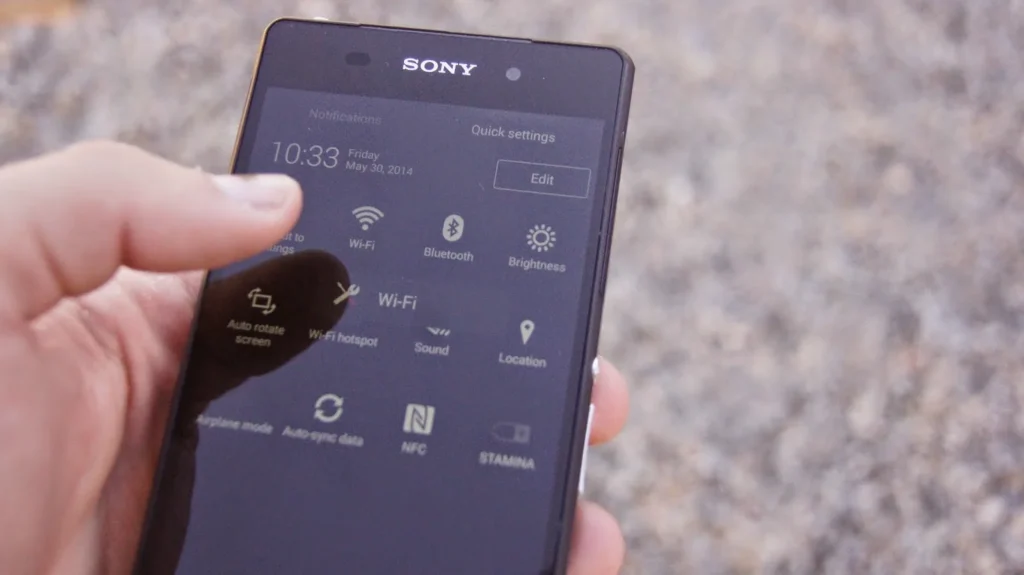
Capture a longer page
On Android 12 and later, many apps and scrollable screens offer a Capture more button after you take a screenshot. Tap it, adjust the crop guides to include the section you need, and save the result. Scrolling capture is not available on every screen, so an app may stop at the visible area. If the preview offers no Capture more control, use several smaller screenshots or the app’s own export feature.

Find and share the image
On many current phones, open Google Photos, tap Collections, then On this device and Screenshots. Some devices use a Gallery app and a Screenshots album instead. From the preview you can crop or annotate the image before sharing it. Check the full image for private details, notifications, and account information before sending it to someone else.
When the shortcut fails
Restart the phone and try the button combination again without holding the keys too long. Some apps block screenshots on protected content, such as banking or streaming screens; this is an app security control and should not be bypassed. For an app that supports it, use its built-in share or download option instead.
Related reading: How to Take and Find Screenshots on Any Android Phone.

