
Android phones can save a picture of the current screen so you can keep a receipt, share an error message, or remember information. The common shortcut is to press Power and Volume Down at the same time, but exact controls can vary by manufacturer and Android version. If the shortcut does not work on your phone, check its manufacturer’s official help page rather than trying random button combinations.
Take a standard screenshot
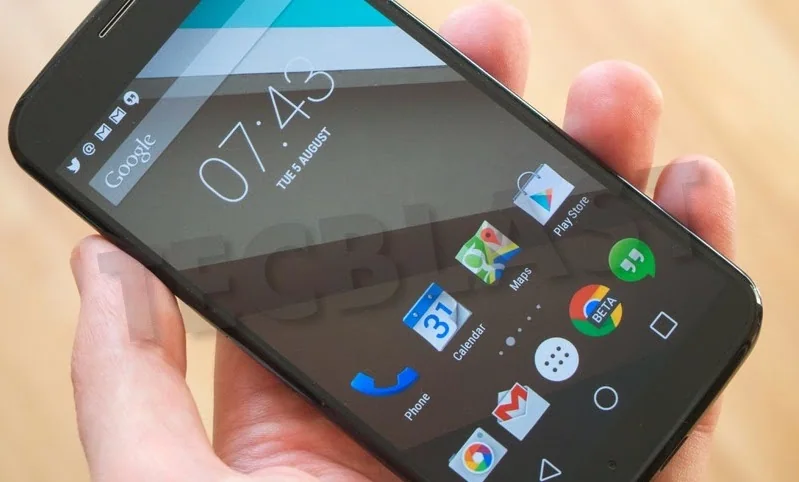
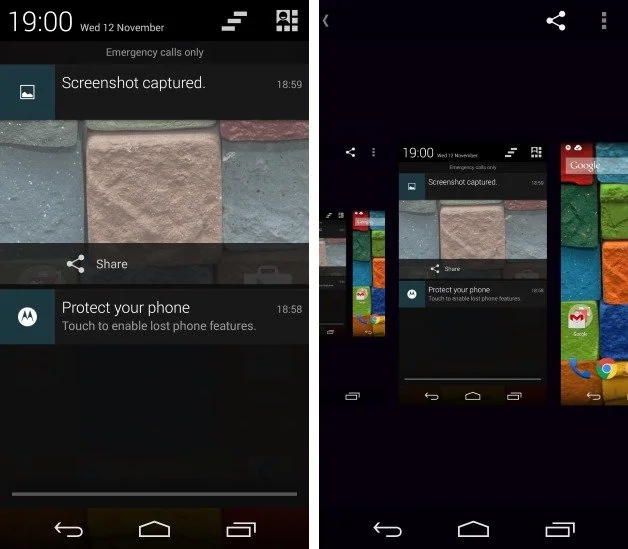
Open the screen you want to capture and press the Power and Volume Down buttons together, then release them. On some devices, holding the Power button for a few seconds opens a menu with a Screenshot option. A thumbnail or preview usually appears after capture; tap it to crop, annotate, or share. Be aware that a screenshot may include private information such as message previews, account details, or a one-time code. Crop or redact sensitive data before sending it to someone else.
Capture a longer page
On supported devices running Android 12 or later, many scrollable screens offer a Capture more option after you take a screenshot. Capture the screen, tap Capture more, and adjust the crop guides to include the additional content you need. This feature does not work on every app or screen, and some protected content may not be capturable. If the button is missing, the page may not support scrolling capture or your device may use a manufacturer-specific feature.
Find, edit, and share screenshots
On many Android phones, screenshots appear in Google Photos under Collections and On this device, inside a Screenshots folder. Some manufacturers use their own Gallery app or a different album location. Open the image to crop, rotate, annotate, or share it. Before posting publicly, remove personal details and check whether notifications, contact names, addresses, or financial information are visible.
Use alternatives if buttons are awkward
Some phones offer screenshot controls in the power menu, Quick Settings, gesture shortcuts, or Accessibility features. The options depend on the manufacturer and software version. Google’s Pixel help also documents a screenshot option through the recent-apps screen and voice commands on supported devices. If physical buttons are damaged, use the built-in controls described in the phone maker’s current guide.
Android menus change between releases, and some apps block screen capture to protect sensitive content. Keep your phone updated and follow the instructions for your specific model when the general shortcut differs.
Related reading: How to Take a Screenshot on the Nexus 6.

