
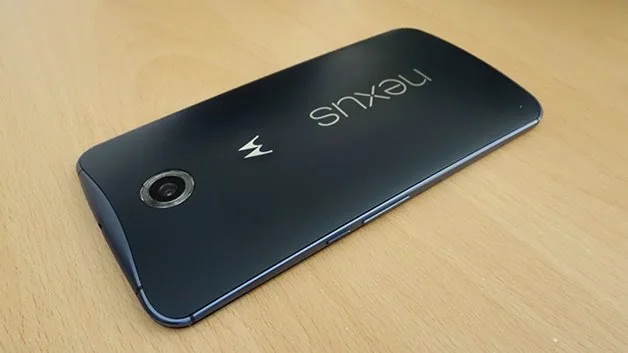
A screenshot saves a still image of what is visible on a phone screen. It can help document an error, preserve a receipt or show someone how to use an app. The Nexus 6 is an older Android phone, and its exact button behavior can depend on its software version, case and hardware condition. Do not assume that every current Pixel feature or menu is available on this model.
Try the standard Android button shortcut
On many Android phones, including later Pixel devices, pressing Power and Volume Down together briefly captures the screen. If you test this on a Nexus 6, press and release both buttons at the same time rather than holding them; holding may open a power or volume menu. Look for a short animation or thumbnail confirming the capture. If nothing happens, check the phone’s Android version and manufacturer-specific help before repeating the action.
Some apps block screenshots on sensitive screens such as banking, password entry or protected video. Respect those restrictions; do not try to bypass them. A captured image can include names, messages, account numbers or location details, so crop or redact private information before sharing. Store the screenshot only as long as needed and delete it from synced photo services if it contains sensitive content.

Find and share the image carefully
On Android devices, screenshots are commonly saved in a Screenshots folder within Photos or Files, but the exact location varies by version and app. Check the gallery’s recent items first. If storage is low, move useful screenshots to a trusted backup and remove duplicates. Avoid sharing a screenshot of another person’s private conversation without permission.

Google’s current Pixel guide documents the Power-plus-Volume-Down method for Pixel phones, not specifically the Nexus 6. This draft is on hold until Nexus 6-specific instructions are checked. Keep the page clearly model-specific and do not promise that newer Android gestures are supported by this legacy device.
Before sharing a screenshot, check the status bar and screen for notifications, phone numbers, email addresses or one-time codes. Crop or blur sensitive details using a trusted editor. A screenshot may be uploaded automatically if cloud photo backup is enabled, so review the device’s Photos or backup settings when capturing private content. These precautions apply regardless of Android version.

