
macOS includes screen-recording tools, so a simple tutorial or troubleshooting clip usually does not require a separate recorder. QuickTime Player opens the Screenshot controls for recording the full display or a selected area. The current interface can vary slightly by macOS release, and some protected video applications may block recording. Before capturing, decide whether you need system audio, microphone narration, a pointer highlight or only a silent demonstration.


Record with QuickTime Player
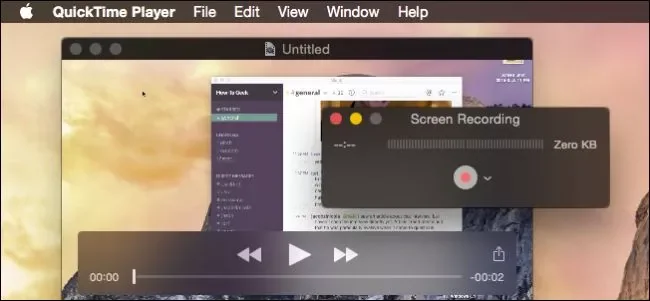
Open QuickTime Player and choose File > New Screen Recording. In the Screenshot controls, open Options to choose a save location, microphone, timer and pointer/click display where available. Select the whole screen or drag to select a region, then start recording. Use the Stop control in the menu bar when finished. Review the clip before sharing it; QuickTime can open the recording for playback and basic trimming. Keep enough free disk space because high-resolution recordings can become large quickly.


Check permissions and audio
If macOS asks for Screen Recording or microphone access, grant it only to the application you intend to use. You can review those permissions in Privacy & Security settings. A microphone captures room sound, not necessarily all audio playing through the Mac, so make a short test first. Do not record passwords, private notifications, customer data or other people’s conversations. Close unrelated tabs and applications, enable Do Not Disturb, and use a test account when demonstrating a workflow.


Make the recording useful
Plan a short sequence: state the problem, show the relevant setting, perform one action at a time, then confirm the result. Increase interface text size if the audience will watch on a phone. Move the pointer deliberately and pause after important changes. If the recording includes a mistake, trim the beginning or end instead of repeatedly re-recording the entire session. Use a descriptive file name and store it in a location with appropriate access controls.

Export and share carefully
Play the finished video from start to end, check that audio is intelligible and inspect the edges for accidental private details. Choose a format and resolution suited to its destination; avoid unnecessarily large files when a standard quality export is enough. Compress or upload only through a trusted service, and obtain consent before publishing a recording that identifies another person. For an iPhone or iPad screen, QuickTime can also capture a connected device on supported configurations, but confirm Apple’s current instructions for the macOS version in use.

