
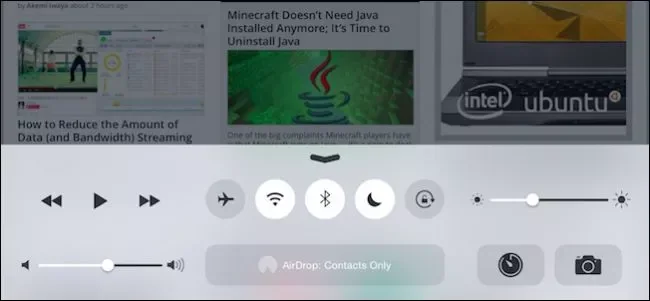
If Control Center keeps opening while you swipe or play a game, iPhone has a setting that disables access to it from inside apps. You can still open Control Center from the Home Screen or Lock Screen; the setting only changes access while another app is in use.
Turn off Control Center access inside apps
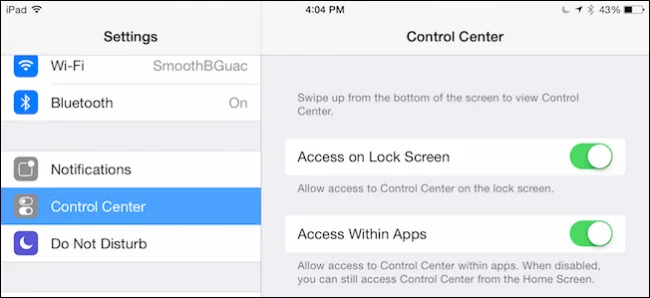
- Open Settings.
- Tap Control Center.
- Turn off Access Within Apps.
Now return to an app and test the edge gesture. On an iPhone with Face ID, Control Center normally opens when you swipe down from the top-right corner. On an iPhone with a Home button, swipe up from the bottom. With in-app access disabled, that gesture should no longer open Control Center over the app.

Open it when you need it
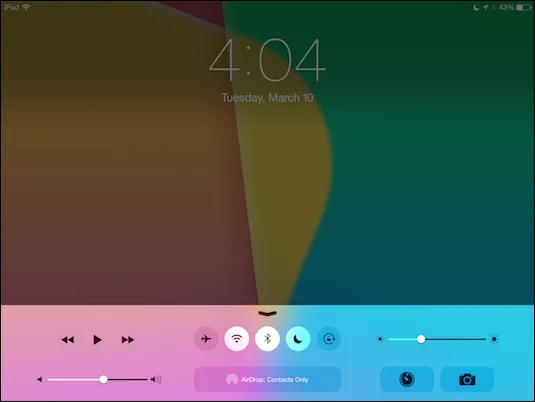
To use a control, leave the app and open Control Center from the Home Screen, or use the Lock Screen if your device settings allow it there. Control Center contains shortcuts such as brightness, volume, Airplane Mode and connectivity controls. You can also customize which controls appear in Settings, so keeping it available outside apps can still be convenient.
If the setting is missing or behaves differently
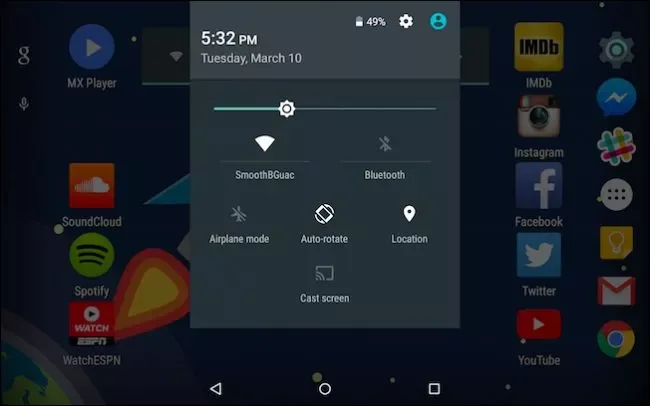
Apple may change labels or menu organization between iOS releases. Search Settings for “Control Center” if you do not see the option immediately. Check that you are changing settings on the iPhone itself rather than an iPad, because layouts and gestures differ across devices. If the toggle is already off but the panel still appears, test from a normal app and verify the swipe begins at the expected edge; opening it from the Home Screen is still expected behavior.

This option does not lock or hide Control Center everywhere, and it does not change the controls available in it. It is intended to prevent accidental interruptions during app use. For the current steps and device-specific gestures, follow Apple’s Control Center guide.

