
Windows encryption helps protect files when a computer is lost, stolen, or accessed outside your signed-in session. The feature name and availability depend on the Windows edition and device hardware, so check the current status before relying on it. Encryption is one layer of protection: it does not stop malware, protect files while you are signed in, or replace a strong account password and screen lock.
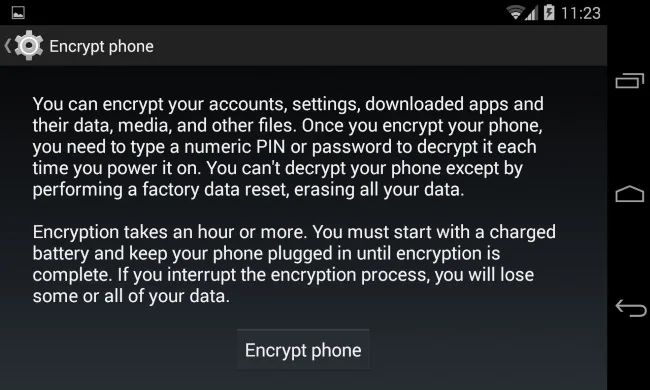
Check whether encryption is available
On Windows 11, open Settings → Privacy & security → Device encryption. On Windows 10, open Settings → Update & Security → Device encryption where the option is present. If the page is missing, your device may not meet the hardware or recovery-environment requirements, or your account may not have administrator rights. Microsoft also documents checking System Information for the device-encryption support status.
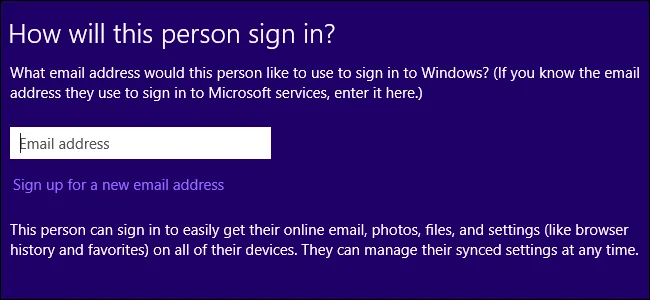
Understand the Windows options
Device Encryption can be available on a wider range of hardware, including some Home edition PCs, and may turn on during setup when you sign in with a Microsoft or work or school account. Availability and automatic setup are not universal. BitLocker Drive Encryption provides additional management controls on supported Pro, Enterprise, and Education editions. You can search Start for Manage BitLocker to review drive protection when that control is available. Confirm the Windows edition and the exact drive before changing settings.
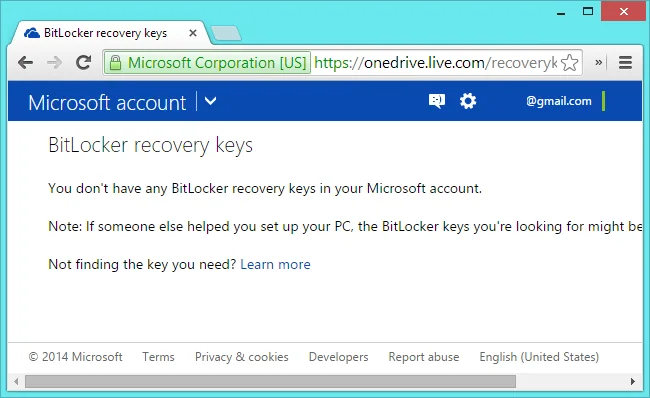
Protect the recovery key
A recovery key can be required after certain hardware, firmware, or startup changes. Locate and safely back it up before troubleshooting encryption or changing boot settings. Store a copy somewhere you can reach if the computer is unavailable, such as a separately secured account or printed copy kept in a safe place. Do not keep the only copy on the encrypted computer. Microsoft says it cannot retrieve or recreate a lost recovery key; if no key is available, encrypted data may be unrecoverable.

Know what encryption does not do
Disk encryption mainly protects data at rest when the drive is locked or removed. It does not make a compromised Windows session safe, and it cannot recover files deleted by a failing drive. Keep a separate backup, install security updates, and use a screen lock when stepping away. If the PC belongs to an employer or school, ask its administrator before changing encryption settings because organizational recovery and management policies may apply.

