
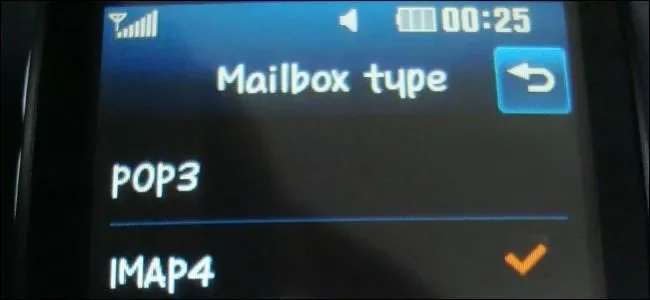
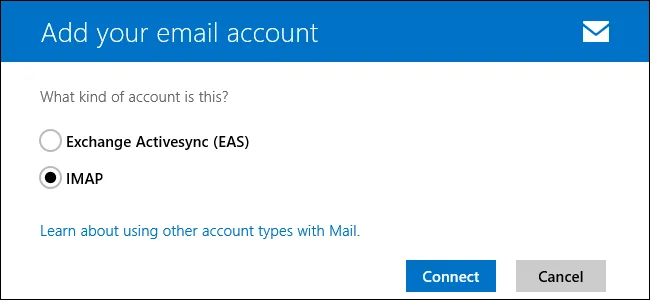
IMAP and POP are protocols that let an email app access messages from a mail account. The practical difference is how messages stay in sync. IMAP is usually the better choice when you read mail on a phone, laptop, and webmail; POP is mainly for downloading messages to one computer and can behave differently depending on the client’s settings.
How IMAP works
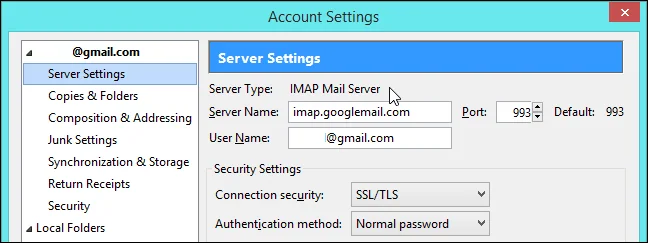
With IMAP, messages and folders stay on the mail server and changes sync across connected devices. Reading, moving, or deleting a message in one app can be reflected in another. This makes it easier to switch devices, but a client can download a large mailbox or create many connections. Gmail lets account owners limit which folders or how many messages an IMAP client syncs. Google’s IMAP settings guide includes client-specific cautions about drafts, sent mail, and deletion.
How POP works
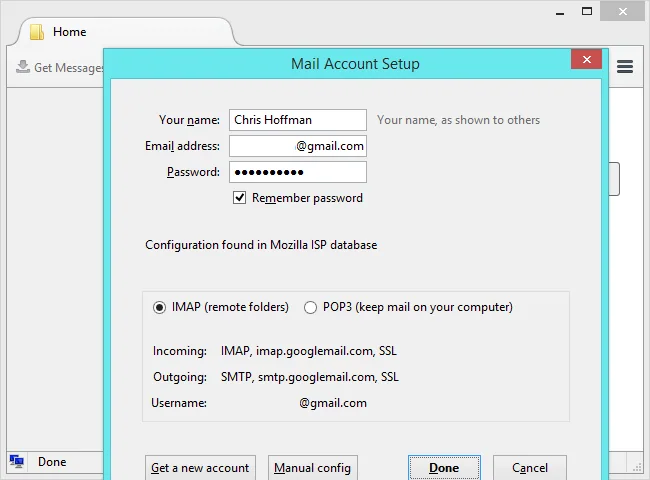
POP downloads messages to a mail app rather than maintaining the same live folder view on every device. Depending on the client and server settings, it may leave a copy on the server, archive it, or delete it after download. That can create confusion if multiple devices use POP. Gmail explains that POP does not sync in real time and is best suited to a single computer in its POP setup guide.
Choose based on how you work
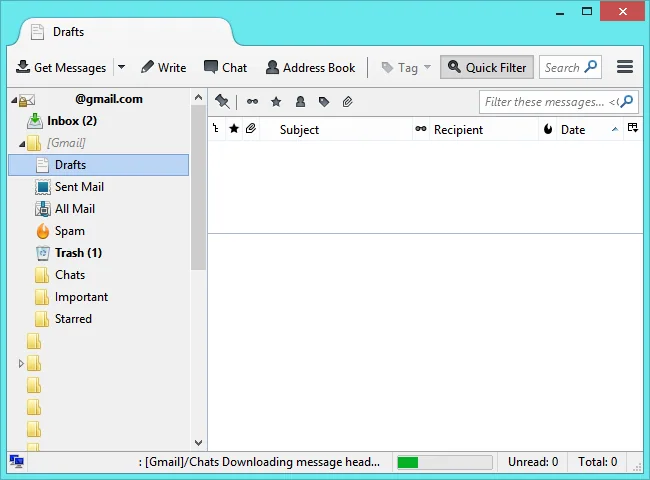
Choose IMAP for multiple devices and access to the same mailbox state. Consider POP only when you specifically want messages downloaded to one computer or have a mail system that requires it. Before enabling POP, confirm what the client will do with the server copy and test with a noncritical message. Keep a second backup if local-only mail is important.
Sign in securely
For Gmail, prefer adding the account with the “Sign in with Google” option when the mail app supports it. Google notes that older clients may not support current security standards. Do not give your Google password to an unfamiliar app. If manual configuration is required, use Google’s current server settings and your organization’s administrator guidance for work or school accounts.

