
Turning off Wi-Fi is not a universal battery-saving trick. Apple says Wi-Fi uses less battery power than cellular networks when you use internet-connected apps, and that both Wi-Fi and cellular connections use less energy in places with a strong signal. In practice, the effect depends on signal strength, what the phone is doing and whether it is searching for a connection.
When Wi-Fi can help
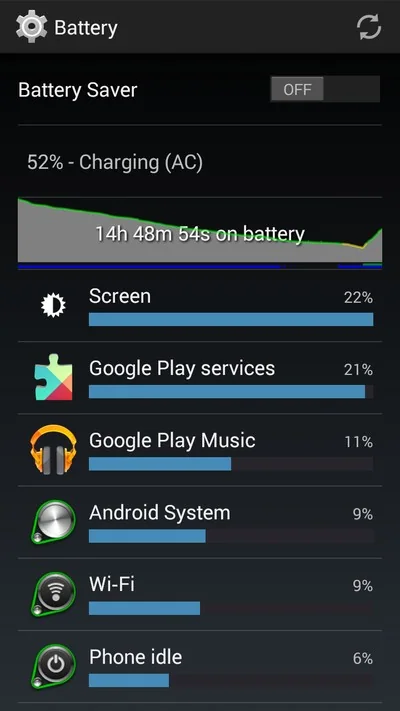
If you have reliable Wi-Fi at home or work, connect to it for normal internet use. A strong Wi-Fi connection can use less power than cellular data for comparable activity. If you are troubleshooting an unusually fast drain, check Settings > Battery and look at app and system activity rather than guessing which radio is responsible. Apple’s battery screen can show when an app used energy in the background or when cellular coverage was low.
When switching Wi-Fi off may not help
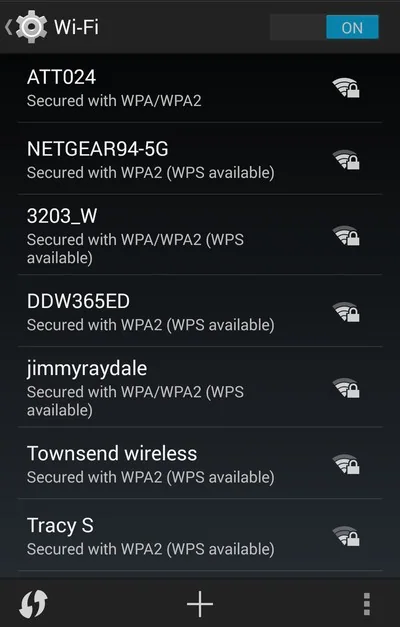
If Wi-Fi is disabled, the phone may use cellular data instead for online activity. In an area with weak cellular reception, the device may spend more energy searching for a signal. Apple recommends using the phone where there is a strong signal and enabling Airplane Mode if you know you will be in an area with no coverage for some time. Airplane Mode also disables ordinary cellular connectivity until you turn services back on, so consider whether you need calls or messages before using it.
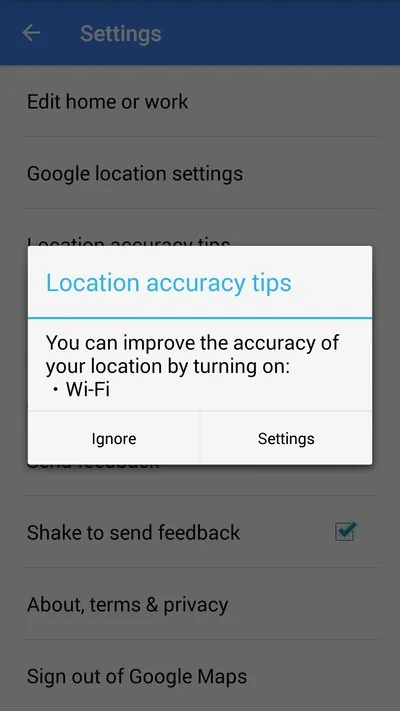
Wi-Fi Assist can switch to cellular data when Wi-Fi connectivity is poor on supported iPhone models and iOS versions. This may keep an app online but can use mobile data. Review Settings > Cellular if you want to check Wi-Fi Assist or see which apps use cellular data. Menu labels vary by iOS release.
Try a measured battery check
- Open Settings > Battery and inspect recent app and system usage.
- Note whether the phone was in a low-signal area or searching for coverage.
- When a strong trusted Wi-Fi network is available, connect and compare battery use during similar activity.
- Update iOS and review apps with unusually high background activity.
A short comparison is more useful than assuming one setting explains every drain. Streaming video, navigation, screen brightness, background sync and battery age can also affect results. If the battery continues to drain unusually fast, use Apple’s battery health and service guidance.
This article is specific to iPhone guidance from Apple. Android devices have different radio management and battery menus, so use the phone maker’s documentation for those devices.

