
A list of “hidden” Android apps can become outdated quickly: developers rename products, stop updates, or remove apps from stores. Instead of trusting a decade-old recommendation, use a repeatable way to find an app and check whether it is suitable for your device. Start with the task you need to complete, then compare a small number of apps from identifiable publishers.


Start with the official store
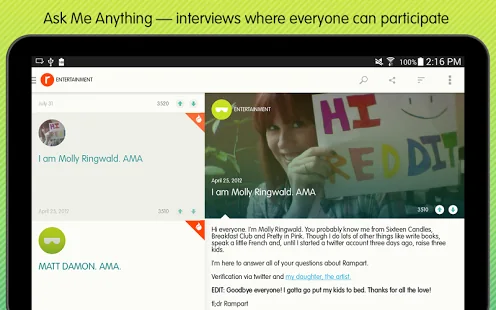
Search Google Play using a specific task, such as scanning a document or managing a password. Open the listing and check the developer name, support contact, update date, privacy information, and reviews from recent users. Reviews can be manipulated or refer to a different app version, so treat them as clues rather than proof. Follow links to the publisher’s own site when you need to confirm who made the app. Avoid lookalike apps, copied logos, and download pages that ask you to install an unrelated APK or browser extension.
Review permissions and privacy
Ask whether each permission makes sense for the feature. A camera app may need camera access; a wallpaper app generally should not need your call history. Android lets you review and change an app’s permissions in Settings, although menu labels vary by phone and Android version. On versions that provide a Privacy Dashboard, you can see recent access to sensitive permissions such as camera, microphone, and location. Deny access that the app does not need, and uninstall the app if its core feature stops working without unrelated permissions.
Read the app’s privacy disclosures before entering sensitive information. Find out whether the app collects location, contacts, photos, or usage data, and whether the developer explains sharing and deletion. An app-store listing is only one source of information; a vague privacy policy, missing publisher contact, or no explanation for sensitive access is a reason to look elsewhere.
Keep built-in protections enabled
Google Play Protect checks apps and can warn about harmful software. Google recommends keeping it on. It is a useful layer, not a guarantee that every app is safe. Keep Android, Google Play system components, and apps updated. If you install software from outside Google Play, verify the publisher and download source independently, understand why the app is unavailable in the official store, and scan it with Play Protect. Never turn off protections simply because an unknown download page tells you to.
Make a short trial before depending on an app
- Install one app at a time and confirm its publisher.
- Grant only the permissions needed for the feature you are testing.
- Check that the app behaves as described and does not display unexpected ads or prompts.
- Review battery and data use if the app runs in the background.
- Remove it and revoke access if it no longer receives updates or you stop using it.
For apps that handle banking, work files, health information, or passwords, prefer providers with a clear security and update history. No popularity list, permission screen, store badge, or automated scan can replace careful judgment about the data an app can access.

