
A remote shutter helps take a sharp phone photo without touching the screen at the moment of capture. It is useful for group portraits, low-light scenes, tripod work and time-lapse setups. The simplest dependable choices are features already built into the phone: a self-timer, a compatible watch or earbuds, or a camera app’s supported volume-button control. A separate Bluetooth shutter can be convenient, but compatibility and button behavior vary by phone and camera app.

Start with the built-in timer
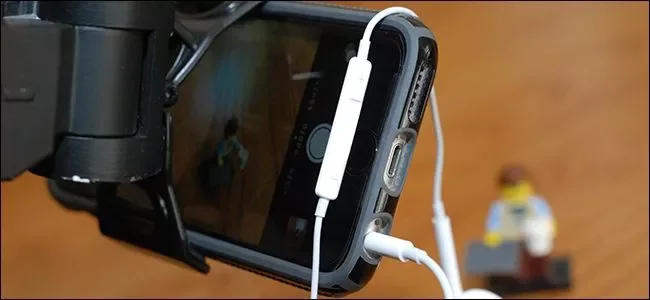
Place the phone on a stable surface or tripod, open the camera app, frame the shot and choose its timer control. A short delay gives the device time to settle after you tap the shutter. For a group photo, use a longer delay and take several frames. On many phones the physical volume keys can trigger the shutter, but check the camera’s settings and test the behavior before relying on it. Accessibility controls or a paired watch may offer another hands-free trigger; support depends on the device ecosystem and software version.
Using a Bluetooth remote
Choose a remote from a reputable seller, confirm it supports your phone’s operating system, and read what button it emulates. Many inexpensive remotes act like a volume key, so they work only in camera apps that map volume to capture. Pair it through the phone’s Bluetooth settings, grant only permissions the companion app actually needs, and test both photo and video modes. A remote that asks for unrelated access to contacts, messages, location or accessibility services deserves extra scrutiny. Remove the pairing when you no longer use it, especially on a shared phone.
Get a sharper result
Stabilize the phone, clean the lens, lock focus or exposure if the camera supports it, and avoid a surface that can vibrate. For repeated shots, use burst or interval controls provided by the camera app rather than repeatedly pressing a remote. Check framing and focus before the subject arrives, and keep the remote close enough for a reliable Bluetooth connection. A shutter button does not improve the sensor or guarantee a better image; light, focus, movement and composition still determine quality.
Privacy and compatibility
Camera apps may request microphone, location or photo-library access for features beyond taking a still image. Review those permissions in the operating system and allow only what you need. Avoid downloading unofficial camera-modification packages. Before buying an accessory, verify its return policy and current compatibility with your phone model and chosen app. The best remote shutter is the one that triggers a supported camera control reliably, without unnecessary software or access.

