
You can create a clear, professional resume without buying Microsoft Office. Google Docs offers browser-based editing and a template gallery, so you can start with a layout and focus on presenting relevant experience. A template is only a starting point: tailor the content to the position, proofread carefully, and follow the employer’s instructions about length and file format.
Choose a simple layout
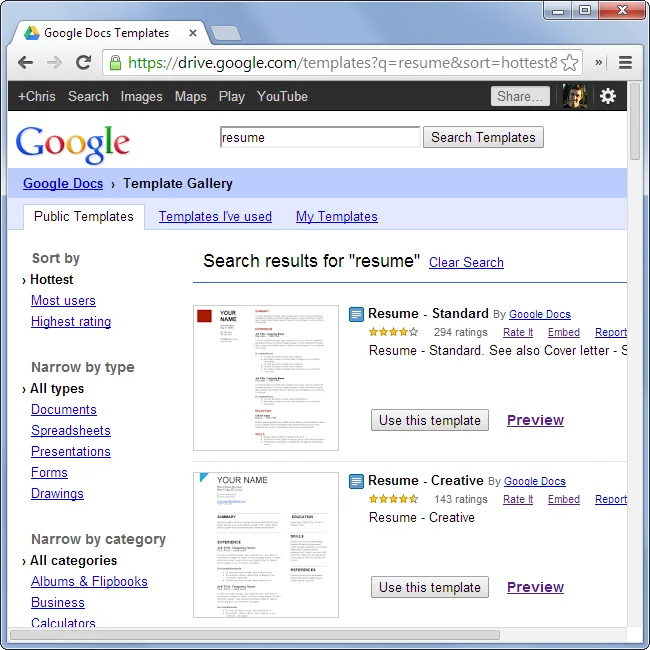
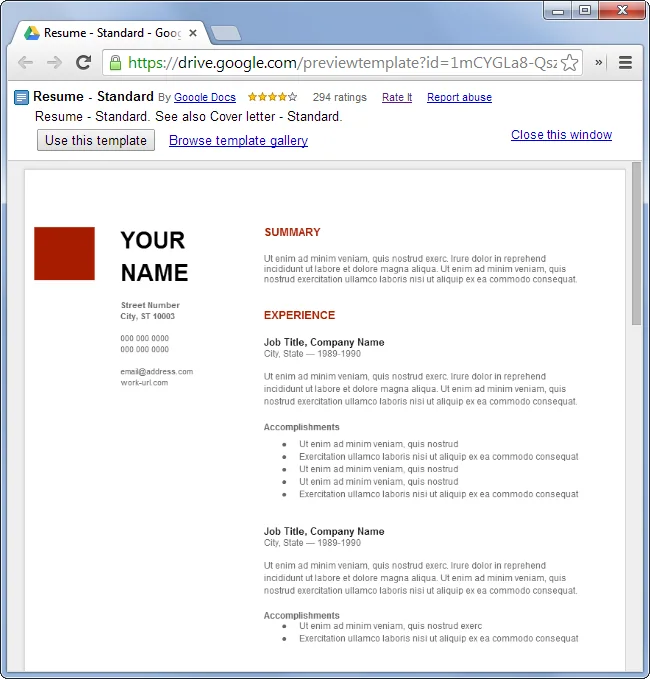
Open Google Docs and select a resume template from the gallery, or start with a blank document. Options can differ by language or account. Replace every sample name, date, heading, and placeholder sentence. Use readable type, consistent spacing, and ordinary headings such as Experience, Education, Skills, and Projects. Avoid elaborate graphics, nested columns, and text boxes if an employer uses an online application system; simple structure is easier for people and many software tools to interpret.
Tailor the writing
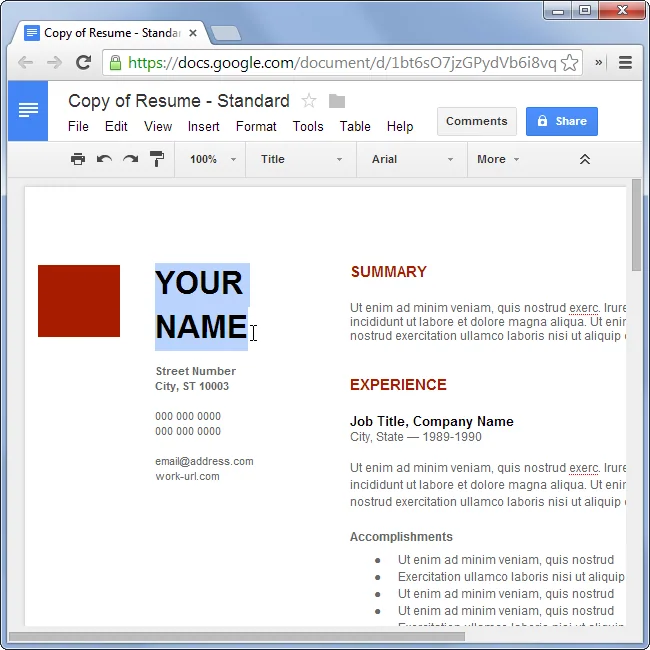
Put your name and professional contact information at the top. A short summary can help when it describes relevant experience, but avoid vague claims like “hard-working team player.” List roles in reverse chronological order with employer, title, and dates. Use concise bullets that describe an action and its result. Include measurable outcomes only when you can support the numbers. Add skills, education, projects, and certifications that match the job, and remove unrelated details.
Read the job posting and use its terminology naturally when it truthfully describes your experience. Check spelling, names, dates, and links. Ask someone in your field to review whether your contribution is clear. A focused resume is more useful than a long list of every task you have performed.
Export and protect your information
Keep an editable copy in Docs and export a PDF if the employer accepts it. Open the PDF to inspect page breaks, bullets, and links. Use a clear filename such as Firstname-Lastname-Resume.pdf. Before sending a cloud link, check its sharing permissions. A resume includes personal information, so do not leave it publicly editable. Google’s current Help Center explains template use and document creation; exact menus may change.

