
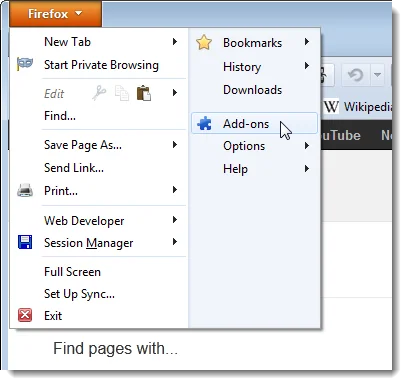
A slow browser can come from a busy tab, an extension, outdated software, a large profile or a computer that is short on memory. Start with reversible checks and change one thing at a time so you can identify the cause. Mozilla updates Firefox frequently, so the current menu names may differ from screenshots in older tutorials.


Start with the safe checks
Save work in open tabs, then restart Firefox and the computer. Install the latest Firefox update from the browser’s built-in update screen or Mozilla’s official site. If only one website is slow, test another site before changing browser settings; the problem may be the site or network rather than Firefox.
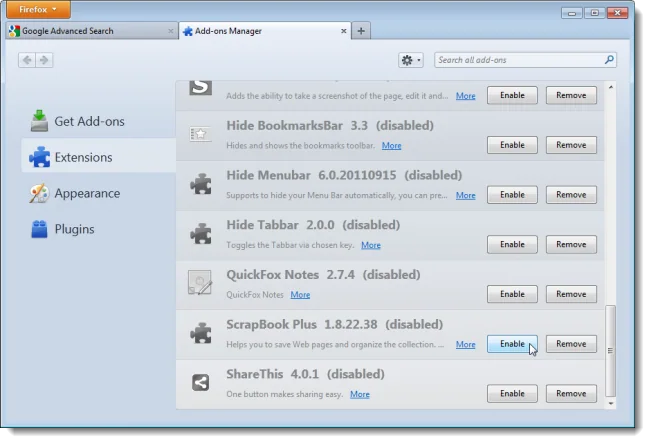
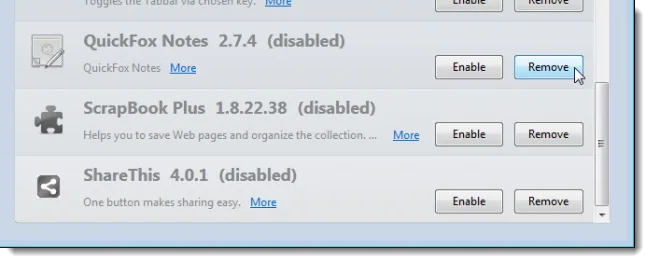
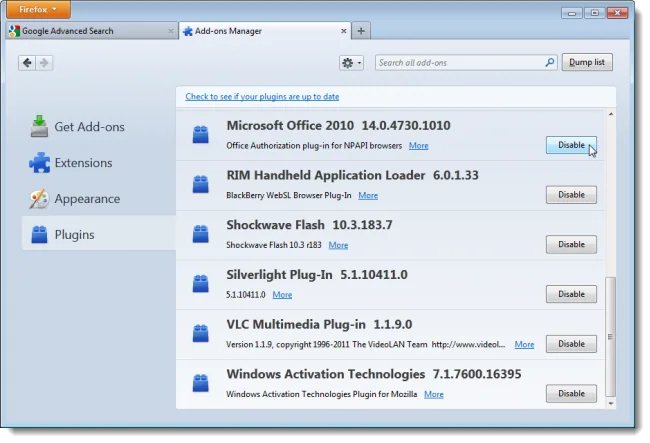
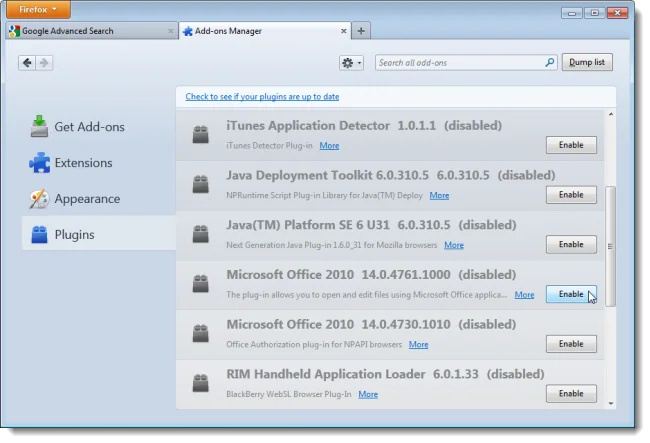
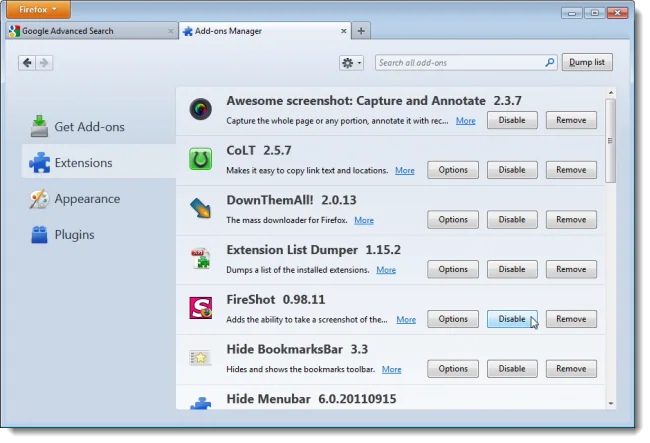
Open Firefox’s Task Manager from the menu or enter about:processes in the address bar to see whether a tab or extension is using unusually high CPU or memory. Close tabs you do not need. Run Firefox in Troubleshoot Mode, which temporarily disables extensions and some custom settings. If performance improves, re-enable extensions one at a time and remove any that are unnecessary or no longer maintained.


Clear data carefully
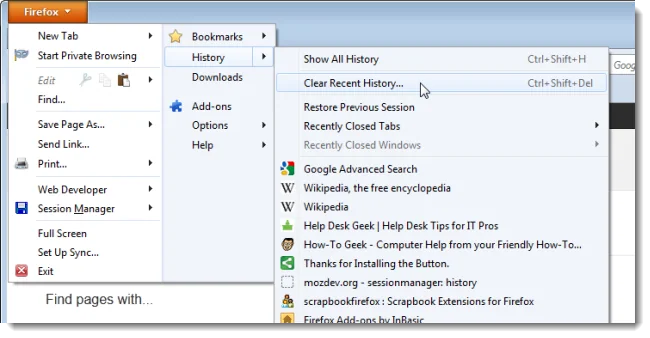
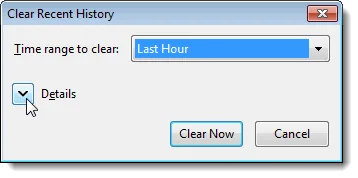
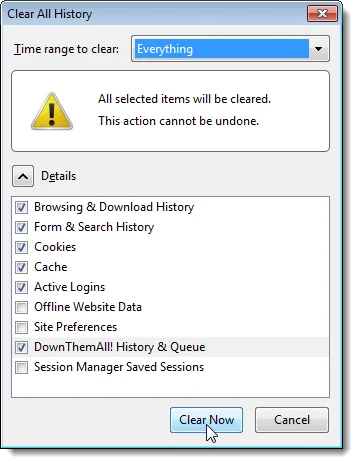
Cached files can sometimes cause loading problems, but clearing cookies and site data may sign you out of websites. Choose only the data you intend to remove. Do not use a “speed booster” extension that promises to clean the browser; it can create privacy and security risks. Check for unwanted software with your trusted security tools if slowness persists beyond Firefox.


Escalate without losing your profile
Mozilla’s Refresh Firefox feature can restore many browser settings while preserving essential information, but review what will be removed before confirming. Back up bookmarks and make sure you can recover saved passwords before a reset or profile change. If the browser remains slow in Troubleshoot Mode, check system resource use and network health, then consult Mozilla Support for the exact version. Avoid deleting profile folders manually.


If the slowdown began after an update, note the date and Firefox version before changing settings. Check that the browser is not restoring dozens of tabs at startup and that the computer has free storage. On laptops, power-saving modes can reduce performance. These observations help distinguish a browser-profile issue from a device or network problem and make support reports more useful.

