
BlueStacks became widely known as a way to run selected Android applications and games on Windows and macOS computers. An Android emulator can be useful for testing, app demonstrations or playing a mobile title with a keyboard and mouse, but compatibility and performance depend on the emulator version, computer hardware and the app’s own requirements.

Choose a safe installer
Old articles often link to offline installers for specific Windows versions. Those packages can become outdated and may no longer receive security fixes. Avoid download mirrors, repackaged installers and files advertised as cracked or modified. If you choose to use BlueStacks today, download it only from the developer’s official site and review the current system requirements, privacy terms and update notes first.
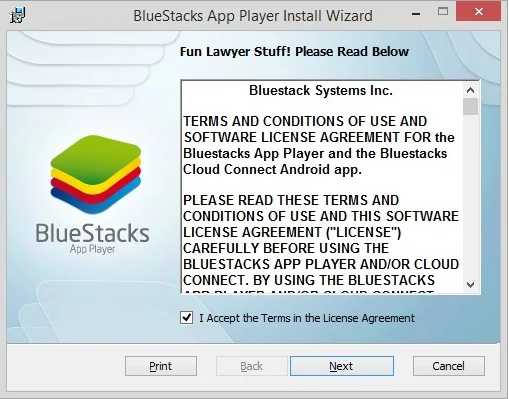
An installer may request elevated permissions because it adds virtualization components or system services. Read the setup prompts and decline optional bundled software that you do not want. Keep Windows updated, use reputable endpoint protection and remove the emulator if it is no longer maintained for your system.

Compatibility and performance
Emulation does not guarantee that every Play Store app will run. Some apps rely on device sensors, hardware features, geographic availability or anti-cheat systems that behave differently in an emulator. Performance depends on CPU virtualization support, memory, graphics drivers and the number of resources assigned to the virtual device. A slow or unstable game may reflect the app’s compatibility rather than a defective PC.
For app developers, use the current Android Studio Emulator and official Android testing tools where they fit the job. For ordinary users, install apps through trusted distribution channels and do not enter a Google account into an emulator downloaded from an unknown source. Keep recovery options available if the emulator changes system settings.
Legacy Windows versions
Windows 7 and Windows XP no longer receive ordinary security updates. Running an old Android emulator on an unsupported Windows installation adds risk even when the emulator itself appears to work. Use a supported computer and operating system for accounts, downloads and online play.
BlueStacks is a product whose availability and requirements change over time. This guide explains the category and safety considerations; it does not endorse an obsolete offline installer or guarantee compatibility with any particular Android app.

