
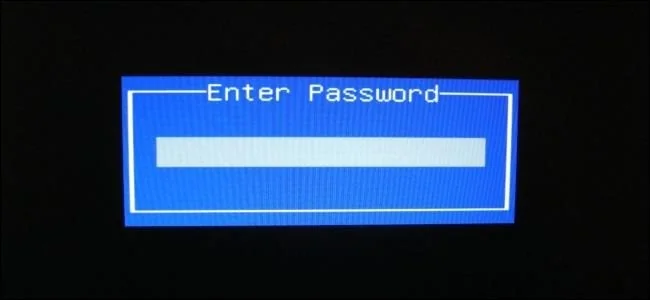
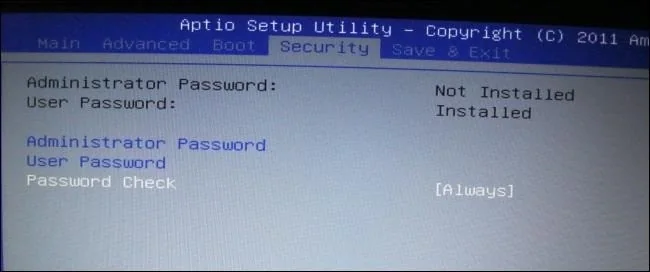
A BIOS or UEFI password can add a barrier before a computer starts or before someone changes firmware settings. The exact password types and behavior vary by manufacturer, model and firmware version. A startup password may block ordinary booting, while an administrator or setup password may restrict changes to firmware settings. Neither should be treated as a substitute for encrypting the data stored on the computer.
Understand the limits
Firmware passwords help control access to the device’s startup process and configuration, but they do not necessarily encrypt the drive. If an unencrypted storage drive is removed or the computer is booted through another supported route, files may still be exposed. Microsoft describes BitLocker and Windows Device Encryption as ways to encrypt drives so data is harder to read when accessed offline. Check whether encryption is enabled and save its recovery key somewhere separate and secure before changing firmware settings.
Use the manufacturer’s instructions
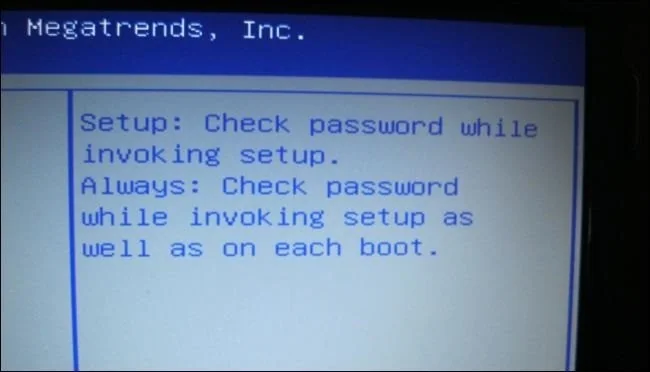
There is no universal BIOS key or menu path. Consult the support page for the computer’s exact model, especially on managed workplace devices. Dell’s current guidance distinguishes a system password, which can block startup, from an administrator password, which protects firmware settings. Other manufacturers may use different names, requirements or recovery processes. Do not set a password unless you have a reliable way to store it and understand how the vendor handles a forgotten password.
Protect the data as well
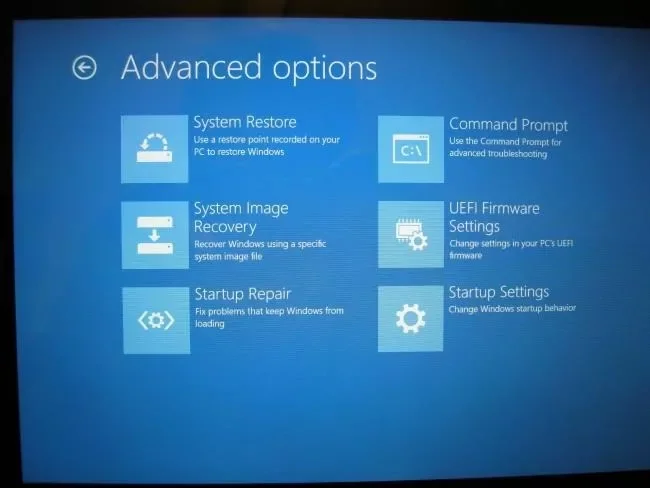
For a Windows laptop, check Device Encryption or BitLocker status in Windows Settings or the relevant control panel for your edition. Confirm the recovery key is backed up before modifying TPM, Secure Boot or boot settings; firmware changes can trigger a recovery prompt. Keep the recovery key private, and do not store the only copy on the encrypted computer itself. If the computer belongs to an employer or school, follow its IT policy and ask the administrator before changing firmware security.
Choose layered protection
Use a strong sign-in method, enable full-drive encryption where supported, keep firmware and operating-system updates current, and back up important files. A firmware password may be useful for physical access control, but encryption is the more relevant control for protecting data at rest if a laptop or drive is lost. Exact setup steps should be taken only from the device maker’s documentation because a mistaken configuration can prevent booting.
Official references: Dell: BIOS system password overview and setup · Microsoft Support: Device Encryption · Microsoft Support: BitLocker overview

