
If Windows animations or translucent window backgrounds distract you, Windows 11 includes accessibility settings to reduce those effects. These controls change how the interface looks; turning them off is not a guaranteed way to make every PC faster. You can change either option independently and restore it later.
Turn off animation effects
- Open Start > Settings.
- Select Accessibility, then Visual effects.
- Turn off Animation effects.
Windows will reduce interface motion such as sliding and fading effects. If you prefer animated transitions, return to the same setting and turn the option back on.
Make window backgrounds more opaque
On the same Visual effects page, turn off Transparency effects to make window backgrounds more solid. This may help you distinguish overlapping windows or reduce visual clutter. It changes the appearance of menus and interface surfaces, not the transparency of images inside your apps.
Other useful display options
The Visual effects page also includes options such as keeping scrollbars visible and changing how long notifications stay on screen. If Windows hides scrollbars in a way that makes navigation difficult, enable Always show scrollbars. If notifications disappear before you can read them, choose a longer dismissal time. You can adjust one preference without changing the others.
If you are using Windows 10
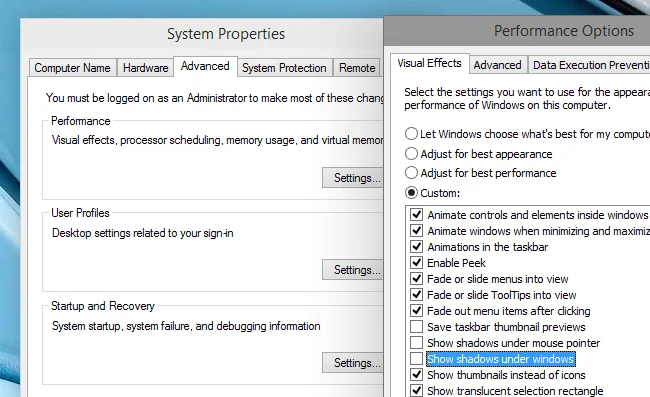
The location and labels differ on Windows 10. Microsoft’s support pages describe similar appearance options under older Ease of Access or Display settings. Windows 10 reached end of standard support on October 14, 2025, so PCs still running it should be evaluated for a supported upgrade path. Do not follow a Windows 10 screenshot as though it matches Windows 11.
Microsoft documents these visual controls as ways to reduce distractions and improve the viewing experience. They are not the same as changing window shadows in advanced performance settings. If your goal is accessibility, adjust the options one at a time and keep the combination that makes the screen easiest for you to use.

