
If an iPhone or iPad will not start normally, begin with the least disruptive checks. Connect it to a reliable charger, inspect the cable and power adapter, and let the device charge for a while. If the display remains dark, try the force-restart button sequence for the exact model. Apple changes the sequence across models, so use its current support guide rather than relying on a button combination from an older device.

Try an update before a restore
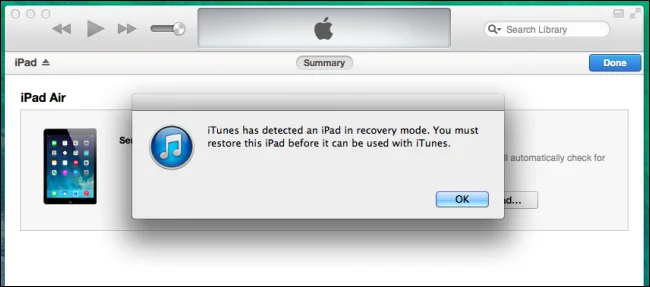
If the device shows the Apple logo for several minutes, displays a cable-to-computer screen, or is not recognized by a computer, recovery mode may help. Update the Mac or Apple Devices app on Windows, connect the device with a cable, and open Finder on Mac or Apple Devices on Windows. Follow Apple’s current instructions to put the model into recovery mode. When the computer offers Update or Restore, try Update first if available. Update attempts to reinstall the system software while keeping personal data; it may fail if the system is badly damaged.
Understand the restore choice
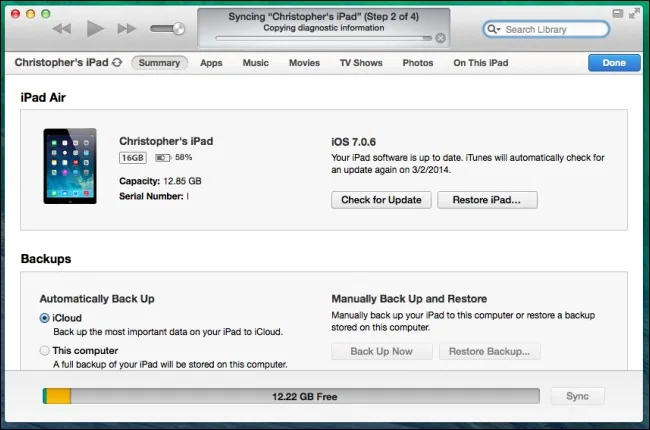
Restore reinstalls iOS or iPadOS and erases the device. Use it only after considering the data implications. If possible, confirm that a recent iCloud or computer backup exists before proceeding. A restore can be necessary when an update does not solve the startup problem, but data created since the last backup may not be recoverable. Keep the device connected while the computer downloads and installs the software. If the download takes a long time and the device exits recovery mode, let the download finish, then repeat Apple’s recovery steps.
When to stop troubleshooting
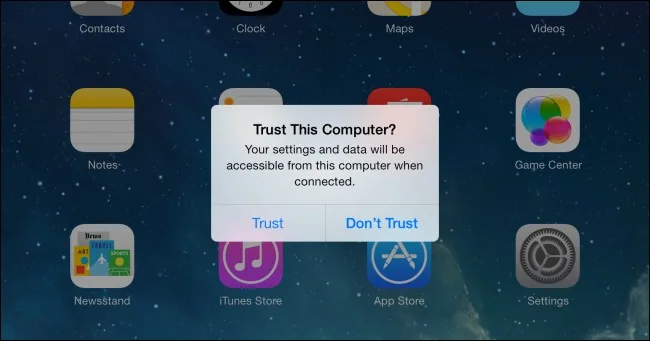
If the computer does not detect the device, try a different data-capable cable or USB port and update the computer software. A damaged or stuck button can prevent recovery mode. If Update and Restore both fail, or the device repeatedly returns to the recovery screen, contact Apple Support or an authorized service provider rather than repeating erase attempts.
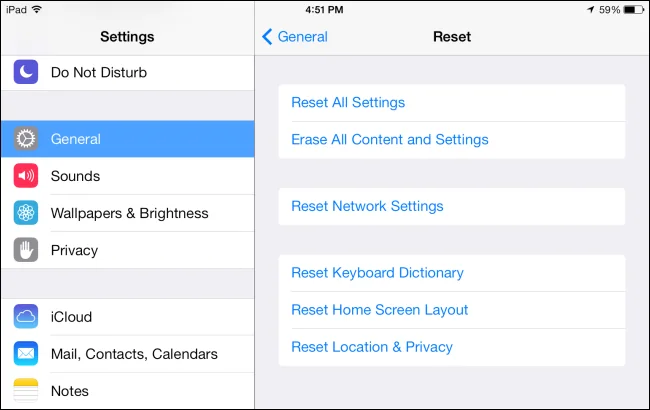
Recovery mode is different from a routine restart or resetting settings. A factory restore removes personal data, so read the on-screen prompts carefully and choose the option that matches the problem.
References: Apple: update or restore an iPhone that will not start and Apple: restore using a computer.

