
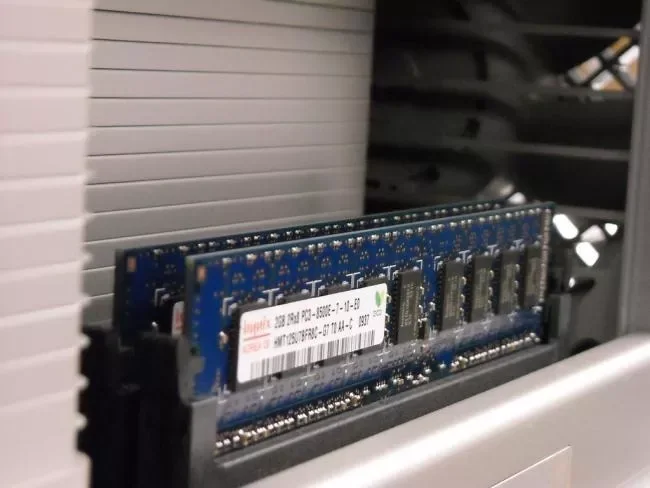
ReadyBoost is a Windows feature that uses eligible flash storage as a cache. It was designed to help some older systems, particularly computers constrained by memory or slower storage. It does not turn a USB drive into physical RAM, and it cannot make every computer faster. Whether it helps depends on the system, storage device, workload, and Windows version; a visible ReadyBoost tab or an old benchmark does not prove a useful improvement on your PC.
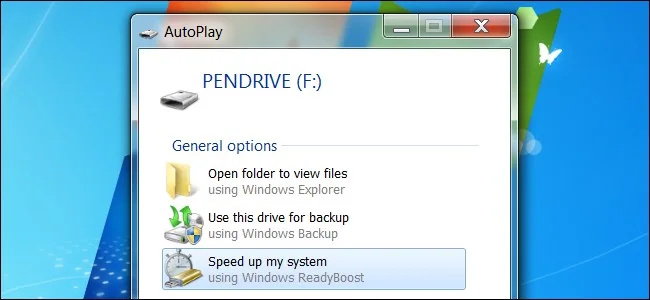
Check whether Windows supports the device
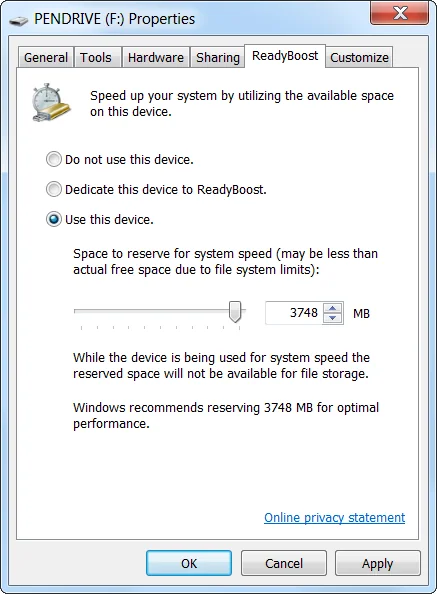
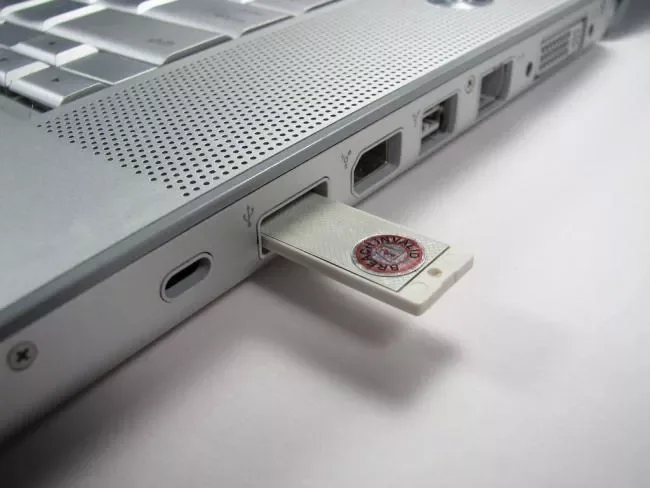
Connect a spare, reliable USB flash drive and inspect its Properties in File Explorer. If Windows offers a ReadyBoost tab, follow the on-screen compatibility check; the operating system may reject a drive that is too slow or unsuitable. Do not format a drive or dedicate it to caching if it contains files you need. Windows may reserve space on the device, and removable storage should not replace a backup or an upgrade to internal memory.
Identify the real performance bottleneck
Before testing ReadyBoost, open Task Manager and observe memory, disk, and CPU use during the work that feels slow. If memory is consistently exhausted, close unused apps and browser tabs or check whether the computer can accept a RAM upgrade. If the system drive is nearly full or failing, address that issue first. A slow startup can also come from startup apps or updates. Microsoft recommends managing startup applications and checking other common performance factors rather than relying on a single tweak.
Test a real workload
Measure the same task before and after enabling ReadyBoost: for example, opening the same files or launching the same program after a restart. Keep other conditions similar and repeat the test; one run can be affected by caching and background updates. If you cannot notice a consistent improvement, remove the device and use the port for something else. Do not run an untrusted benchmark or optimization utility that promises a guaranteed speed increase.
Use current support guidance
ReadyBoost instructions in older Microsoft help pages focus on Windows Vista and Windows 7, so they should not be read as a recommendation for every modern PC. Check current Windows documentation and the device manufacturer’s support before changing performance settings. For most users, keeping Windows and drivers current, maintaining free storage, removing unnecessary startup apps, and using supported hardware are more dependable starting points. Consider a faster internal SSD or a memory upgrade only after confirming compatibility and backing up important files.
Official references: Microsoft Support: ReadyBoost with USB or SD storage · Microsoft Support: Improve PC performance in Windows

