
Task Manager helps you see which applications and processes are using system resources. It can help explain a slow or unresponsive Windows session, but a high number by itself does not prove that a process is malicious or safe to stop. Save open work before ending an application, and identify an unfamiliar process before taking action.
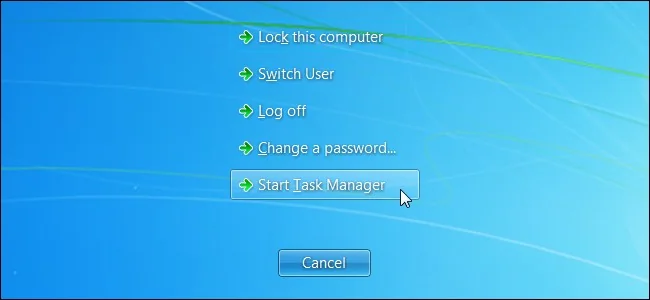
Open Task Manager
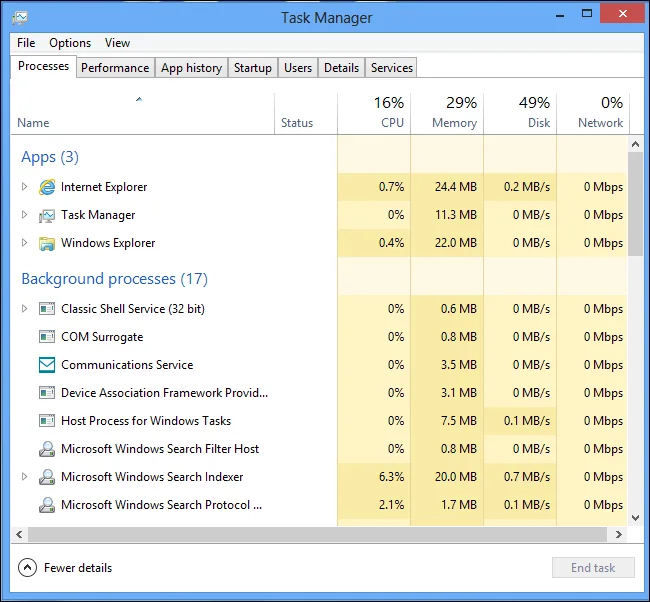
Press Ctrl+Shift+Esc, or right-click Start and choose Task Manager. In current Windows versions, the navigation is arranged in a sidebar; older releases may use tabs. If the compact view appears, choose More details to see the full set of tools.
Find what is using resources
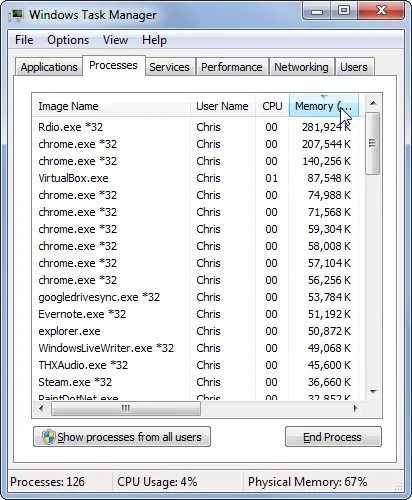
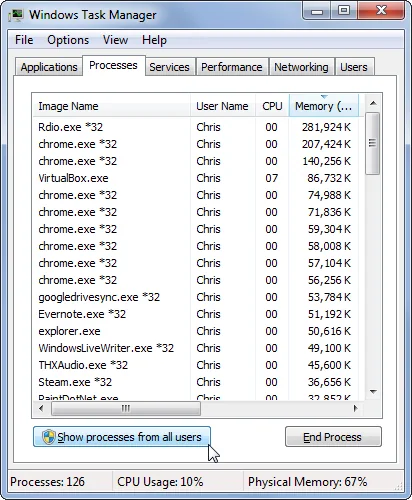
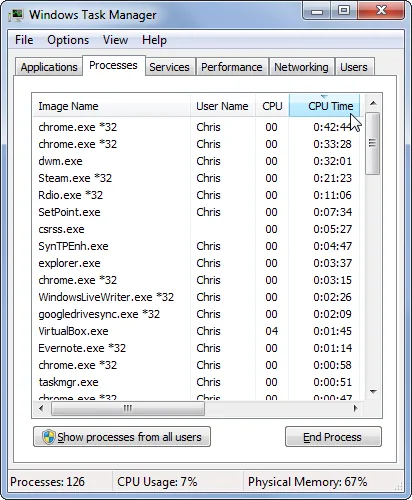
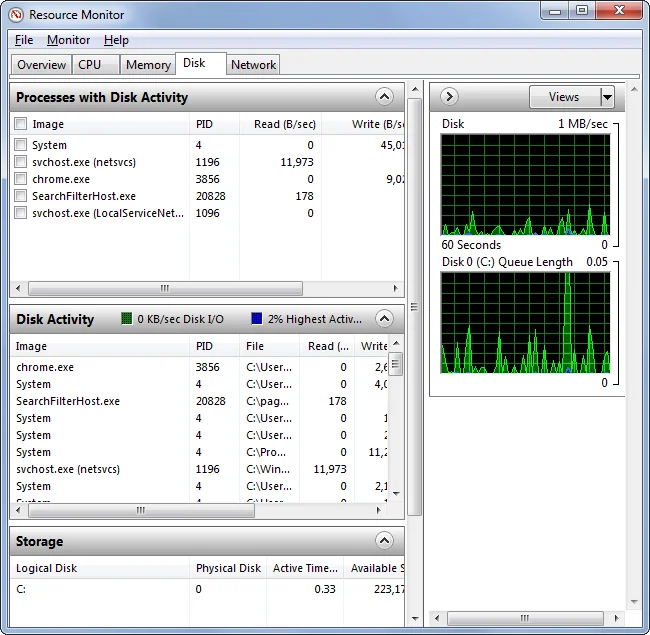
On Processes, compare CPU, Memory, Disk and Network columns. Click a column heading to sort by that measure. A short spike can be normal when an app opens or an update runs; watch the values for a little while and note which app is active before concluding that the computer has a persistent problem.
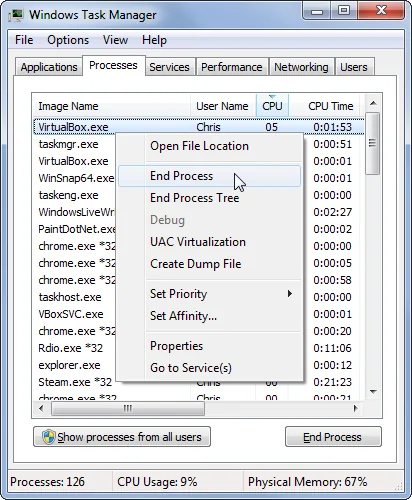
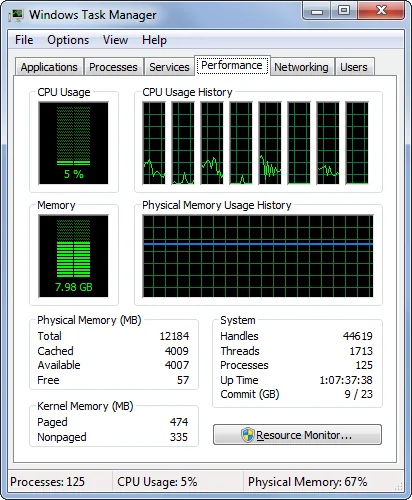
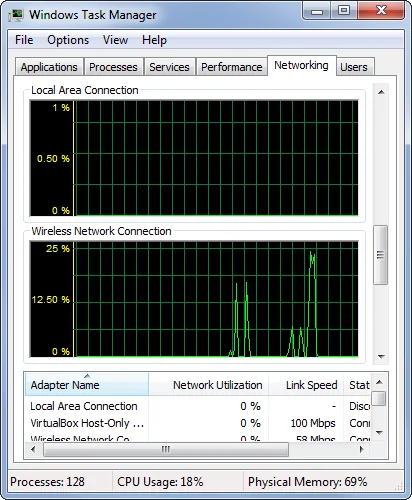
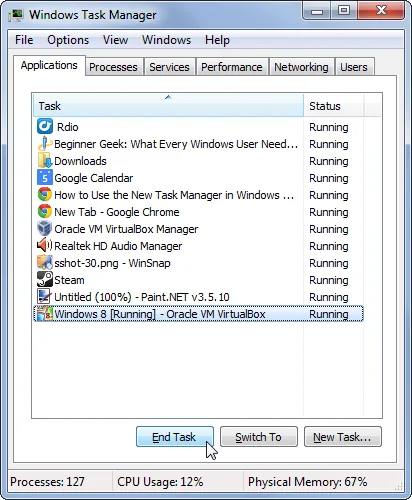
Use Performance for a broader view of CPU, memory, storage and network activity. The figures describe the computer at that moment; they do not diagnose a failing component. Close a program normally first. Use End task only for an app that is clearly unresponsive or that you have identified and intend to stop, because unsaved work may be lost.
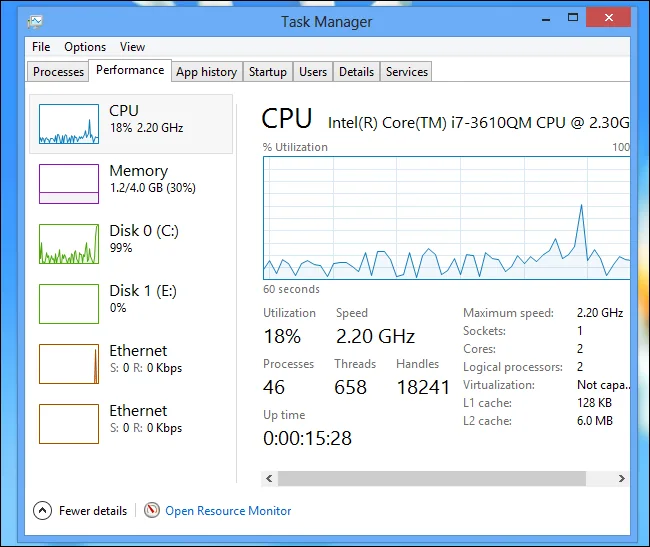
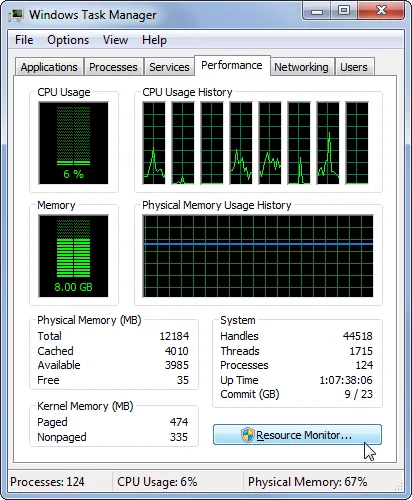
Review startup and background activity
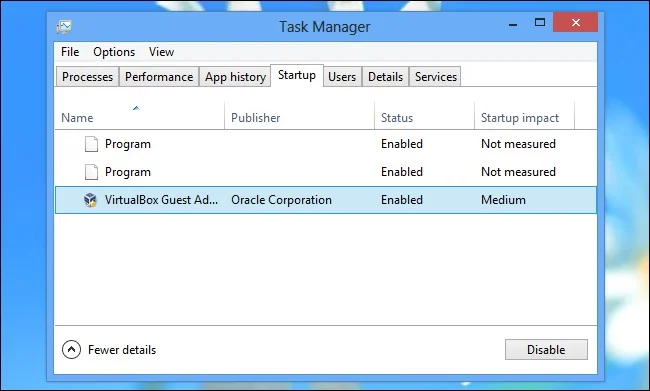
Open Startup apps to review programs that launch when you sign in. Select an item to see its startup impact, where available. Disable only apps you recognize and do not need at sign-in; security software, device utilities and work tools may be important. You can reverse a startup choice later.
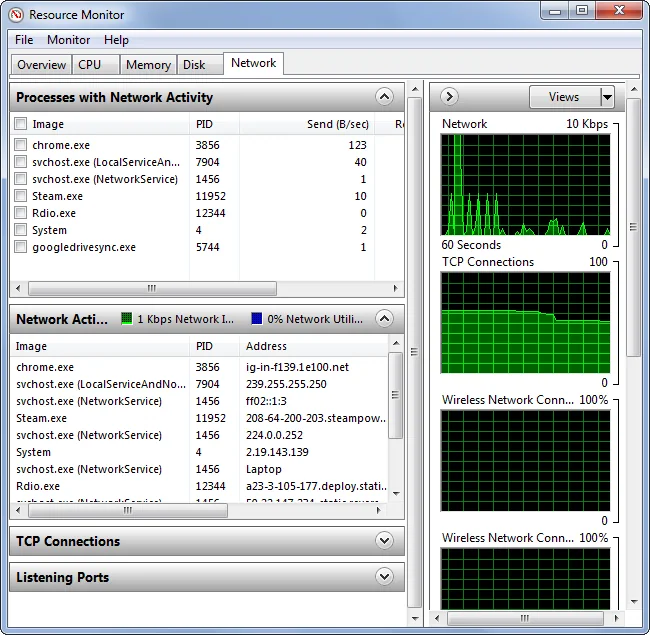
Investigate a repeat problem
If the same resource remains high after a normal restart, update the affected application from its publisher and check Windows Update. Record the app name and when the slowdown occurs. For an unknown process, search its exact name through Windows Security or your device maker’s support before ending it; names can be shared by legitimate and unwanted software.
![[updated]](https://tecblast.net/wp-content/uploads/2026/10/updated-c29f410e.webp)
Task Manager is a monitoring and basic management tool. Avoid ending Windows processes or changing Services based on a generic online list. If the system continues to freeze, use Microsoft’s troubleshooting guidance or contact device support.

