
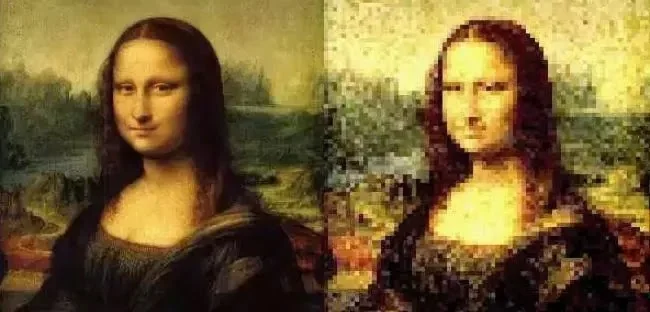
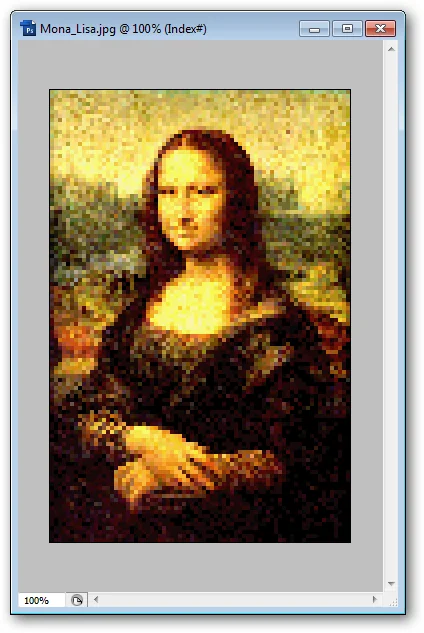
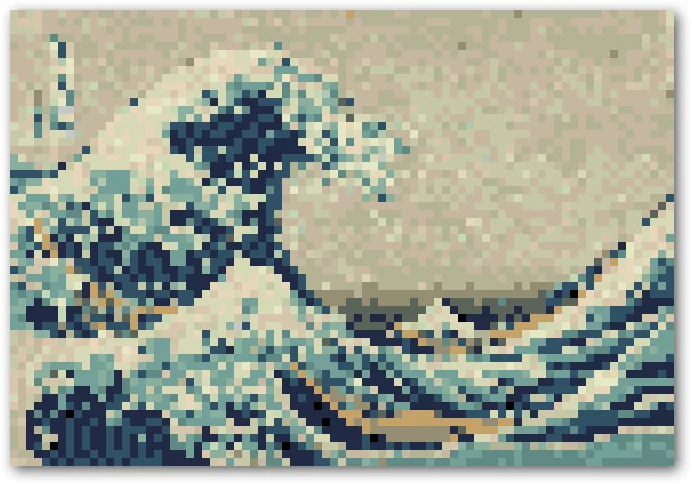
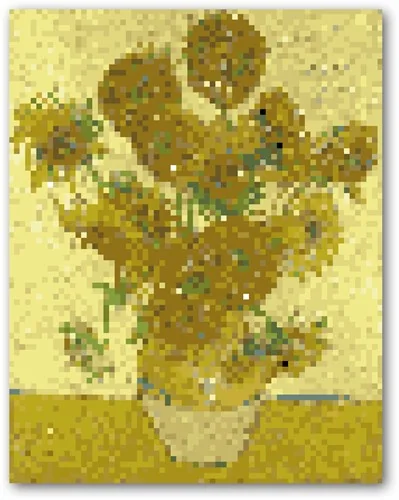
Pixel art uses a deliberately limited grid of visible square pixels, a small color palette, and clean edges. Shrinking a photograph and enlarging it with a hard-edged resampling method can create a blocky effect, but it does not automatically produce readable pixel art. The subject, contrast, composition, and palette still matter. Work on a copy of the original image so you can compare results and return to the source.

Choose a simple subject and crop
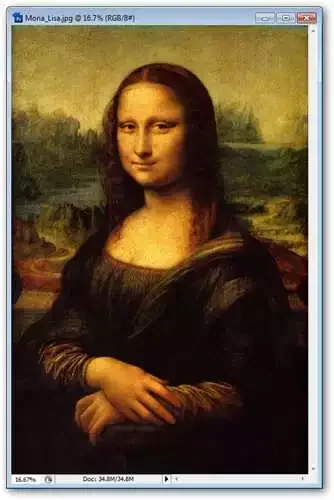
Start with a photo that has one clear subject and an uncluttered background. Crop tightly so the subject occupies most of the canvas, then reduce the image to a small working size. A lower pixel count produces larger blocks when scaled back up, while a larger working canvas preserves more detail. There is no single correct size; make a few copies at different dimensions and choose the one that keeps the main silhouette recognizable.
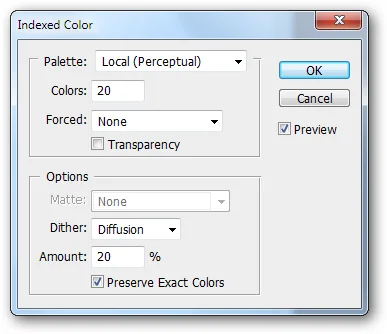
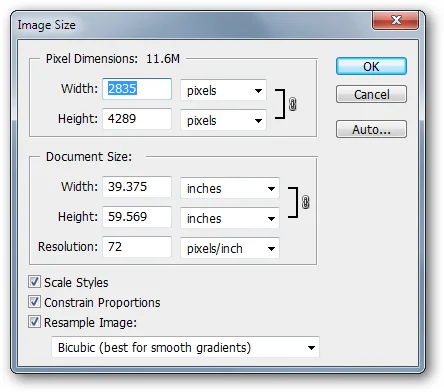

Reduce colors and strengthen shapes
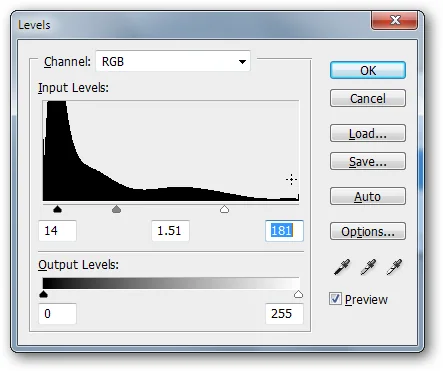
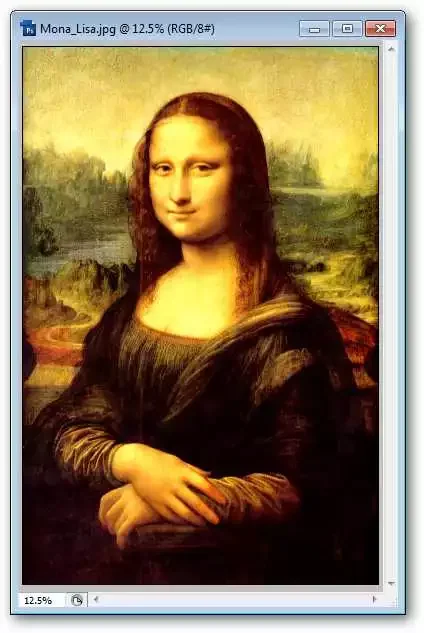
Pixel art often works best with a compact palette. Use a posterize or palette-reduction adjustment, then inspect whether important details remain distinct. Increase contrast selectively rather than crushing every shadow to black. Remove tiny background details that compete with the subject. If the tool offers layers, keep the source, reduced-color version, and cleanup edits separate so individual changes remain reversible.
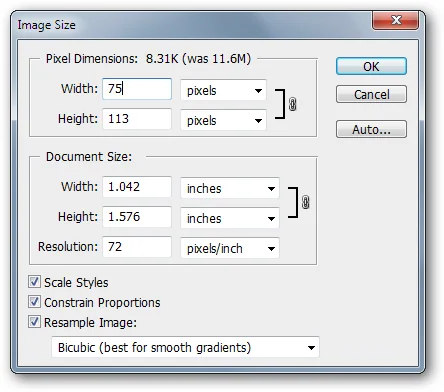
Scale up with a hard edge
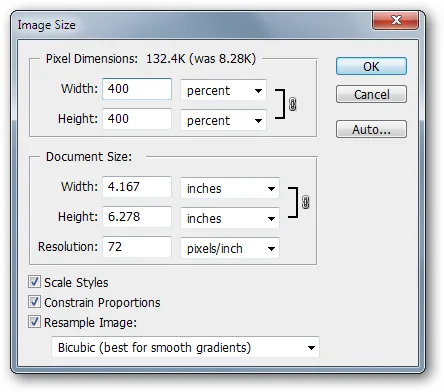
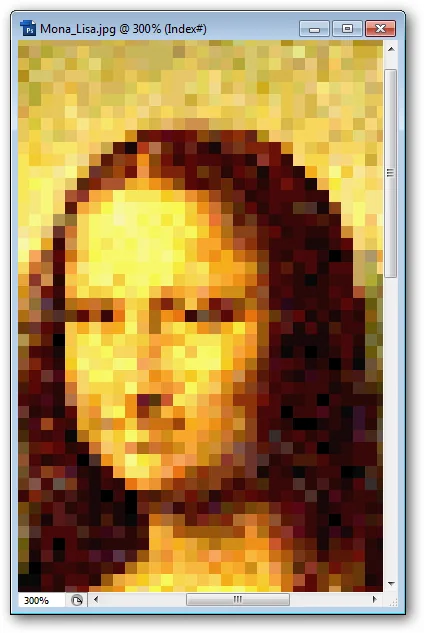
When enlarging the small image, use nearest-neighbor interpolation if your editor provides it. This repeats source pixels instead of blending neighboring colors, preserving square edges. Smooth interpolation methods can blur the block pattern. GIMP’s transform documentation describes interpolation choices and how they affect image scaling; menu names can vary across releases. Zoom in to inspect the result, but also view it at the size where people will actually see it.
Clean up and export
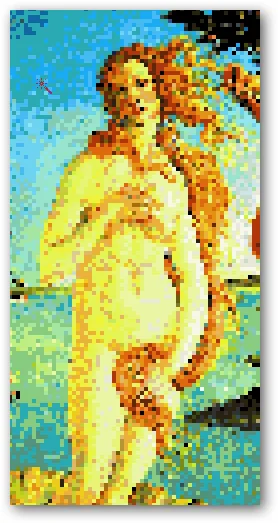
Use a one-pixel pencil or selection tool to repair stray colors, sharpen the outline, and simplify noisy areas. Check that small features remain clear at native size. Save an editable project file with layers, then export a PNG for crisp edges; JPEG compression may add artifacts around color boundaries. If you publish an edited photo, make sure you have permission to use the original image and do not remove attribution or watermarks. Keep the unedited original and credit any source material as required.
Official reference: GIMP documentation: Transform tools and interpolation

