
Apps that launch when you sign in can lengthen startup and keep running in the background. Windows 10 and 11 provide built-in controls to review these apps. Disabling an app from startup does not uninstall it; you can still open it when needed, and you can turn it back on later.
Use Settings
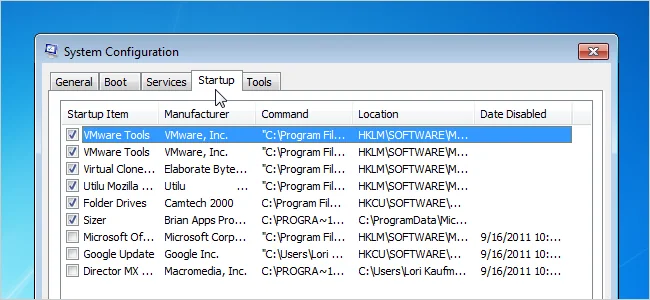
Open Start, choose Settings, then Apps and Startup. Review the list and switch off apps you recognize but do not need immediately after signing in. Startup entries can include cloud sync, chat, update helpers, and device utilities. Keep apps enabled when you rely on them for a connected keyboard, security product, accessibility feature, or work policy. Microsoft documents the current paths in its startup apps guide.
Check Task Manager impact
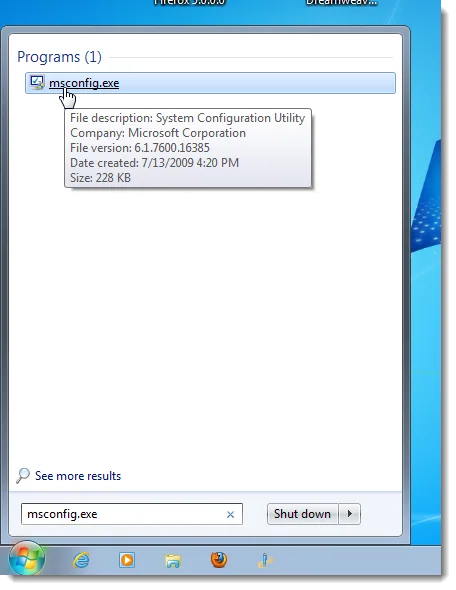
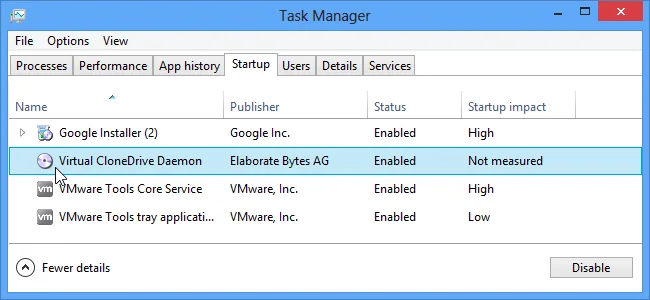
Press Ctrl+Shift+Esc and open Startup apps. Task Manager shows startup impact for many entries, which can help prioritize review, but impact alone does not tell you whether an app is safe to disable. Search the publisher and purpose of an unfamiliar item before changing it. Do not disable drivers or security tools based only on a high impact label.
Restore an app if something changes
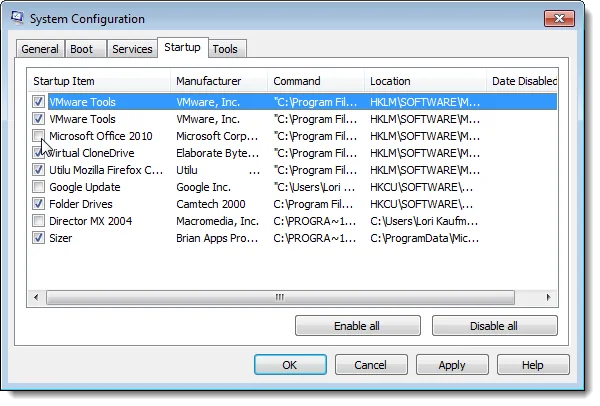
If a feature stops working, return to Startup settings or Task Manager and enable the app again. Some programs manage their own startup behavior in their settings, so a Windows toggle may not be the only control. Avoid third-party “PC cleaner” tools that ask for broad permissions or promise a dramatic speed boost.
Measure the result
Restart the computer after changing a small number of entries and compare sign-in time and behavior. If startup feels faster, keep only changes that have no downside in your daily use. If the list contains a missing app or an entry you do not recognize, inspect its publisher and file path before editing the registry; Microsoft warns that registry changes can have unintended consequences.
Related reading: Manage Startup Apps in Windows 10 and 11.

