
Android Developer Options contains system controls intended mainly for app development, testing and diagnostics. Most phone owners do not need to change these settings for everyday use. If you enable the menu to follow a trusted troubleshooting guide, change only the specific option you need and note its original state so you can undo it afterward.
Reveal the Developer Options menu
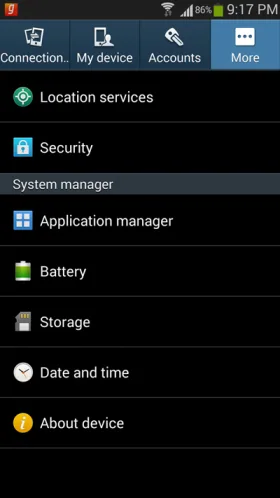
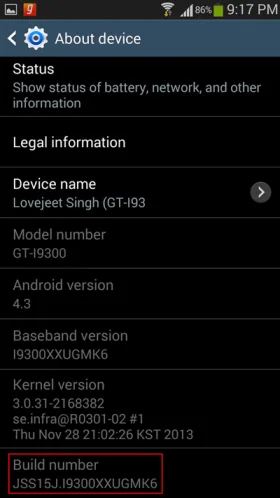
First locate the Build number in Settings. On many devices it is under About phone; Samsung phones commonly place it under About phone, then Software information. Tap Build number seven times. Your device may ask for its screen lock PIN or password. When Android confirms that developer options are enabled, return to the main Settings screen. On some models, the menu appears under System, Advanced, or a similarly named section. Manufacturer and Android-version differences mean the path may not match exactly.
Change only the setting you need
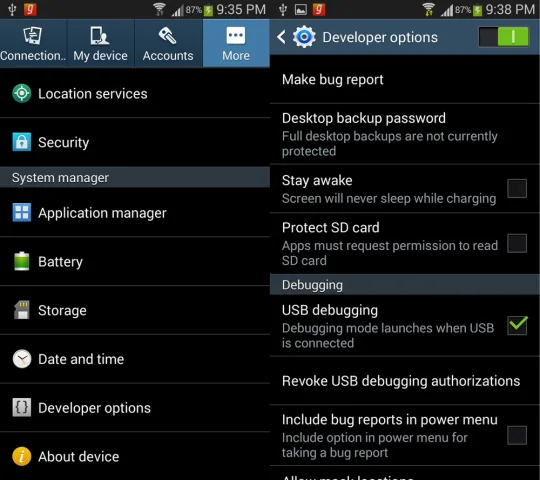
Open Developer Options and read each setting’s description before changing it. For example, USB debugging allows Android development tools on a connected computer to communicate with the device; it is not a general performance booster. Enable debugging only when you are using a trusted computer for a specific task. Read the phone’s prompt before approving a computer’s debugging key, and revoke authorizations or turn debugging off when the task is finished. Do not enable wireless debugging on an untrusted network.
Turn off risky options
When you finish, return to Developer Options and switch off debugging or other temporary controls. Depending on the device, turning off the main Developer Options switch disables most options, though some settings that do not require development-computer communication may remain. If you cannot remember what changed, use the menu’s individual controls or consult the manufacturer’s guide rather than resetting unrelated system settings.
Developer Options is not needed to install ordinary apps or receive system updates. Avoid changing animation scales, background process limits, graphics settings or network controls based on generic “speed up your phone” advice; the effect can vary and may make apps behave unexpectedly. If you are testing an app, follow the developer’s instructions and restore the default settings when finished.
Reference: Android Developers: configure on-device developer options.

