
A scratched or dirty CD or DVD may still contain readable files, but recovery is never guaranteed. Optical drives use error correction to handle some read errors; a deep scratch, damaged recording layer, disc rot or a failing drive can make parts of the data inaccessible. If the contents are important, avoid home remedies that can make damage worse and work from the least risky steps first.
1. Stop if the data is irreplaceable
If the only copy contains business records, family photos or other critical files, stop repeated attempts and consider a reputable data-recovery service. Each failed read can consume time, and polishing or applying chemicals can permanently damage a disc. Do not try toothpaste, abrasive compounds, furniture polish, solvents or heat. If the disc is cracked, warped, delaminating or has damage on its label side, do not put it in a drive; it may be unsafe for the mechanism and professional help is the safer choice.
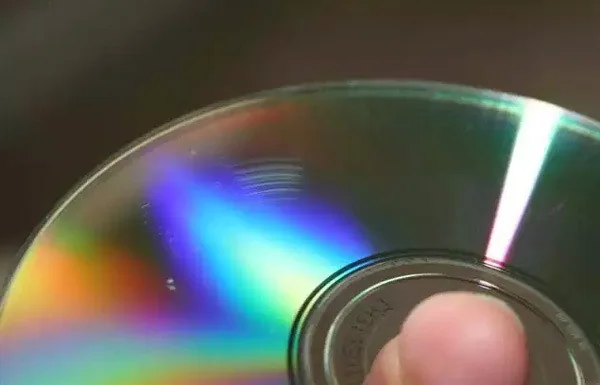
2. Clean dust and fingerprints carefully
Hold the disc by its outer edge or center hole. Sony’s disc-care guidance recommends a soft, dry cloth and wiping from the center outward in straight strokes. Avoid circular rubbing, which follows the data track, and do not use benzine, thinner, lens cleaner or anti-static spray. Let the disc dry fully if it was exposed to moisture, and inspect it under good light before trying again.
3. Try a known-good optical drive
Different drives can read marginal discs differently. Use a clean, working drive that supports the disc format, connect it directly rather than through an unreliable hub, and close other applications that may be accessing the drive. If the disc mounts, copy the most important folders first to a separate drive. Copy individual files instead of repeatedly copying the whole disc; note which files fail and avoid overwriting the only recovered copy.
4. Use a recovery tool on a copy where possible
For a data disc that produces read errors, an experienced user can create a sector-level image with a recovery utility such as GNU ddrescue, then attempt file recovery from that image. Ddrescue’s manual describes copying data from a block device or file and recording progress in a mapfile so a recovery can resume. This is a technical workflow: choose the correct source and destination carefully, because reversing them can overwrite the source. Do not practice on the only copy of important data. For ordinary users, a recovery utility with a clear read-only mode may be easier, but download tools only from their official project pages.
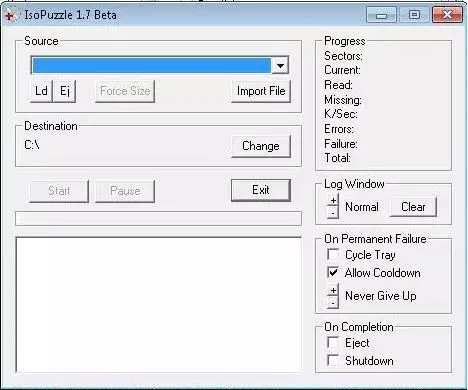
5. Preserve what you recover
Save recovered files to a different storage device, not back to the disc. Open a sample from each important folder and compare file sizes where possible. Make at least one additional backup after recovery, ideally on separate media or a trusted cloud service. If only some files were recovered, keep the original disc untouched and record which files are missing before trying another drive or seeking help.
There is no reliable trick that can restore data from every scratched disc. A scratch may affect only part of the readable surface, while damage to the data layer or a badly deteriorated disc may be permanent. Handle the disc gently, make one careful cleaning attempt, copy anything readable promptly and escalate valuable cases before experimenting.
This guide replaces the old list of third-party utilities, several of which may no longer be maintained. Always check a tool’s current support status and documentation before use.

