
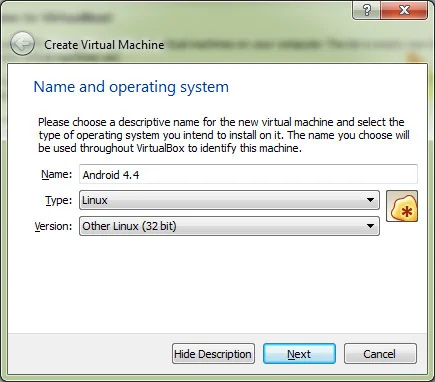
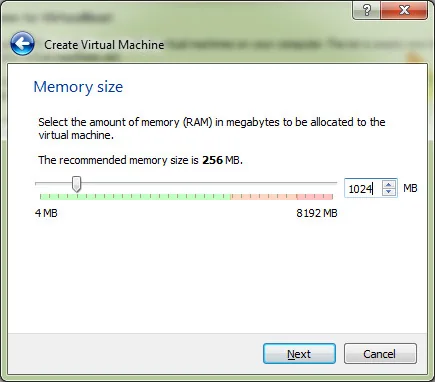
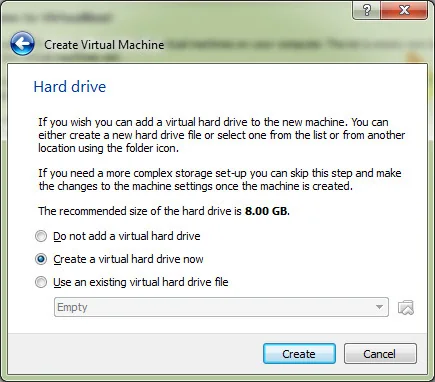
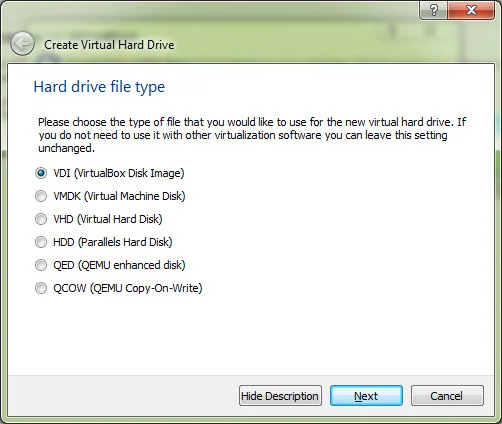
You no longer need VirtualBox or an old Android 4.4 image to test Android apps on a Windows PC. Google distributes the Android Emulator with Android Studio, letting you create virtual Android devices and run apps in a controlled development environment. The emulator is intended for testing and development; it is not a replacement for every feature of a physical phone, such as carrier service, some sensors, or real-world battery behavior.


Check your PC before installing
Google’s current Android Studio requirements list 64-bit Windows 10 or later for the emulator. The emulator also needs substantially more memory and storage than the IDE alone, so review the current requirements page before downloading and close other demanding applications during setup. Hardware acceleration is important for usable performance. On Windows, follow Google’s current instructions for Windows Hypervisor Platform (WHPX) and check that hardware virtualization is enabled in the PC’s firmware. Hypervisor support and Windows features can change; do not copy old VirtualBox BIOS or driver workarounds from a 2014 tutorial.

Install Android Studio
- Download Android Studio from the official Android Developers website.
- Run the installer and include Android Studio, the Android SDK, and Android Virtual Device components when offered.
- Open Android Studio and let Setup Wizard download the recommended SDK tools.
- Open Device Manager, choose Create Device, and select a hardware profile such as a Pixel model.
- Choose an available system image. Select a Google Play image only when your test needs Google Play services; otherwise use a suitable standard image.
- Finish setup and start the virtual device from Device Manager.
Install and test an app
For an app project, select the emulator in Android Studio’s device menu and press Run. To test an app package you already own or are authorized to test, use the emulator’s documented installation workflow or drag the APK into its window. Use images and app packages from trusted sources, and never install an unknown APK simply because a download page promises a newer Android build. A virtual device can be reset or recreated when a test becomes corrupted, which is safer than experimenting on a personal phone.

Fix common launch problems
If the emulator is slow, confirm virtualization and the recommended hypervisor setup, then check that the selected device image matches your PC architecture. Update the emulator and system images through Android Studio’s SDK Manager. If Windows reports that a hypervisor feature conflicts with another virtualization product, consult Google’s current troubleshooting guide before changing Windows security or boot settings. Avoid disabling security protections as a generic fix. If your test depends on a camera, GPS, Bluetooth, telephony, or hardware performance, compare emulator behavior with a physical device.
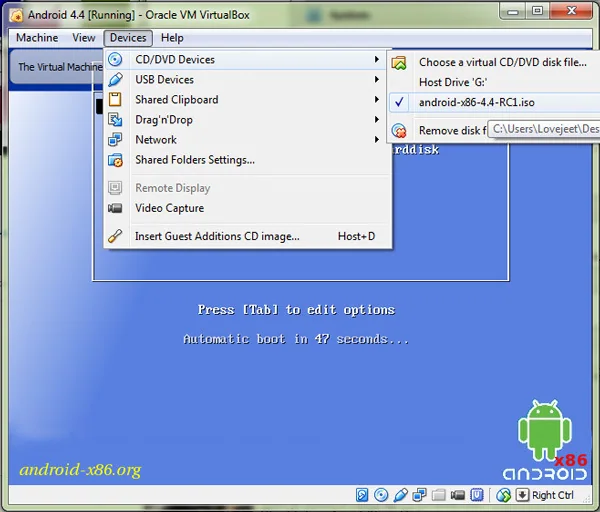
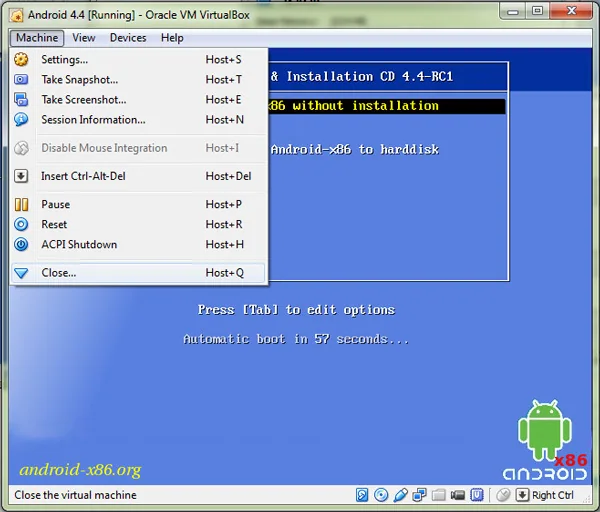
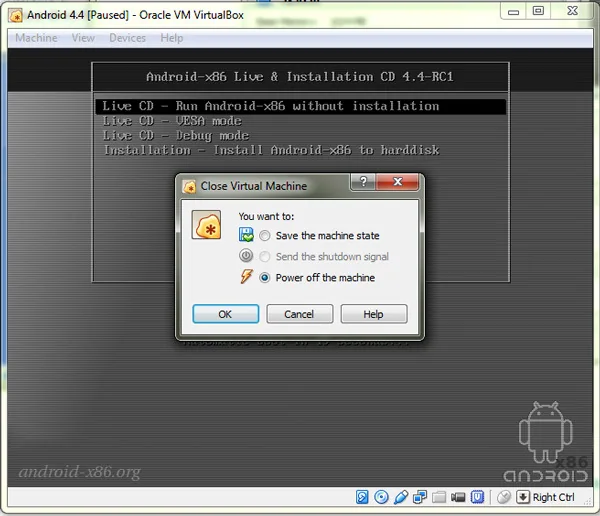
Why this replaces the old VirtualBox method
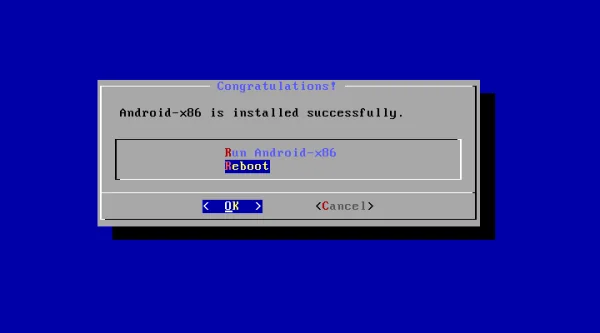
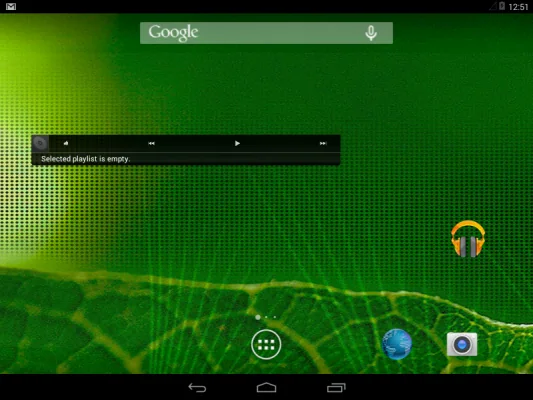
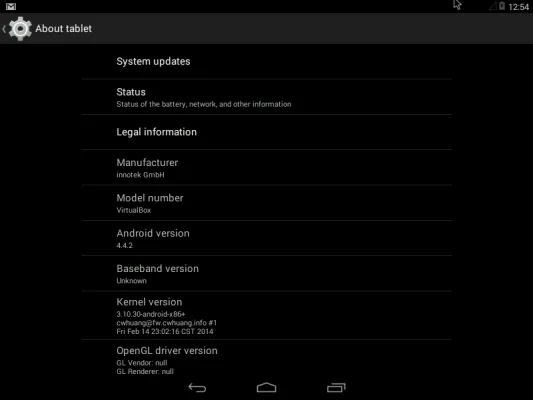
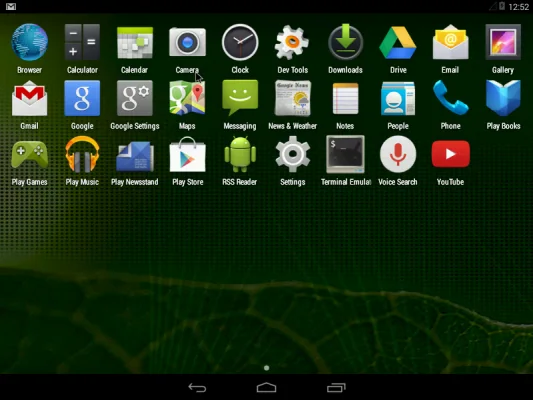
The 2014 KitKat-in-VirtualBox approach describes a historical setup and old operating system image. It can expose you to obsolete software and may not match current Windows virtualization support. Android Studio’s emulator provides maintained system images, snapshots, device profiles, and debugging tools from Google. For learning app development, start with the current Android Studio documentation and choose the Android version your app supports. For everyday Android apps, use a supported physical device instead of relying on an old KitKat virtual machine.
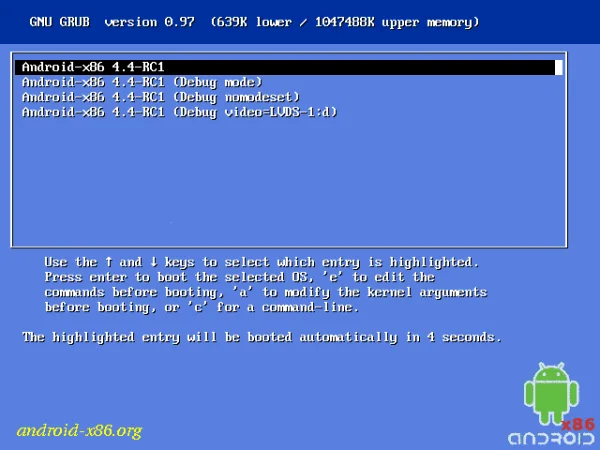
Menu names and requirements can change between Android Studio releases. Check the Android Developers installation, emulator, and troubleshooting pages for the exact current options on your Windows version.

