
Gmail filters apply actions to incoming messages that match search criteria. They can add labels, archive, star, delete, or forward mail. A carefully tested rule can reduce inbox clutter; a broad rule can hide receipts, security alerts, or messages you still need.
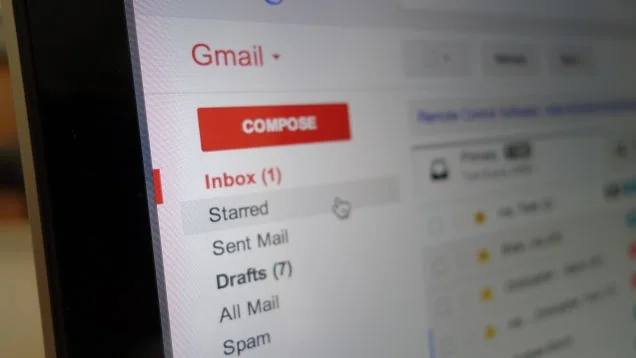
Create a filter from a message
On desktop, open Gmail and select a message similar to the mail you want to organize. Open the More menu and choose “Filter messages like these.” Review the sender, recipient, subject, and words fields. Remove any condition that is too broad, then use Search to see which messages match before you save the rule. Choose Create filter and select an action such as applying a label or starring the message. Google documents the current steps in its Gmail filter guide.
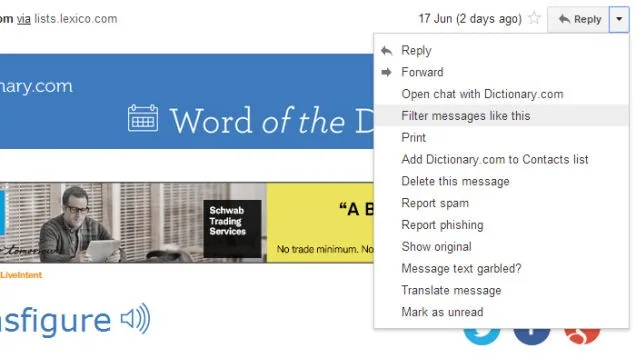
Choose actions with care
Labels are a low-risk starting point because the message remains available in All Mail. “Skip the Inbox” archives matching mail; it does not delete it, but it can make messages easier to miss. Reserve Delete for predictable mail you do not need. Forwarding can expose private messages to another account, so verify the destination and get permission before enabling it.
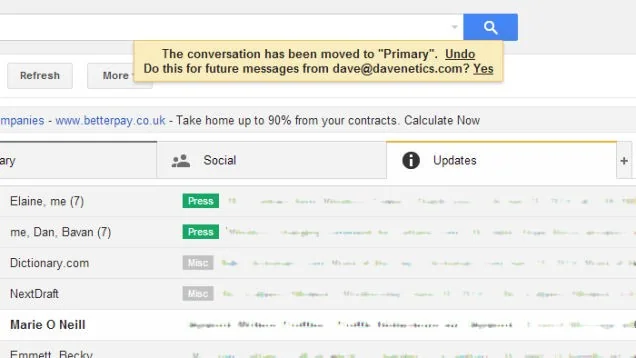
Test and maintain rules
Review the search results before saving, and consider applying the rule to existing matching conversations only when you are sure the criteria are correct. Send yourself a test message or wait for the next expected message, then confirm it appears in the intended label. If the rule catches unrelated mail, edit it under Settings, See all settings, Filters and Blocked Addresses.
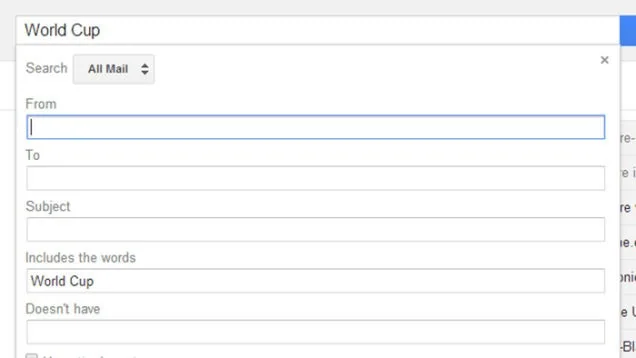
Audit forwarding and old filters
Periodically remove rules you no longer use and investigate any forwarding address you do not recognize. Be especially cautious with filters that archive or delete messages containing words such as “password,” “invoice,” or “security.” A filter should save routine sorting time while leaving important account and payment messages visible.

