
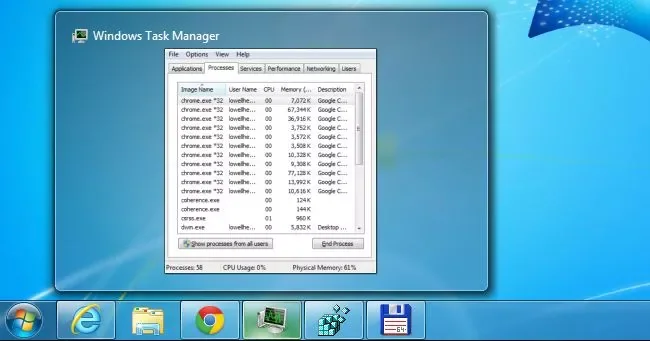
Windows shows a thumbnail preview when you hover over an open taskbar button. The preview size is controlled by system settings and can be adjusted through supported configuration, but registry edits should be treated as advanced changes.
Try supported display settings first
Check scaling, taskbar behaviour and accessibility options before editing the registry. A larger display scale can make previews and text easier to read across the desktop.
If you use a registry setting
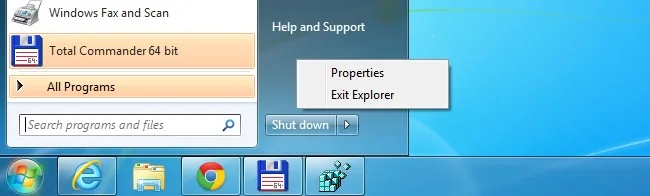
Create a restore point or export the relevant key, change only the documented value and restart Explorer as instructed by a trusted source. Do not download a “tweak” utility that bundles unrelated software.
Balance size and usability
Very large thumbnails can cover other windows and may be awkward on a small display. Test the setting with several applications, then restore the default if switching windows becomes slower.
Primary reference: Microsoft accessibility guidance.
Undoing a tweak
If the preview becomes unstable, restore the exported registry value or use System Restore, then restart Explorer. Test the change with both classic desktop apps and modern windows because their thumbnail behaviour can differ. Keep Windows updated before applying cosmetic tweaks from old guides.

Changes made for one display scale may look different on another monitor. Test after signing out and after a Windows update, and keep the original setting recorded so a future administrator can reproduce or undo the change.
Use the linked official documentation for the installed version and confirm the result on the exact device or account described here. Keep a backup before changing settings, and stop if the behaviour suggests hardware failure or unauthorised access.

