
An app cannot repair a damaged cable or make an unsafe adapter suitable for an iPhone. If a phone charges slowly, stops before full, or shows an accessory alert, use Apple’s current troubleshooting steps and inspect the physical charging setup first. Accessories, charging ports, and battery features differ across iPhone generations, so match instructions to the model and iOS version.
Use compatible, undamaged accessories
Apple’s safety information says iPhone can be charged with the supplied cable and a compatible power adapter, a supported MagSafe or Qi-certified charger on compatible models, or a computer connection. Apple also allows compliant third-party accessories that meet applicable standards. Avoid frayed cables, bent adapter prongs, damaged plugs, and chargers with uncertain specifications. Stop using equipment that becomes unusually hot, has been exposed to liquid, or is visibly damaged.
Keep charging conditions safe
Keep the phone, cable, adapter, and wireless charger in a ventilated area. Do not place a charging device under bedding or sit or sleep on the cable. Keep charging equipment away from moisture and do not connect or disconnect an adapter with wet hands. With wireless charging, follow the charger manufacturer’s directions and remove metallic cases or objects if they interfere or become warm. If the phone or battery appears damaged or swollen, stop using it and seek qualified service rather than pressing, opening, or heating the device.
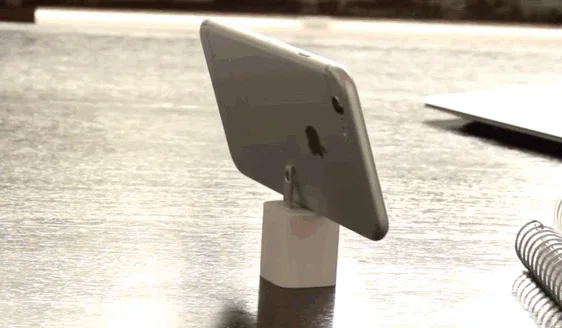
Troubleshoot a phone that will not charge
Apple’s support checklist suggests connecting the iPhone to a reliable power source, restarting it, checking the cable and adapter for damage, trying a wall outlet, and checking the charging port for debris. If there is visible debris, use only safe cleaning guidance for your exact model; do not push metal tools into the connector. Allow the phone time to charge, then follow Apple’s model-specific force-restart instructions if it still will not start. If the problem continues, arrange service through Apple or an authorized provider.
Understand an 80 percent limit
A charge stopping near 80 percent does not always mean the phone or charger is broken. Apple explains that Optimized Battery Charging can delay charging past 80 percent based on a learned routine, and software may limit charging if the device becomes too warm. Some newer models also offer a user-set charge limit. Check Battery settings and the device temperature before changing anything, and consult current Apple guidance for your model.
Use official instructions rather than a third-party “battery booster” or charging utility. Such apps cannot safely override hardware protections. The best next step is to check the cable, power source, port, temperature, and battery settings, then seek service if the device still behaves abnormally.

