
Samsung Odin is a Windows utility used in service and firmware workflows for selected Samsung devices. It is not a general Android repair app, and an older copy obtained from an unofficial download site may be unsafe. If Odin does not detect a phone, avoid repeatedly flashing files or trying random drivers. First decide whether you actually need a firmware repair. For ordinary data transfer or an official software update, Samsung recommends its consumer tools such as Smart Switch where supported.
Start with safe connection checks
Use a known-good USB data cable, connect directly to a computer port rather than a hub, and try another port. Some cables only charge. Unlock the phone if it boots normally, then check whether Windows detects it as a device. On supported Samsung models, install or update software only from Samsung’s official support channel. Restart the phone and computer and close other programs that may be using the USB connection.
If the phone is intentionally in Download Mode, it should display a download warning screen. Samsung says Download Mode is used by technicians to diagnose and repair Galaxy devices and may appear during an update. Follow model-specific support instructions; the wording and button combinations vary by device and region. If you entered Download Mode accidentally and are not actively installing firmware, Samsung’s support article provides the correct exit guidance for the covered models.
Check drivers and the right tool
Windows may need Samsung’s official USB driver or a supported version of Smart Switch, but driver packages and tools differ by model and operating system. Use Samsung’s own downloads page and product support page rather than driver bundles from third-party sites. If the goal is a normal software update, Samsung documents checking for updates in Settings and using Smart Switch on a computer where available. If the update repeatedly fails or the device will not boot, Samsung recommends service in some cases.
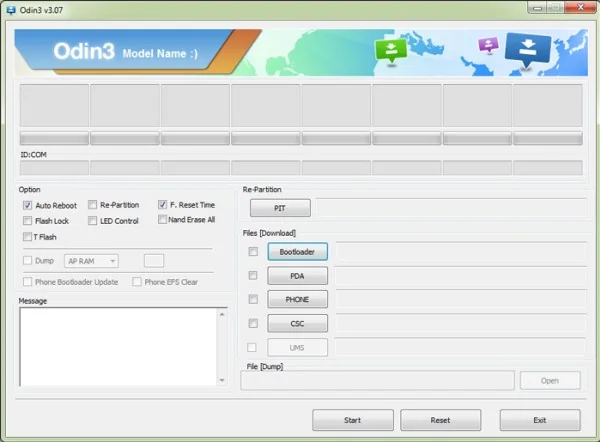
Odin is commonly distributed outside Samsung consumer support, and Samsung’s public consumer documentation does not establish a universal Odin version or flashing recipe for every Galaxy. Do not load firmware unless it matches the exact model and region, and do not use files from random mirrors. A wrong package can erase data, break connectivity, or render a phone unusable. Preserve a backup first if the phone still starts.
When to stop
If Windows never detects the phone with multiple known-good data cables and ports, the USB port, cable, driver, or phone hardware may be at fault. If Download Mode remains stuck, the phone reboots repeatedly, or an update fails and the device cannot start, contact Samsung or an authorized repair provider. Keep the model number, Windows version, exact error message, and steps already tried. Do not disable security protections or install unsigned driver tools to force detection.
References: Samsung guidance for Download Mode, Samsung software-update troubleshooting, and Samsung official downloads.

