
A file system is the set of rules a storage volume uses to organise files, directories and information about them. It helps the operating system find a document, record its name and size, and track where its contents are stored.
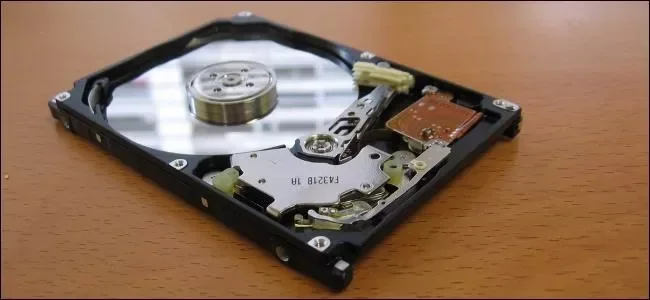
Files, directories and metadata
A directory is the structure behind the folders you browse. Metadata describes a file: its name, size, timestamps and, where supported, ownership or access rules. The file’s contents and its metadata are related, but they are not the same thing. Copying a document can preserve the text while losing a permission or other attribute the destination format does not support.
Drive, partition, volume and format
A physical drive is the hardware. A partition divides a device’s addressable space. A volume is a storage area the operating system presents for use. These concepts often line up on a simple USB drive, but they are not interchangeable: one physical device can hold several storage areas.
Formatting creates a file-system structure on the selected target. It is different from making a folder or renaming a drive. Treat reformatting as destructive and verify a separate copy of important data before starting.
Which format fits the job?
| Format | Common use | Main caveat |
|---|---|---|
| FAT32 | Removable media for devices that require it | Individual files are limited to just under 4 GiB; check device support. |
| exFAT | Transferring large files between compatible Windows PCs and Macs | It lacks NTFS-style access control lists and metadata journaling. |
| NTFS | Windows system volumes and Windows-focused storage | Read/write support varies on other platforms and appliances. |
| APFS | Modern Mac storage | Choose it for an appropriate Mac workflow, not assumed universal compatibility. |
| HFS+ / Mac OS Extended | Some older Mac workflows | Confirm the application and macOS requirements before choosing it. |
| ext4 or Btrfs | Supported Linux installations and storage workflows | A Windows PC or Mac may need additional support to access the volume. |
Why a large file can fail to copy
A FAT32 volume can have plenty of free space yet reject one large video because free capacity and maximum file size are different limits. Check the format when a large file fails while smaller ones copy normally. Do not erase the drive immediately: first decide whether another supported format, a different transfer drive or another transfer method suits the destination.
Permissions and journaling change the trade-off
NTFS supports access control lists and metadata journaling, while Microsoft’s comparison lists neither feature for exFAT or FAT32. Journaling helps manage changes to the file-system structure; it is not a backup of every document. Permissions can control access within a supported system, but they should not be confused with encrypting the contents.
APFS offers Mac-focused capabilities including encryption options, snapshots and space sharing among volumes in a container. Those features serve a different purpose from making a transfer drive readable by as many appliances as possible.
Choose from the destination backwards
List everything that must read or write the drive: computers, cameras, televisions and backup applications. Check their manuals, including any limits on capacity and format. For backup software, follow its requirements rather than choosing a format only because it can hold an ordinary text file.
Before and after formatting
Verify the backup, disconnect unrelated removable drives where practical, and check the target’s name and capacity. After formatting, copy a small test file and one representative large file, then open them on the destination device. Only continue with the full archive once that test succeeds. If an unfamiliar drive cannot be mounted, avoid accepting an erase prompt while its existing files still matter.

