
Android USB tethering shares your phone’s mobile data connection with a computer through a cable. It can be useful when Wi-Fi is unavailable, but it may count against your mobile plan and some carriers restrict or charge for tethering. Check your plan before using it for large downloads. USB tethering is different from using a phone as a USB network adapter for a computer’s wired connection; Google’s Android Help describes the phone sharing its own connection outward.
Turn on USB tethering
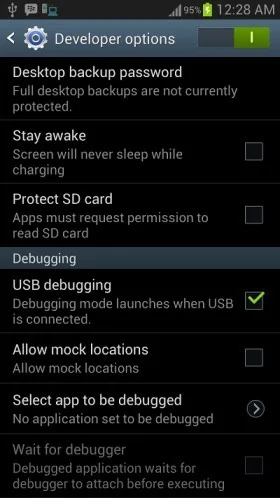
- Confirm mobile data works on the Android phone and connect it to the Windows PC with a data-capable USB cable.
- Unlock the phone. If Android asks how to use USB, choose a normal data connection option; exact prompts depend on the phone.
- Open Settings and search for “Hotspot” or “Tethering.” You may find it under Network & Internet, Connections or Mobile Hotspot and Tethering.
- Turn on USB tethering. Keep the phone unlocked if the computer needs permission to use the connection.
- On Windows, wait for the network connection to appear, then open a trusted website to test it. Turn USB tethering off when finished.
Android versions and manufacturers arrange the menu differently. The USB tethering switch may remain unavailable until a compatible USB cable is connected. Use a cable that supports data, not one designed only for charging. Some carriers disable the feature or require a tethering plan. Google notes that Android USB tethering does not work with Mac computers; use Wi-Fi or Bluetooth tethering for supported Mac setups instead.
Manage battery and data use
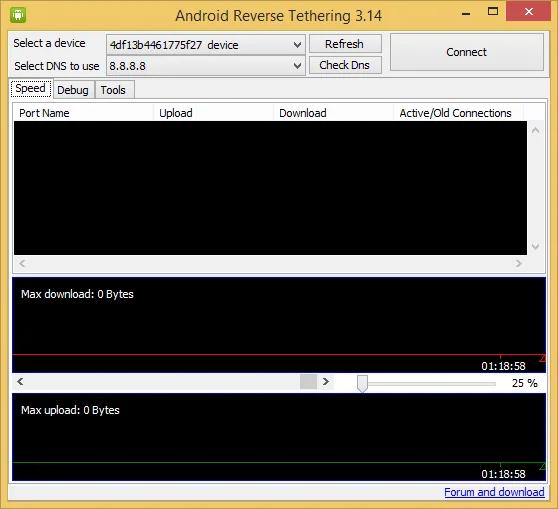
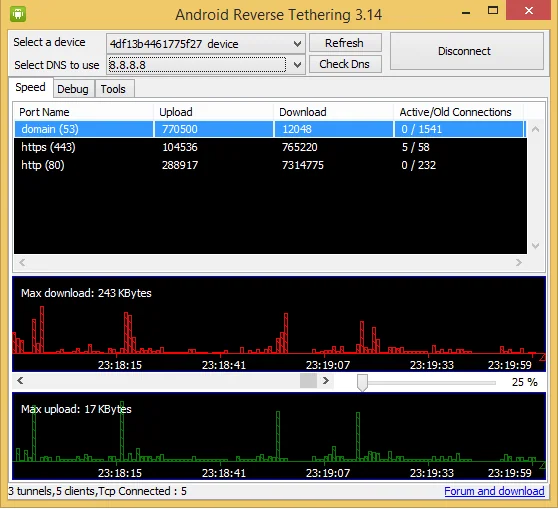
Tethering can consume battery and mobile data quickly. Connect the phone to power if appropriate, monitor your carrier’s usage meter and disconnect when you finish. Avoid using an open, password-free Wi-Fi hotspot as an alternative in a public place. USB creates a direct link, but it does not make traffic private from the websites, apps, carrier or network you are using.
Troubleshoot connection problems
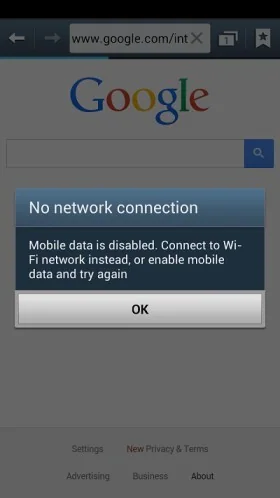
If the PC stays offline, toggle USB tethering off and on, try another data-capable cable or USB port, check that mobile data works on the phone, and restart the phone and PC. Install Android and Windows updates from their normal settings screens. If the switch is missing or blocked, contact the phone maker or carrier rather than installing drivers from unofficial download sites. For work-managed devices, an administrator may restrict tethering.
Official reference
Google Android Help: share a mobile connection by hotspot or tethering

