
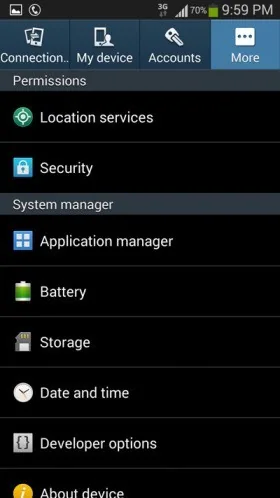
An SD card can add space for photos, videos, downloads, and other files on an Android phone, but it does not guarantee that apps can be moved. Support depends on the phone, Android release, card setup, and each app. A 2014 Android 4.3 tutorial may show controls that no longer exist on a current phone, so check your device’s own storage settings before moving anything.

Choose how the card will be used
Android’s SD-card setup can offer portable storage or internal storage on supported devices. Portable storage is designed for files that you can move between compatible devices. Internal or adopted storage can be tied to the phone and may be encrypted or formatted for use there, which can make the card unreadable elsewhere. Read the setup warning and back up anything already on the card before formatting it. If your phone does not offer an SD-card option, it may not have a reader or may not support the feature.
Move photos and files
For documents, downloads, pictures, or videos, use your device’s file manager or Files by Google. Google’s Files app can move or copy files to an SD card on compatible devices. Open the file manager, select the files, choose Move or Copy, and pick a destination folder on the card; button names may vary by app version. Verify that the copied files open from the new location before deleting the originals. Do not move app data folders manually unless the app maker or device maker documents that process.
Check whether an app can move
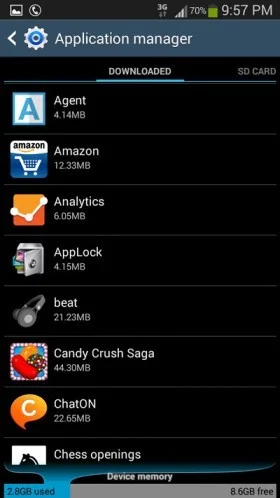
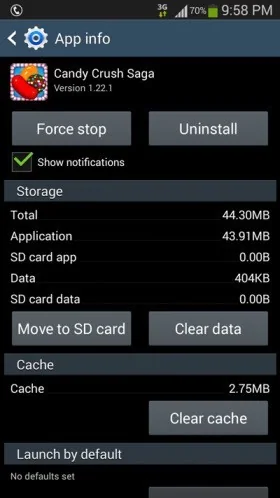
On some Android phones, open Settings, then Apps, select an app, and look for a Storage or Change option. If the option is missing or disabled, the manufacturer or app does not allow that app to move to removable storage. Do not force it with root tools or third-party “app mover” utilities: moving protected components can break updates, widgets, notifications, or the app itself. System apps and many app components need to remain in internal storage. Menu names and behavior differ by device, so use the manufacturer’s current manual for the exact model.
Free space without risking data
- Back up photos and videos before deleting local copies.
- Use Android’s Storage settings to identify large files and apps you no longer need.
- Clear an app’s cache only if you understand that cached data may be downloaded again.
- Keep free internal space for system updates and app operation.
- Use a reputable card from a known seller and replace it if Android reports repeated read or write errors.
Safely remove and maintain the card
Before physically removing a card, follow the phone’s settings to eject or unmount it if that option is available. Removing a card during a write can corrupt files. Keep a second copy of important data in a separate backup location; a removable card can fail, be lost, or be damaged along with the phone.
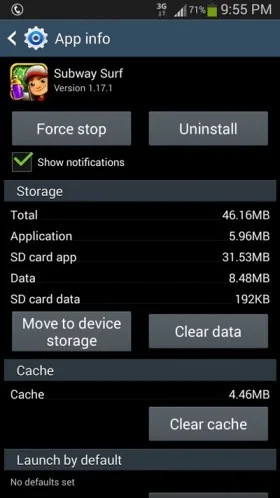
Files by Google documents moving files to an SD card, while app installation behavior is device-specific. Treat those as separate tasks and do not promise that every app or game can be transferred.

