
Voice typing can be faster than tapping on a small keyboard, but it is best treated as a first draft. Android keyboards differ, and the current Gboard interface may vary by phone, language and software version. Gboard’s official instructions describe dictation by opening an app with a text field, tapping the keyboard microphone and speaking when the prompt appears. Not every language or application supports every feature, so test it in a private note before using it for an important message.
Dictate and review
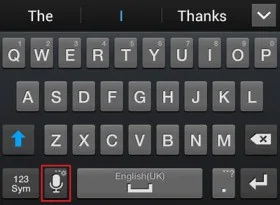
Place the cursor in the intended text field, tap the microphone, wait for the listening indicator and speak in short, clearly separated phrases. You can say punctuation such as “comma,” “full stop” or “new paragraph” when the selected language supports those commands. Tap the microphone again or use the keyboard’s stop control to end dictation. Read the full message before sending: names, numbers, addresses and technical terms are easy to misrecognize. Correct errors manually rather than assuming speech recognition understood the context.
Choose language and privacy settings
For multilingual use, add the languages you actually speak in Gboard settings and check the active keyboard language before dictating. Keep the device’s microphone permission limited to applications that need it. Google documents separate advanced voice-typing features on some Pixel devices; availability and on-device processing behavior depend on device, language and feature. Review Gboard’s Privacy and voice-typing settings if you want to manage personalization or delete learned data. Do not dictate confidential work, passwords, payment details or health information into an app unless its privacy policy and your organization’s rules allow it.
Improve recognition
Reduce background noise, hold the phone at a comfortable distance and pause between sentences. Use a headset microphone only if it is connected and selected correctly. If the microphone icon is missing, check keyboard settings, app microphone permissions, the selected input language and whether the device is offline. Update Gboard through the official app store, and avoid unofficial keyboard APKs. If dictation stops mid-sentence, reconnect to a stable network when required or switch to typing; do not repeat sensitive content in a third-party service just to test it.
Accessibility benefit, with a final check
Dictation can reduce typing effort for people with limited mobility or temporary hand strain, but it does not replace proofreading. Before sending, verify punctuation, recipient and attachments. A brief review catches the errors that speech recognition cannot reliably infer and prevents a convenient feature from creating an avoidable mistake.

