
Windows Phone Link can show and let you interact with an Android phone’s screen on a PC, but the feature is limited to supported phone models and markets. It is different from casting to a television, and it does not install the phone’s apps on Windows. First check Microsoft’s current supported-device list; an Android version number alone does not guarantee compatibility.
Check the requirements
Update Windows and install or open Phone Link on the PC. On a supported Android phone, make sure Link to Windows is installed or available, then connect both devices to the same Wi-Fi network. Some public, work or guest networks block the device-to-device communication Phone Link needs. Keep the phone nearby and unlocked during initial setup.
Link the devices
- Open Phone Link on the Windows PC and choose the Android setup option.
- Follow the on-screen linking steps. Depending on the phone, you may scan a QR code with Link to Windows or use the sign-in flow shown by the app.
- Review the permissions and confirm the matching codes or prompts on both devices.
- After pairing, open Phone screen in Phone Link if your model supports it.
Allow only the permissions needed for the features you want. A linked PC may show notifications or content from your phone, so use a trusted Windows account and lock the PC when you step away.
Troubleshoot a missing or blank screen
Confirm the phone appears in Phone Link, both devices are on the same Wi-Fi network and the phone model supports Phone screen. A VPN, firewall or managed network can block communication; follow Microsoft’s troubleshooting guidance or ask the network administrator rather than disabling security protections broadly. Some protected apps may not display their content through mirroring.
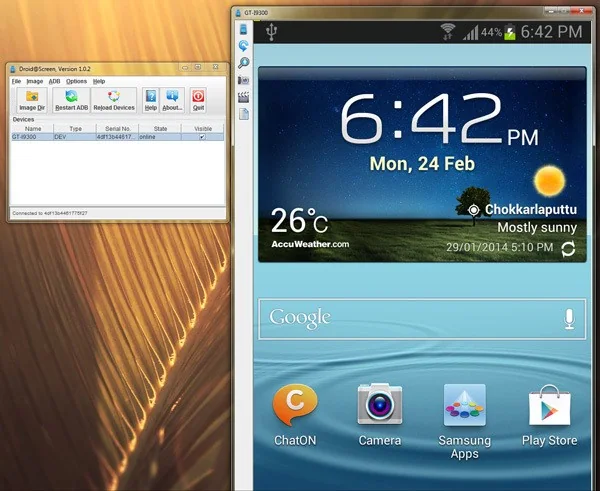
Phone Link can be useful for supported devices, but it is not a universal Android screen-sharing method. If your phone is not listed, use the manufacturer’s documented casting or USB options instead of installing an unofficial mirroring APK.

