
Android Guest mode can give someone a separate temporary profile on a supported phone. The guest profile has its own space, so it is a better option than handing over your unlocked owner profile or adding a visitor’s account to your personal profile. Guest mode is not available on every Android phone, and settings may differ by manufacturer.
Start a guest session
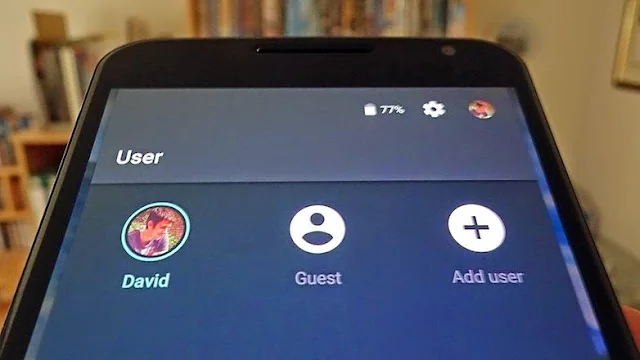
- Open Quick Settings by swiping down from the top of the screen. On many phones, swipe down again to expand it.
- Tap the user or profile icon.
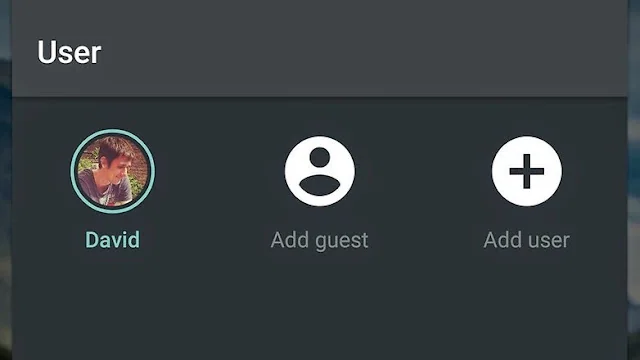
- Choose Add guest or select the existing Guest profile.
- If prompted, choose whether to start a fresh guest session or continue the previous one.
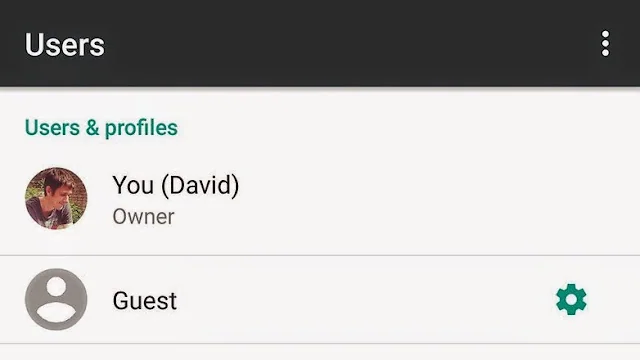
If you do not see a user icon, open Settings and search for Multiple users or Users. Google’s general Android instructions say to open Settings > System > Multiple users, but if you cannot find an add-user option, your device may not support additional profiles. Check the manufacturer’s help page for model-specific directions.
End the session and remove guest data
When the guest is finished, return to the user switcher and choose the option to remove the guest or start over. Removing the guest deletes information stored in that temporary profile. Confirm that the person has saved anything they need before ending the session. If a guest profile remains for reuse, it may retain its session data until you remove or reset it.
Understand what Guest mode does not guarantee
A separate profile helps keep the owner’s ordinary files, messages and app data separate, but it is not a substitute for a fully managed kiosk or child-safety setup. Google notes that some settings, such as Wi-Fi and Bluetooth, can be shared across users, and behavior varies by device. Do not give access to sensitive accounts or assume every app will behave identically in Guest mode. Lock the owner profile with a PIN, password or biometrics before lending the phone.
If your phone lacks Guest mode, do not install an unfamiliar “guest mode” utility that requests broad access. Consider lending the device only while supervised, or use a separate device. Google’s help page distinguishes guest profiles from regular user profiles and explains how to add, switch and delete users on supported devices.

