
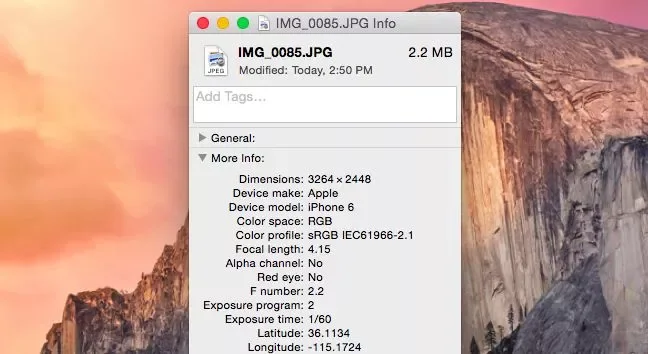
A photo can contain location information in its metadata, and a picture of a recognisable home, school or workplace can reveal a location even without GPS data. Before sharing a sensitive image, check what information your photo app shows and review the sharing options. Controls differ by device and service, so do not assume every app removes metadata in the same way.

Check a photo’s location
On iPhone or iPad, open the photo in Photos and swipe up or tap the Info button. If location data is present, Photos can show a map or location details. In Google Photos, open the image and view its information panel; a location may come from the camera’s metadata or from an estimate made by the service. An estimated location and GPS data embedded by the camera are not always managed with the same controls.
Remove or exclude location when sharing
On iPhone or iPad, select the photo, tap Share, open Options, turn Location off, then share it. Apple notes that the normal sharing flow can include associated metadata, so check the Location option for the share you are about to make. You can also remove location data from an item in Photos by opening its information or adjustment controls and choosing No Location where available.
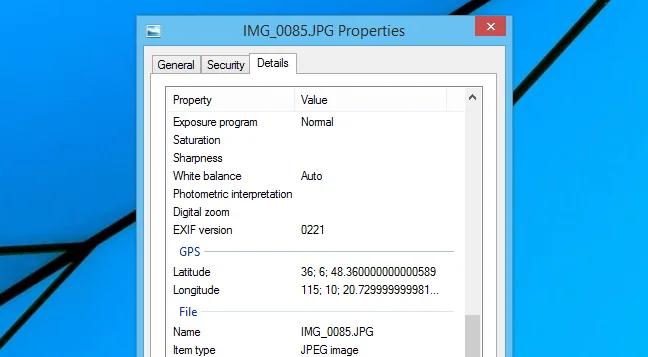
Google Photos lets you choose whether location details are included when you create a new shared album, link or conversation. Review that choice before sharing. Google says camera-added location cannot be edited or removed from the photo within Google Photos itself; estimated or manually added locations have different controls. If you need to remove embedded GPS data from the original file, use a trusted editor that explicitly supports metadata removal, save a separate copy, and inspect the copy before sending.
Prevent future camera location tagging
You can stop location collection for future photos by changing the camera app’s location permission in your phone’s privacy settings. This affects newly captured photos; it does not erase location data already stored in older files. Keep location services enabled for other apps only as needed.
Check the image after export
For a sensitive photo, export or copy the version you plan to send and inspect its information again. Sharing services can resize or transform images, but their behavior varies and may change. Do not rely on a social network to strip location data. Also look for visible clues such as house numbers, street signs, school logos, badges and reflections. See Apple’s photo sharing options and Google’s guidance on location privacy in Google Photos.

