
SFTP lets you transfer files over an SSH connection. On Windows, a graphical client such as WinSCP can make a remote SFTP folder feel familiar to File Explorer users. One distinction matters: WinSCP’s Explorer interface is its own file window; it does not turn the remote folder into a native Windows drive or make every desktop app browse it as a local disk.
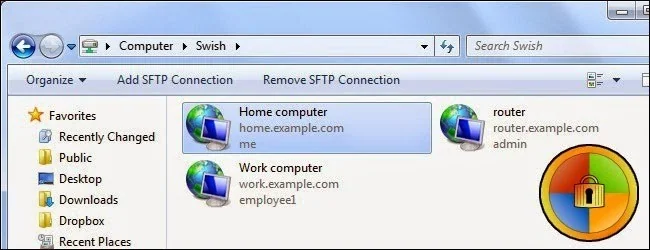
Collect the server details
Ask the server administrator or hosting provider for the hostname, username, authentication method, port and remote folder path. SFTP commonly uses SSH, but the server may use a different port. Do not assume the website domain is the SFTP hostname or reuse a password from another account.
Create and verify a WinSCP session
- Install WinSCP from its official download page.
- Open the Login dialog and select SFTP as the file protocol.
- Enter the hostname, port and username supplied by the administrator. Select the authentication method that was configured, such as password or a private key.
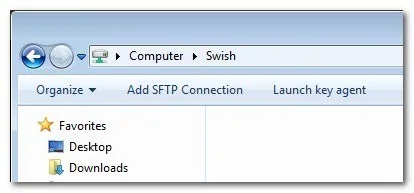
- Choose the Explorer interface during installation if you prefer a single remote file panel similar to Windows folders. The Commander interface is also available and shows local and remote panels side by side.
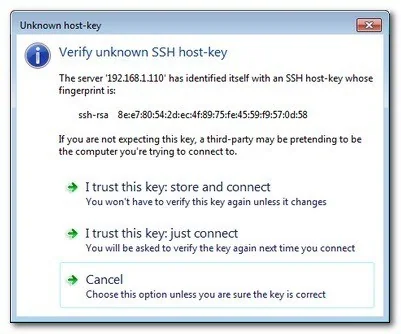
- Click Login. On the first connection, compare the server host-key fingerprint with a trusted value supplied by the administrator. Do not accept a changed or unexpected fingerprint without checking it.
Move files carefully
After connecting, browse to the remote directory you are authorized to use. WinSCP can transfer files through its menus or by dragging them between its window and a local File Explorer window. Confirm the destination path before uploading or deleting anything, especially on a shared production server.
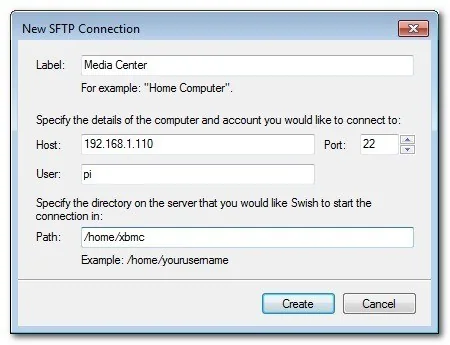
You can save a site profile to avoid re-entering connection details. Protect stored credentials with WinSCP’s master-password option or use a key-based setup where available. Never put a password in a shortcut, screenshot, public script or shared document.
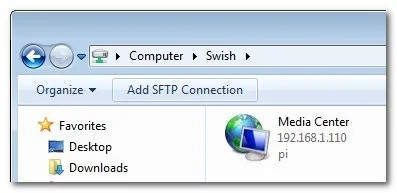
Disconnect and troubleshoot
Use the session’s Disconnect command when you finish. If login fails, check the protocol, port, username and server fingerprint, then ask the administrator whether the account has SFTP access. A timeout can indicate a network or firewall issue; do not disable security protections or try unrelated ports at random.
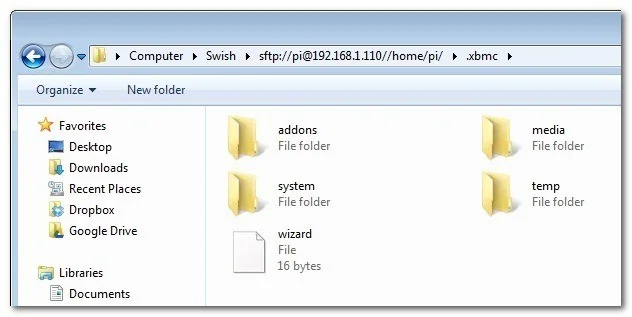
WinSCP’s Explorer interface provides a familiar remote file manager and transfer workflow. If you need a mounted drive that appears in native File Explorer for all applications, confirm the intended tool and security requirements with your administrator first.

